
Depositing to a Poker Site with Crypto
Deposit to Kraken
Note! This step will differ a little if you start with USD - SEPA is a Euro only transfer method so USD deposit will have to use another transfer method. In my region USD transfers aren't available so I can't guide you through this step in detail. Look through your options carefully to find the cheapest one.
On the Home screen in Kraken, tap Add money.
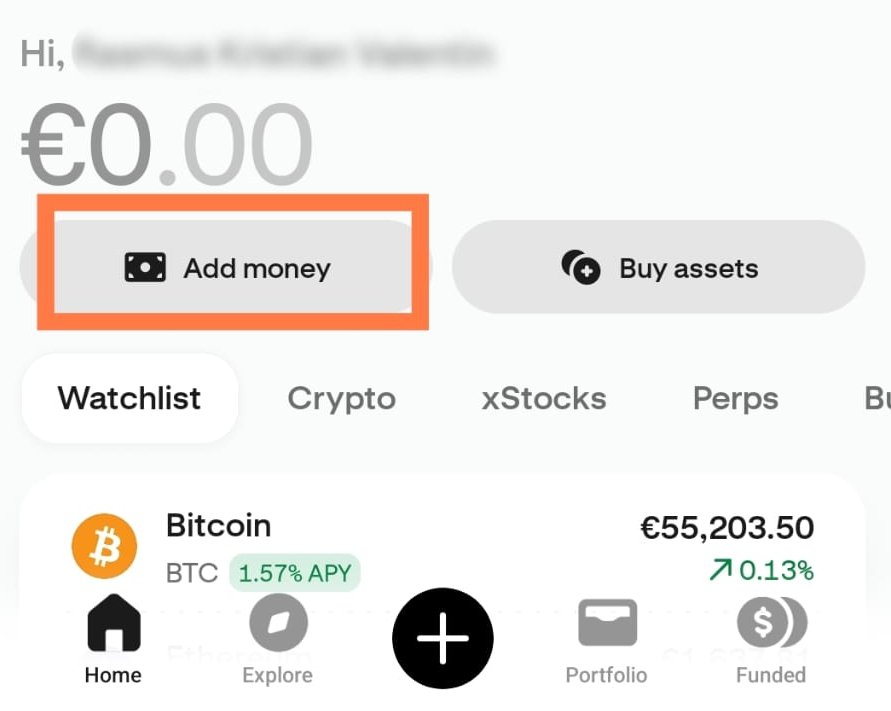
Home screen → Add money
On the next screen select Euro.
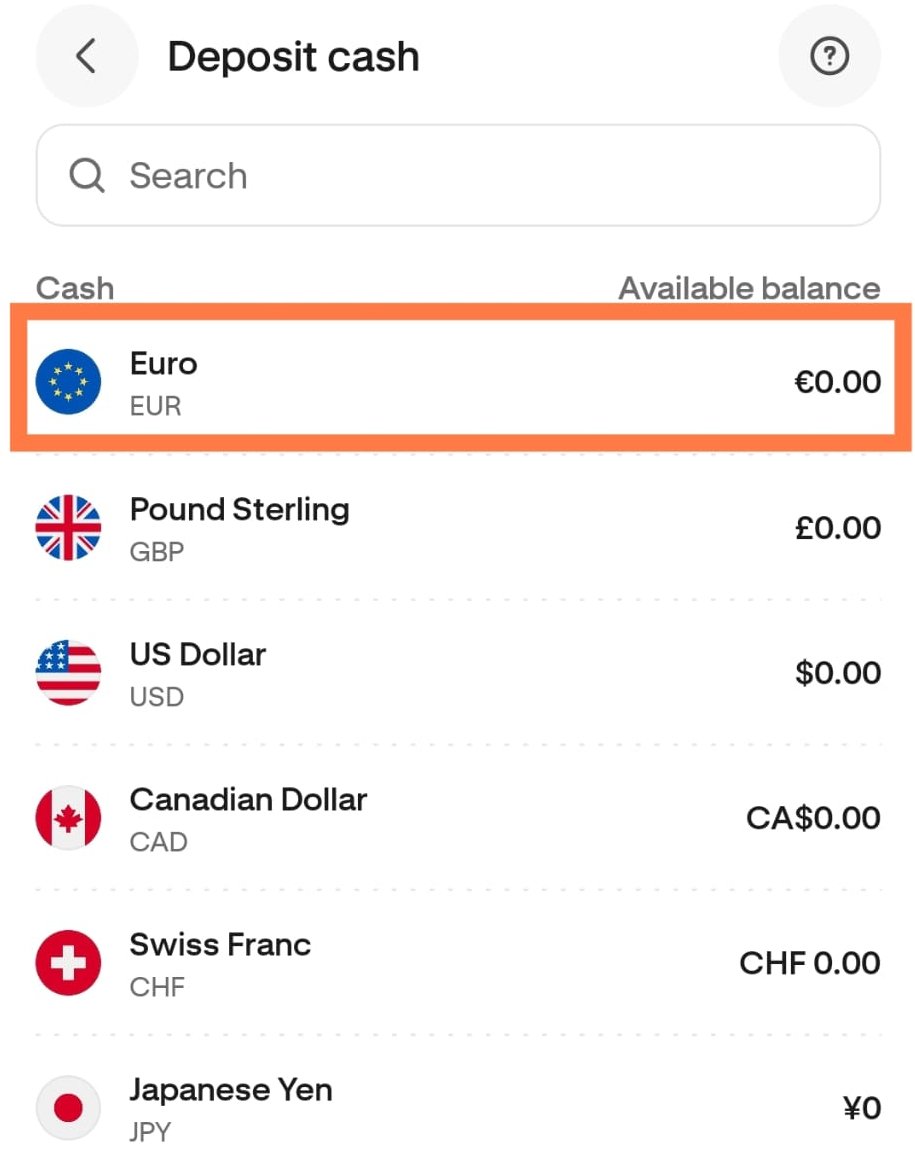
Home screen → Select Euro
Select Manual bank transfer.
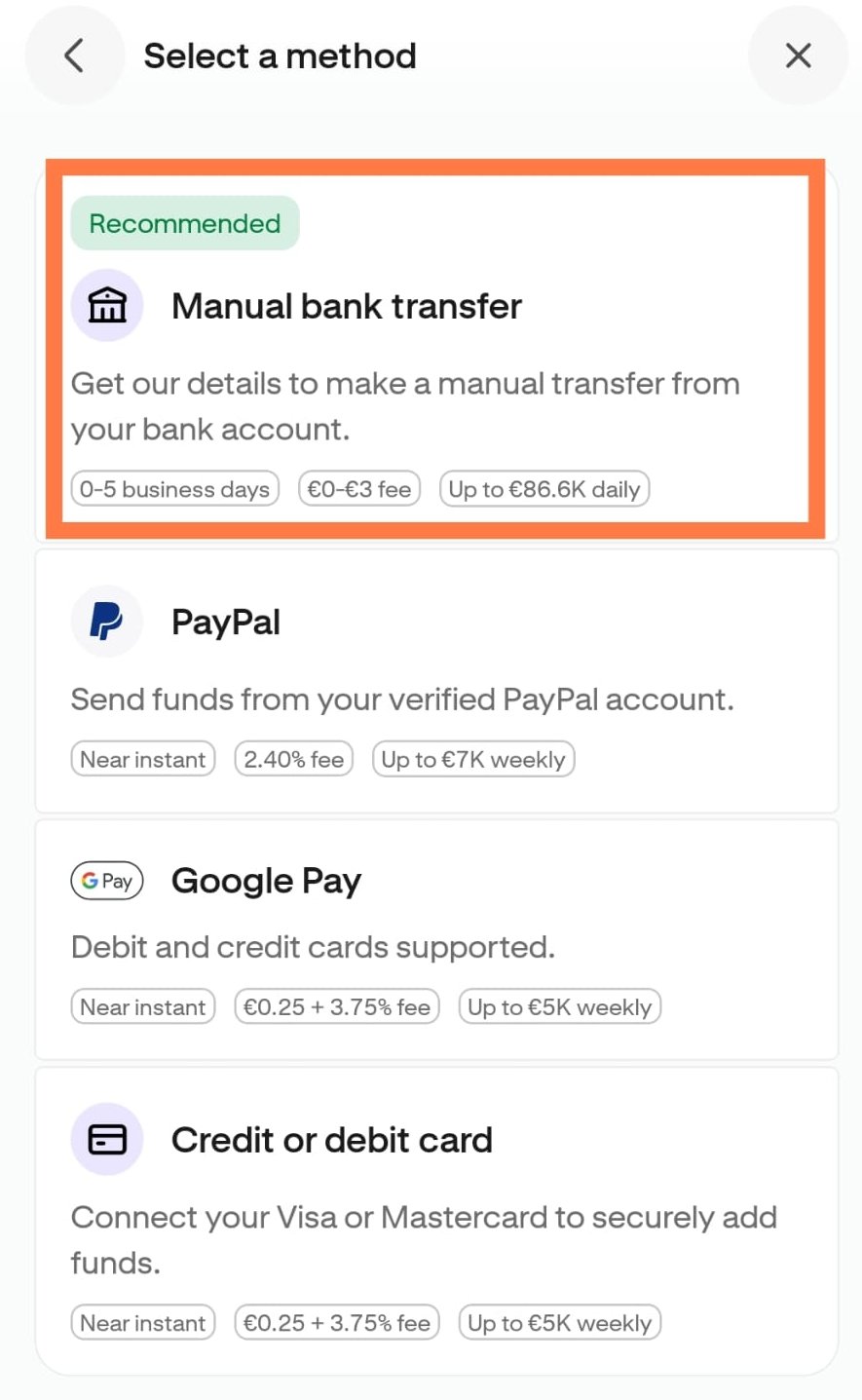
Select deposit method
Select SEPA.
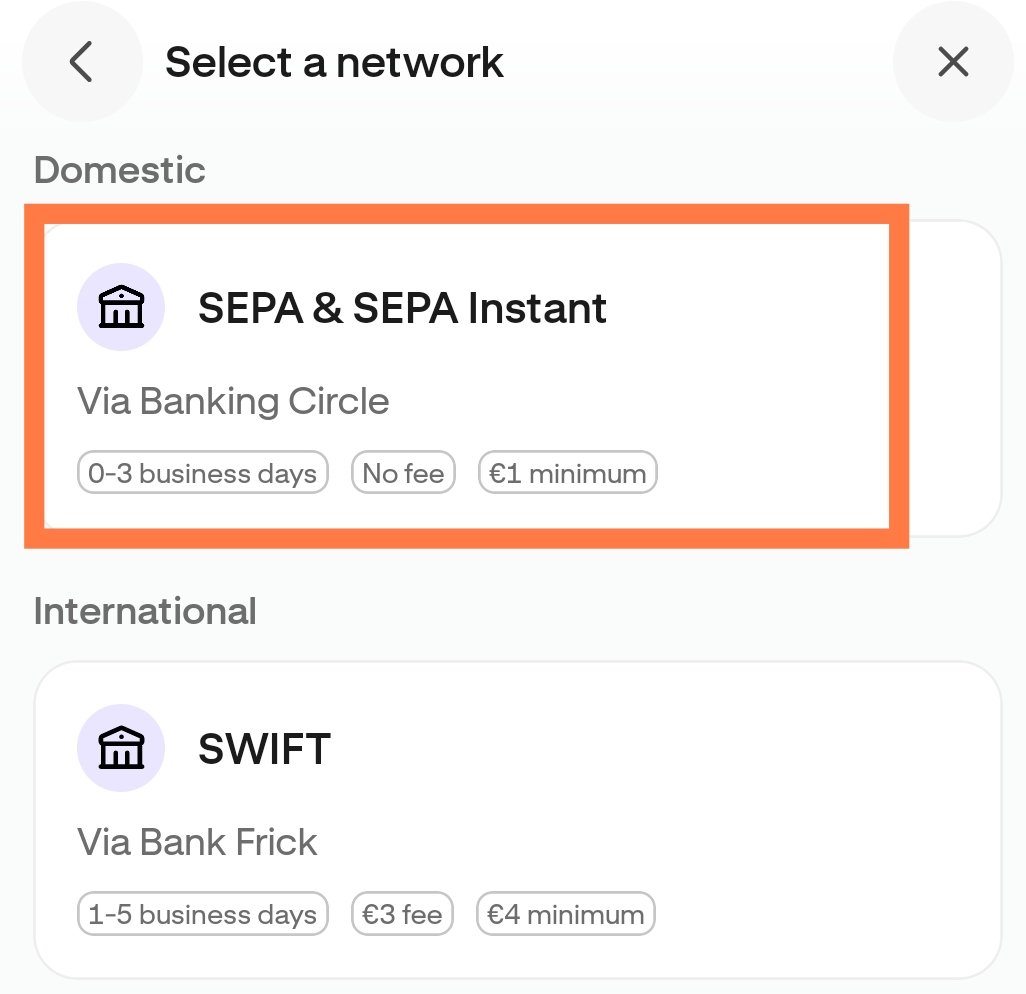
Select deposit method
Copy the IBAN number and name, and go to your bank app or e-wallet to make the transfer.
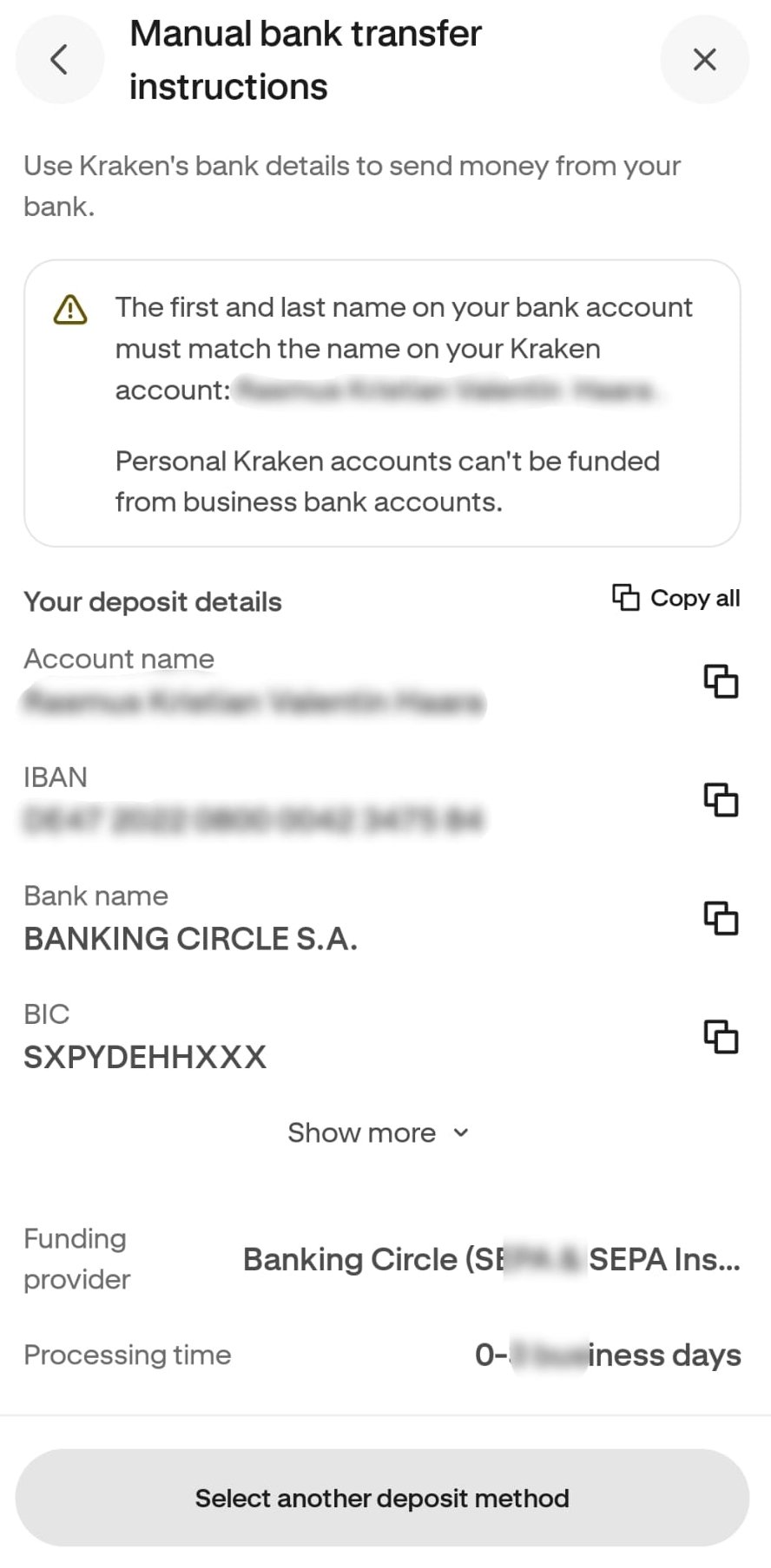
Deposit details
Deposit to OKX
Note! This step will differ a little if you start with USD - SEPA is a Euro only transfer method so USD deposit will have to use another transfer method. In my region USD transfers aren't available so I can't guide you through this step in detail. Look through your options carefully to find the cheapest one.
In OKX, go to Portfolio and tap Deposit next to EUR.
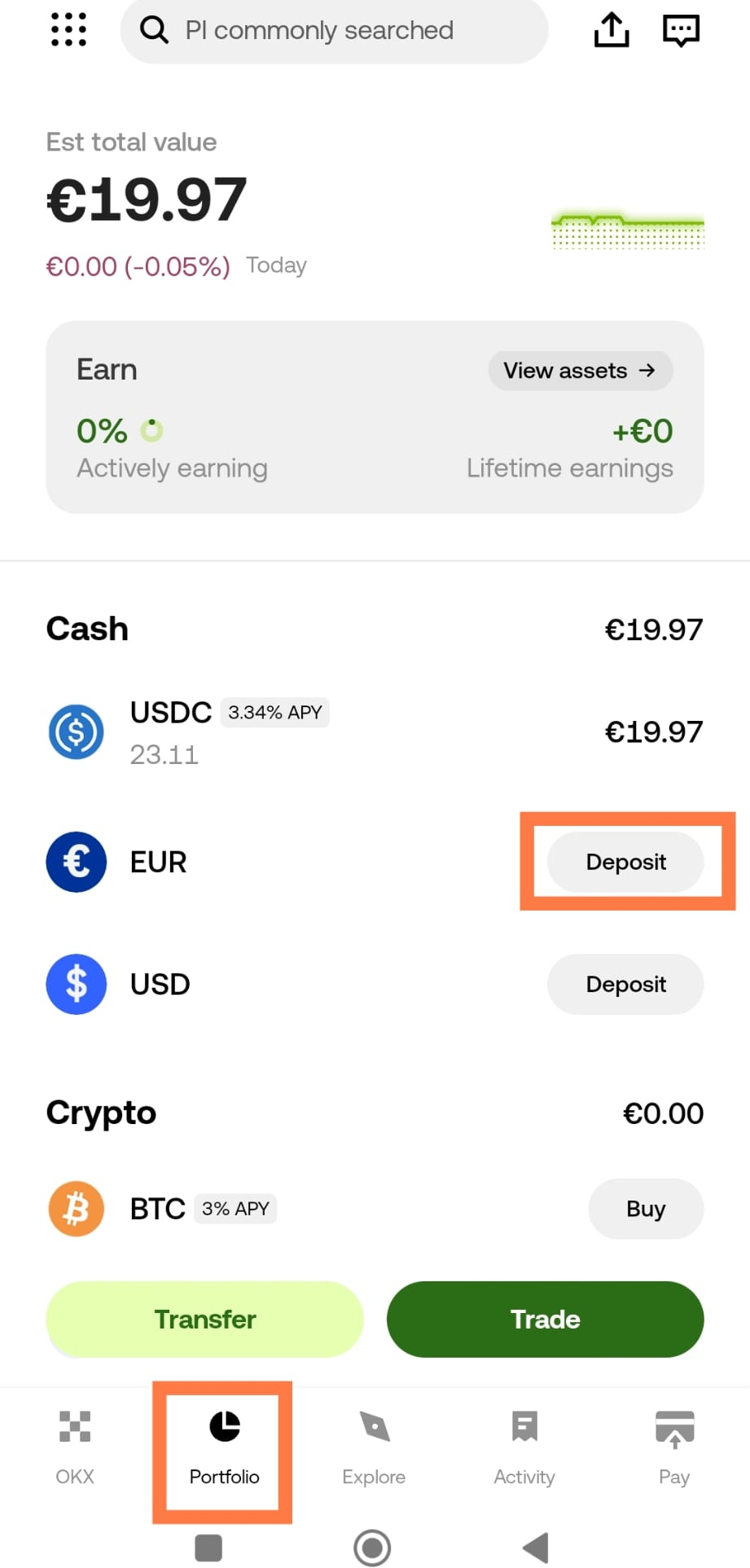
Portfolio tab → Deposit
Choose Bank transfer (SEPA) and tap Next.
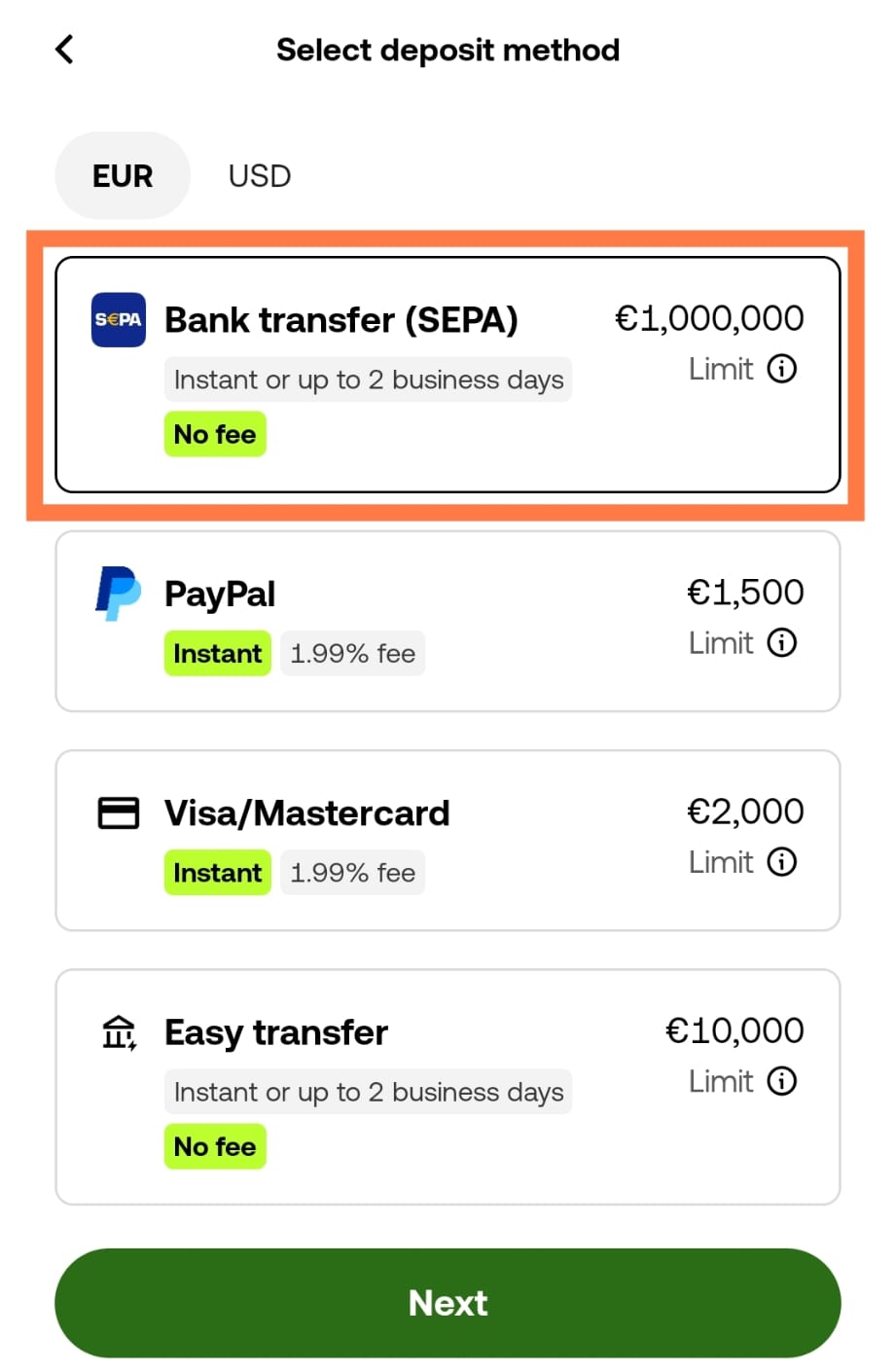
Select deposit method
Copy the IBAN number and name, and go to your bank app or e-wallet to make the transfer.
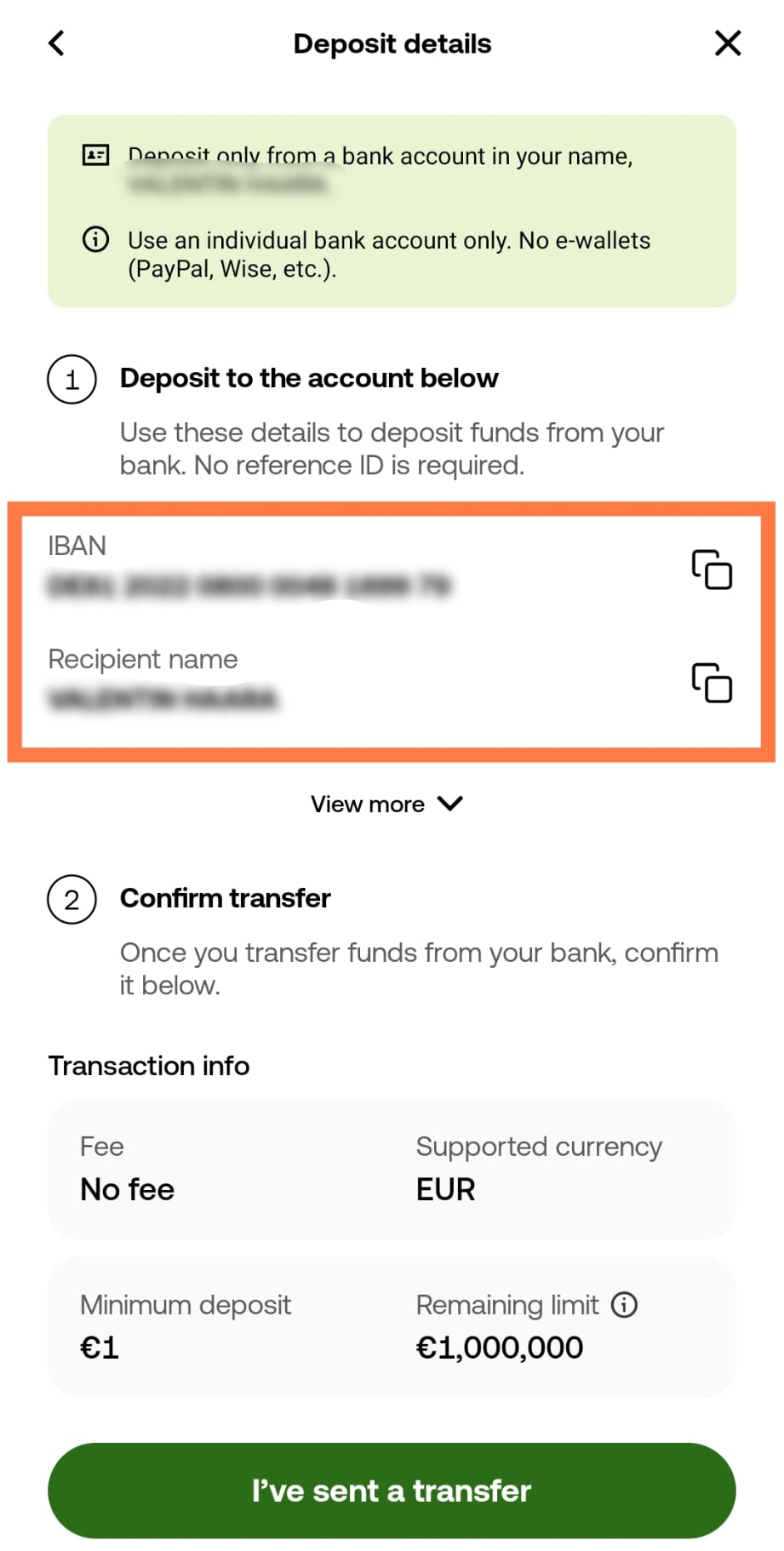
Deposit details
Deposit to CoinBase
Note! This step will differ a little if you start with USD - SEPA is a Euro only transfer method so USD deposit will have to use another transfer method. In my region USD transfers aren't available so I can't guide you through this step in detail. Look through your options carefully to find the cheapest one.
On the Home screen in CoinBase, tap Transfer
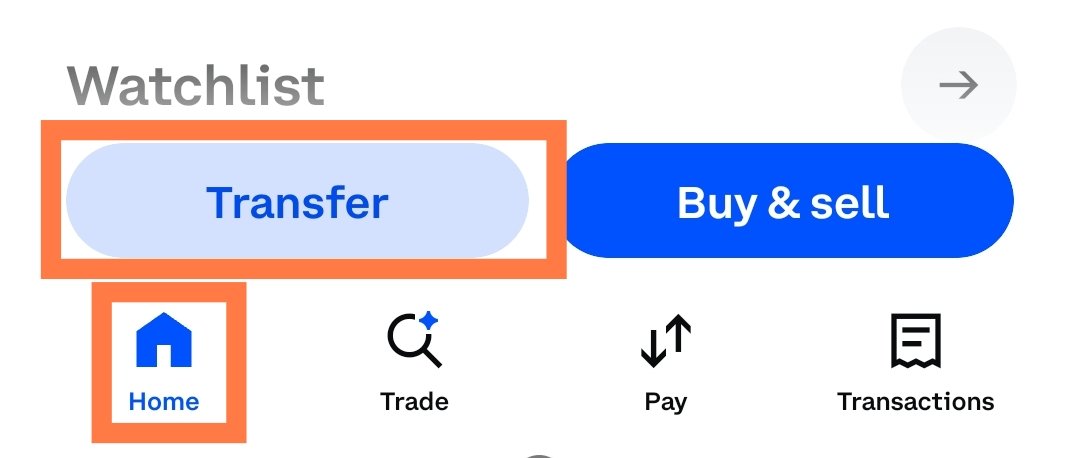
Home tab → Transfer
Choose Deposit cash.
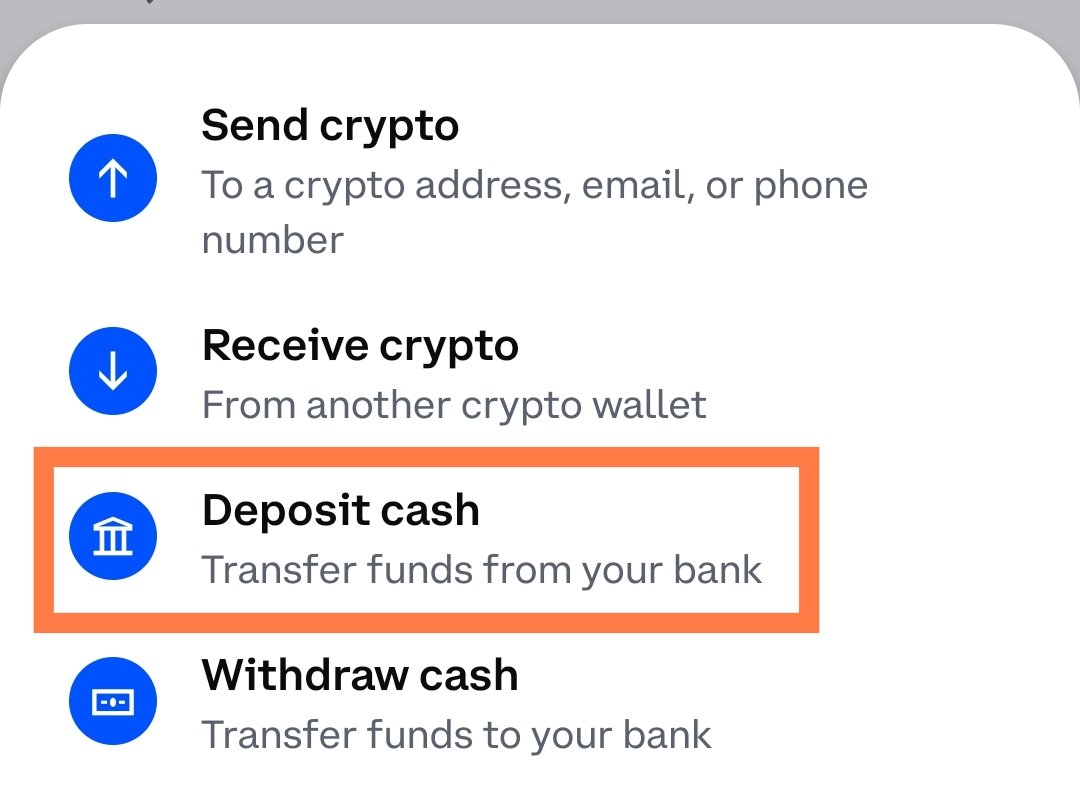
Deposit cash
Copy the IBAN number and name, and go to your bank app or e-wallet to make the transfer.
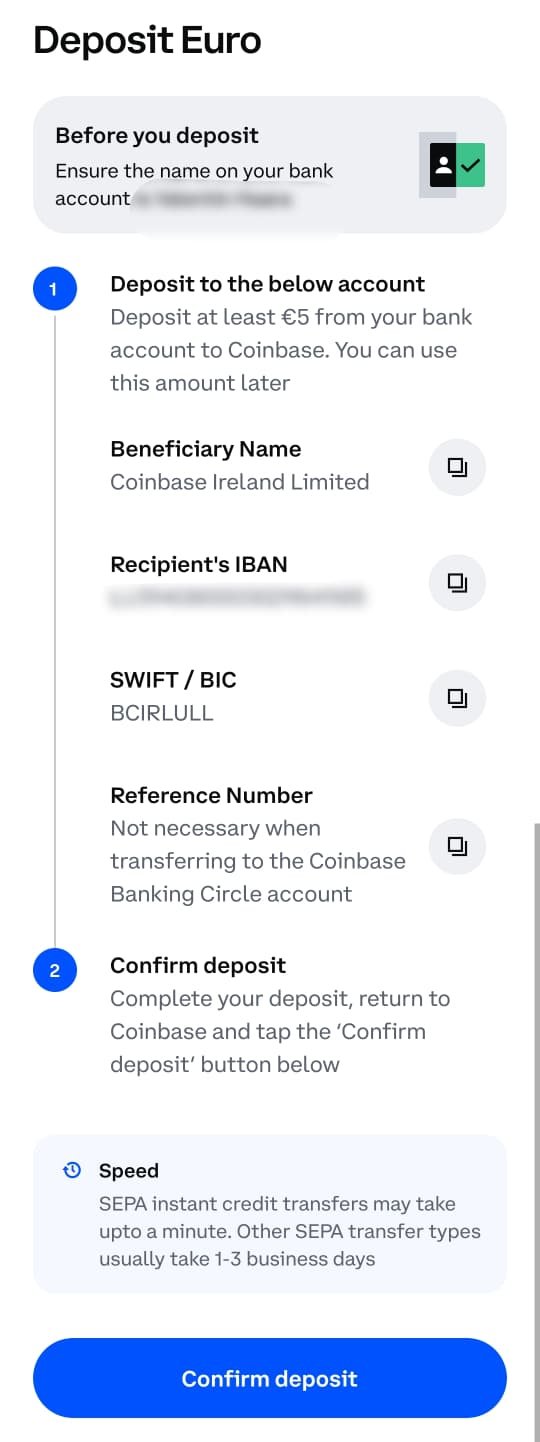
Deposit details
Buy tokens in Kraken
Tap the + and tap Buy.
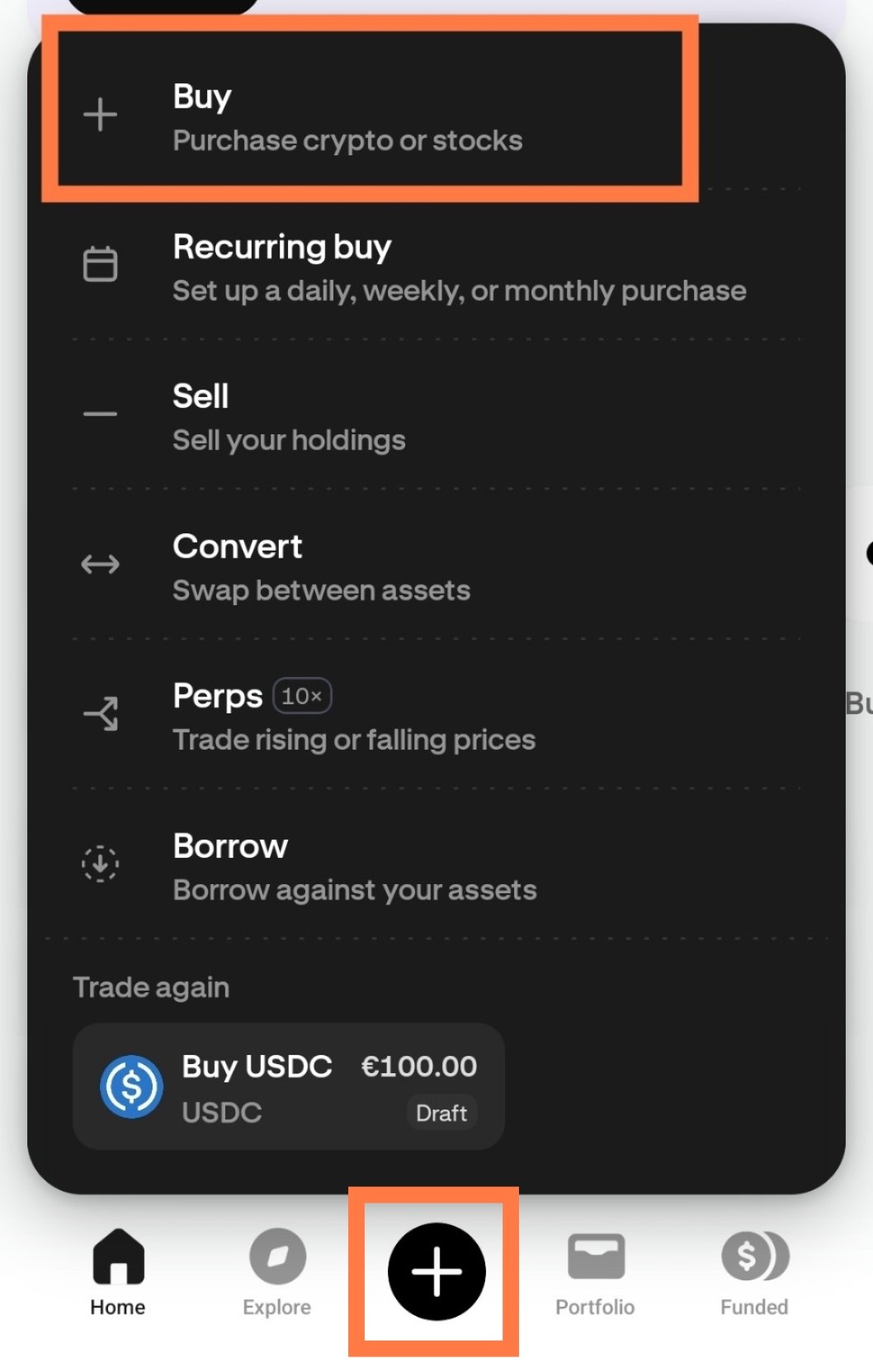
+ → Buy
Select USDC. If USDT is available in your region, you can use that instead — I have to use USDC since USDT isn't available where I am. Here you can find the best token for you.
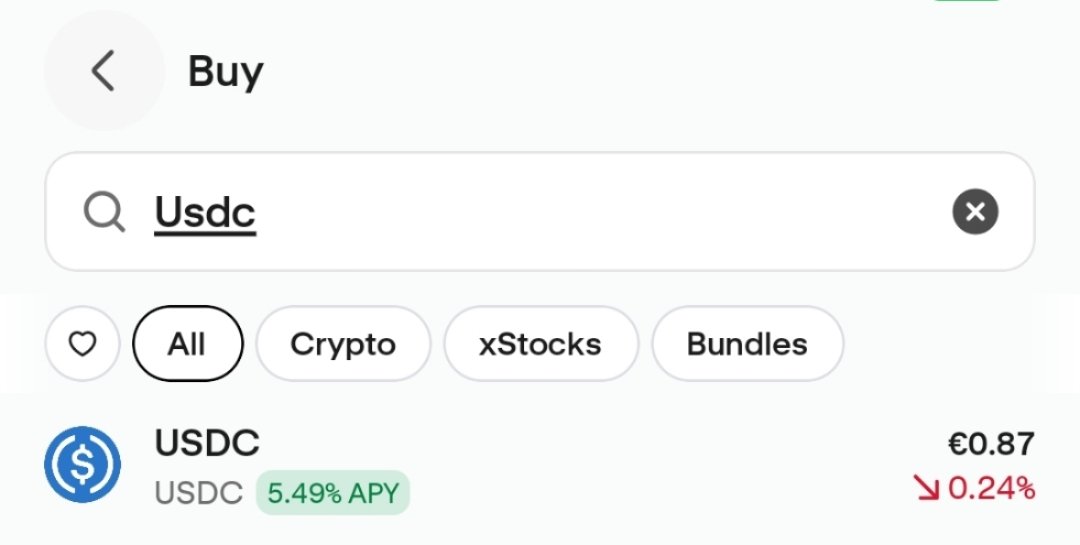
Select USDC
Enter the amount, but watch out — Kraken is showing a higher availability than what we deposited. They want us to buy tokens on credit.
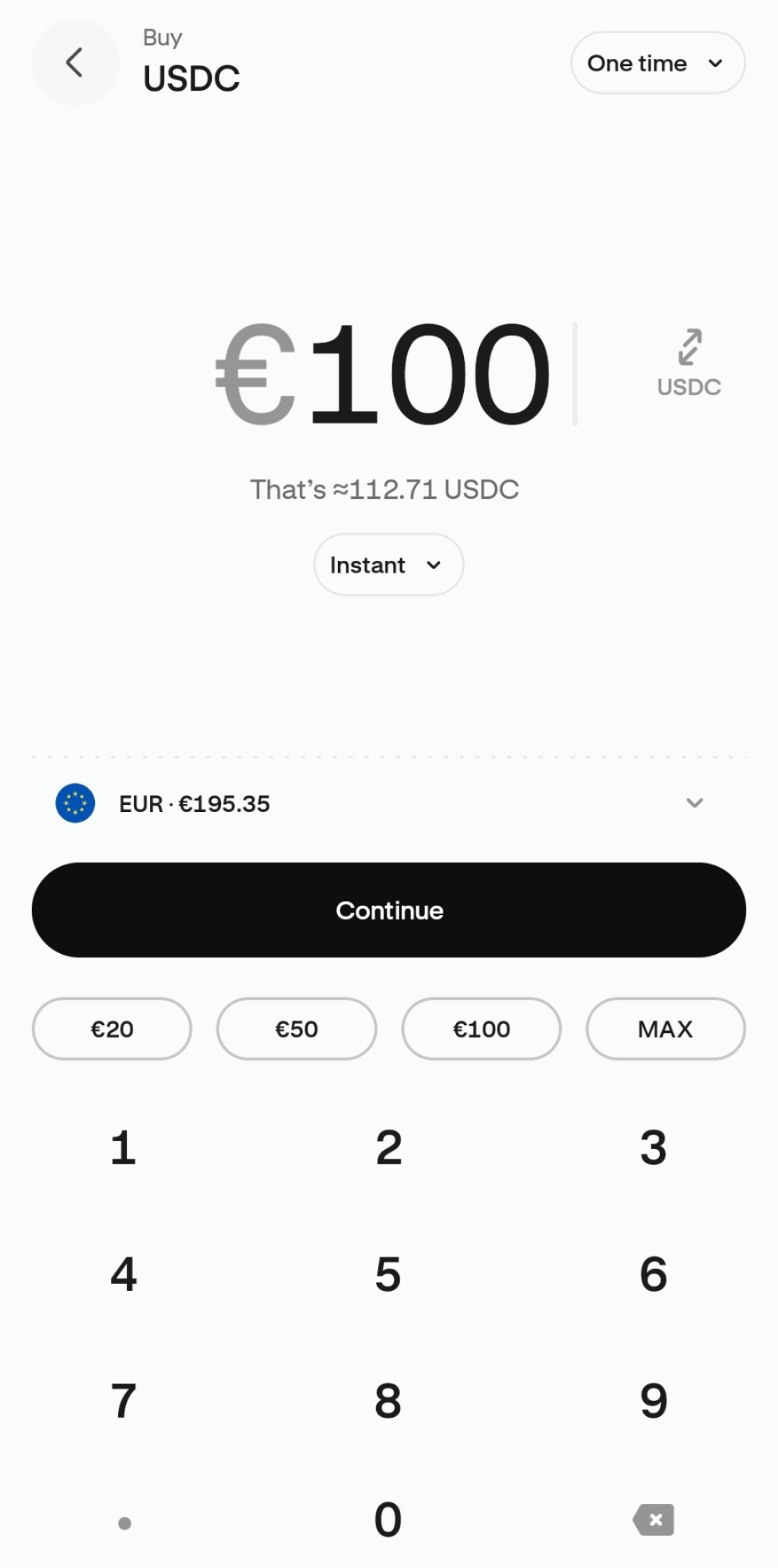
Enter amount
Confirm you're paying with your EUR balance, then tap Buy USDC.
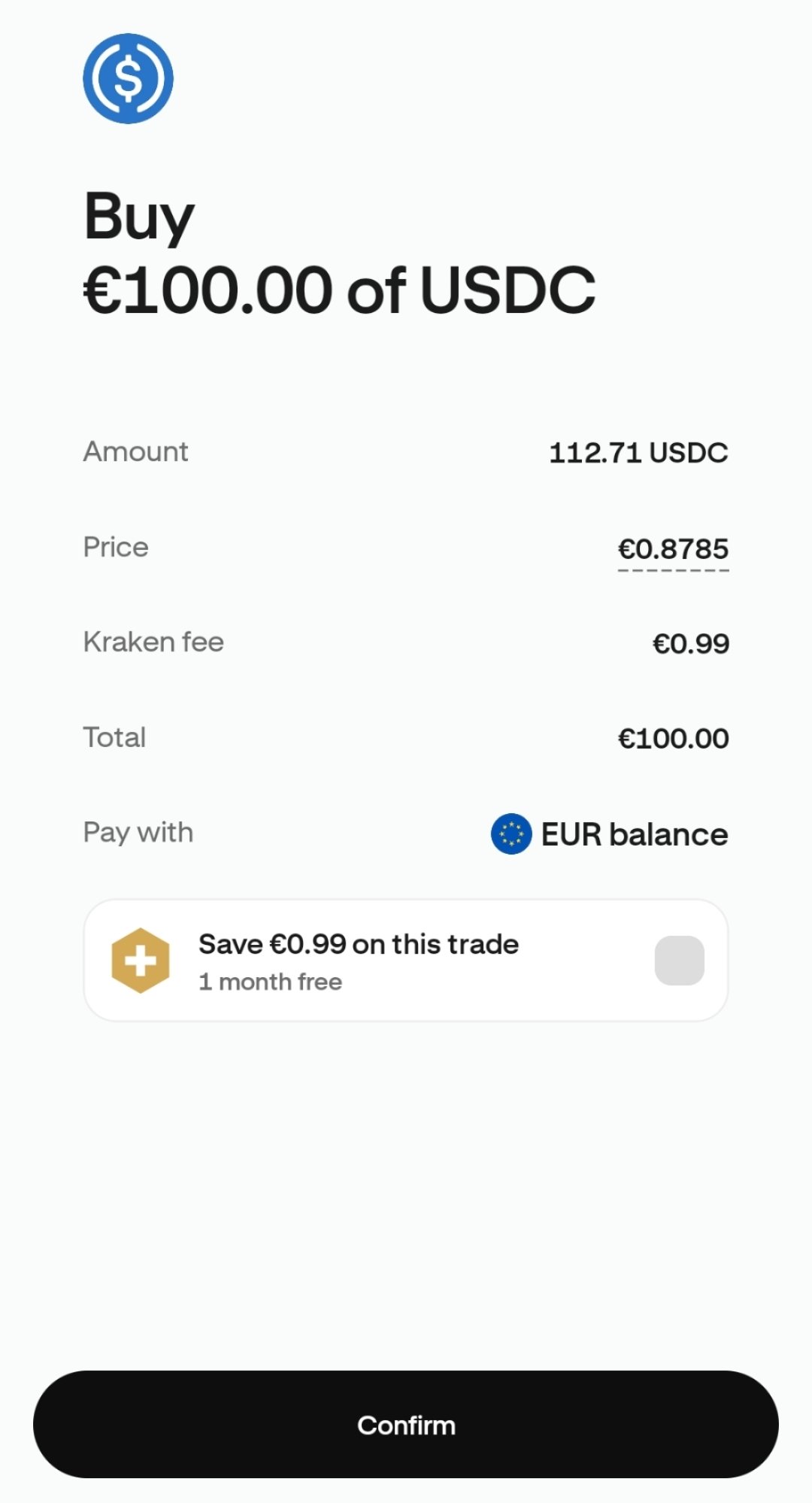
Confirm
Buy tokens in OKX
From Portfolio, tap Trade.
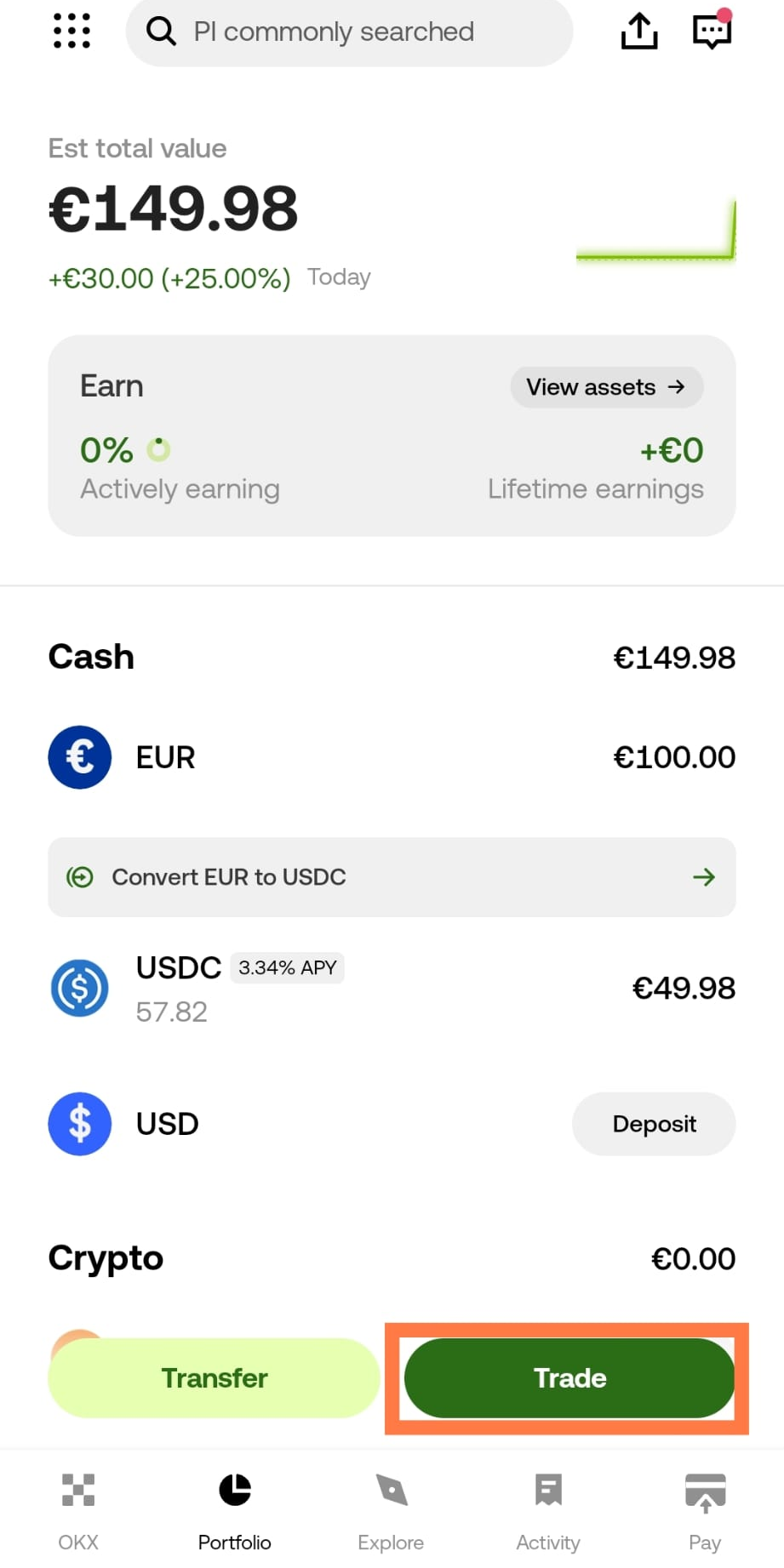
Portfolio → Trade
Tap Buy.
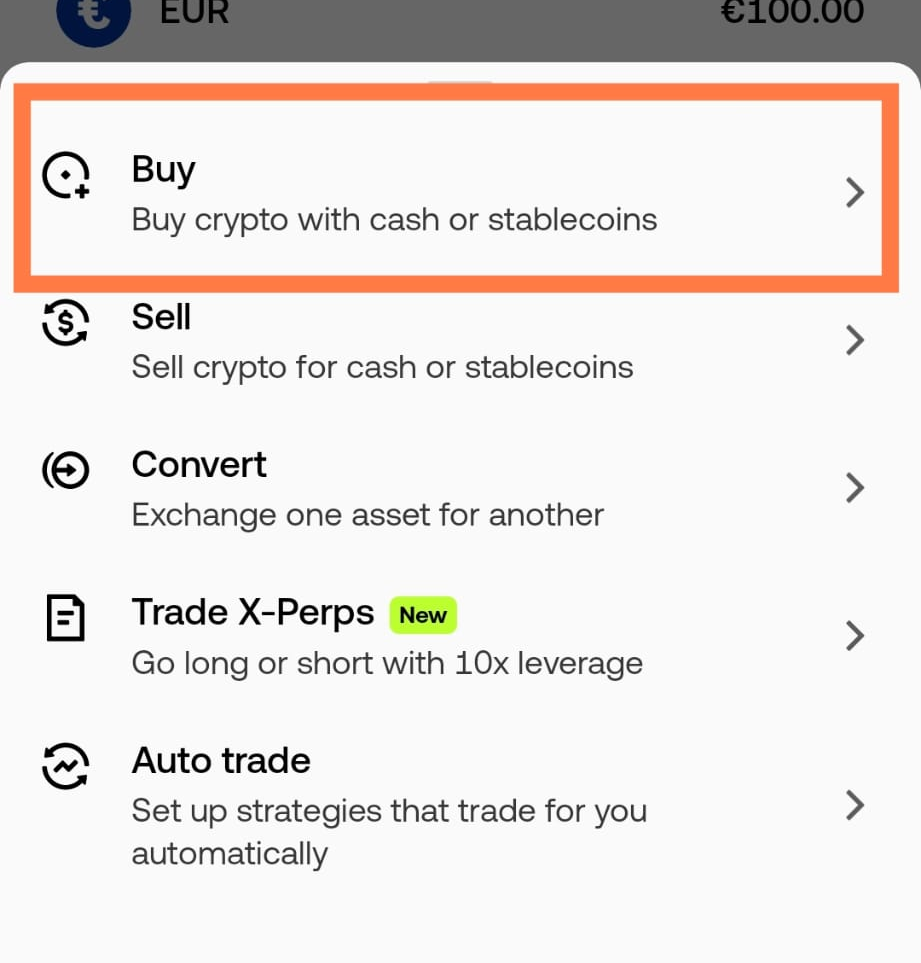
Trade menu → Buy
Select USDC. If USDT is available in your region, you can use that instead — I have to use USDC since USDT isn't available where I am. Here you can find the best token for you.
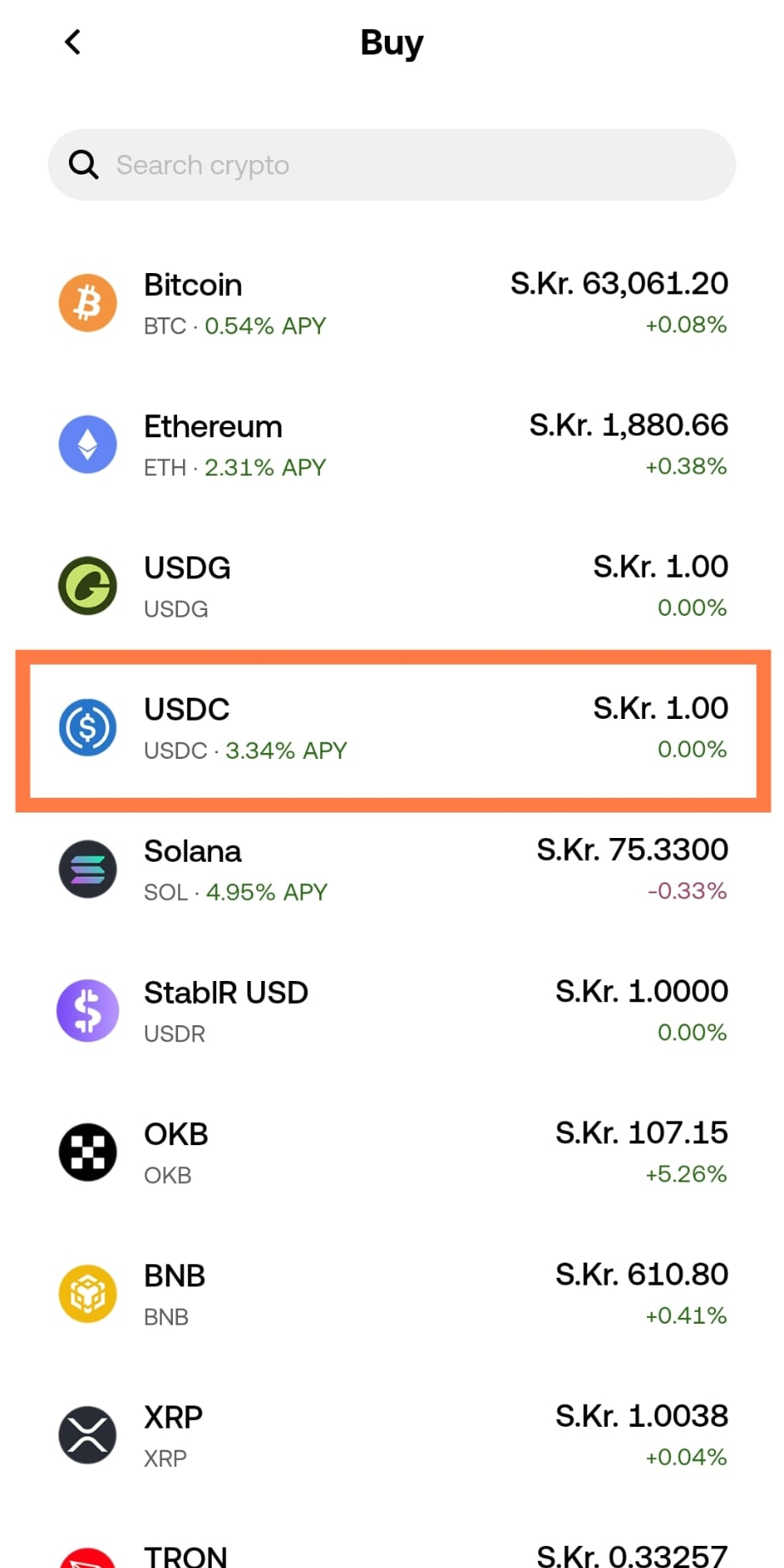
Select USDC
OKX may default to the wrong payment method. Check what it says under "Pay with" — if it's not your EUR balance, tap it to change.
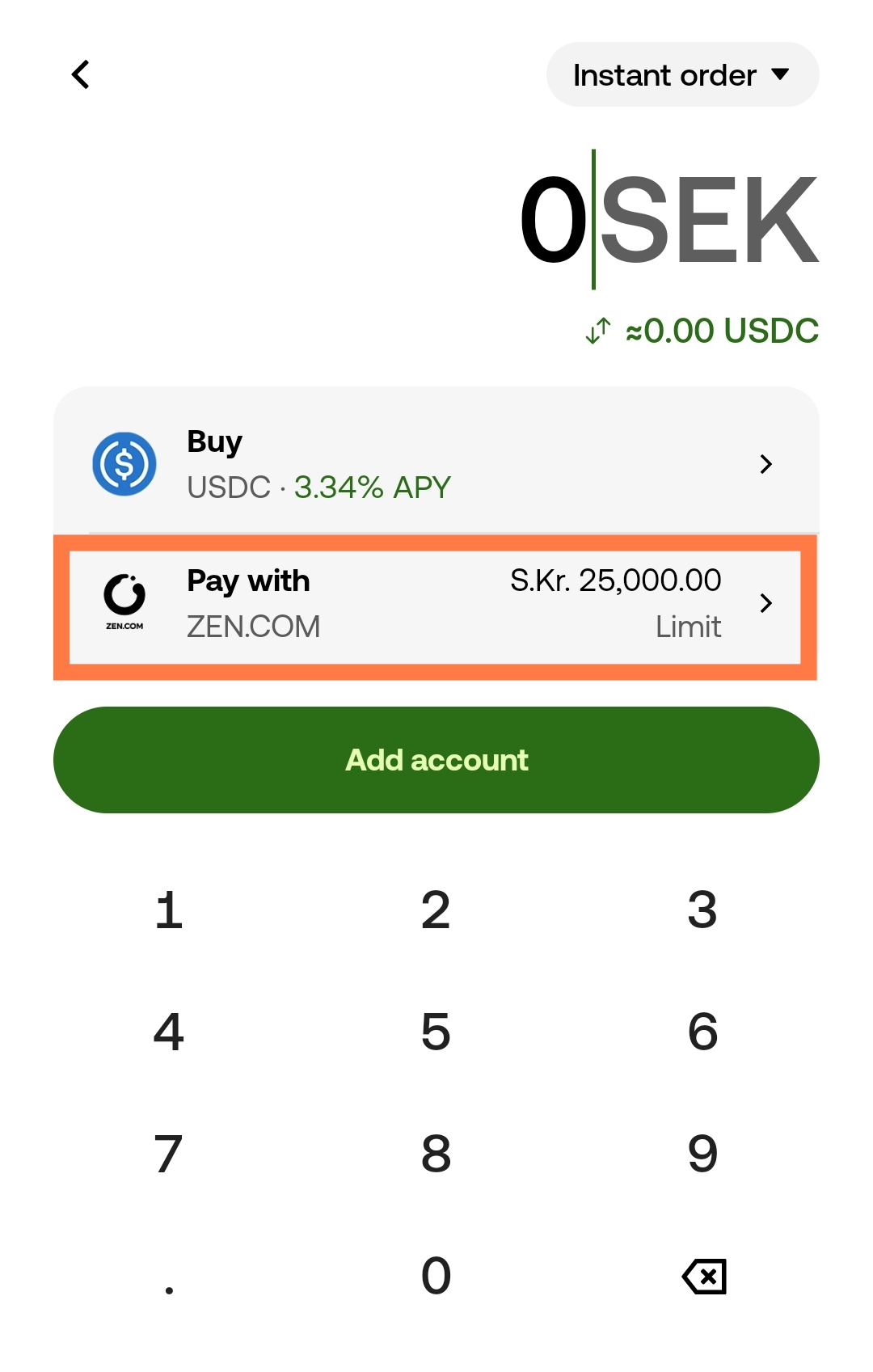
Wrong payment method selected
Select EUR balance.
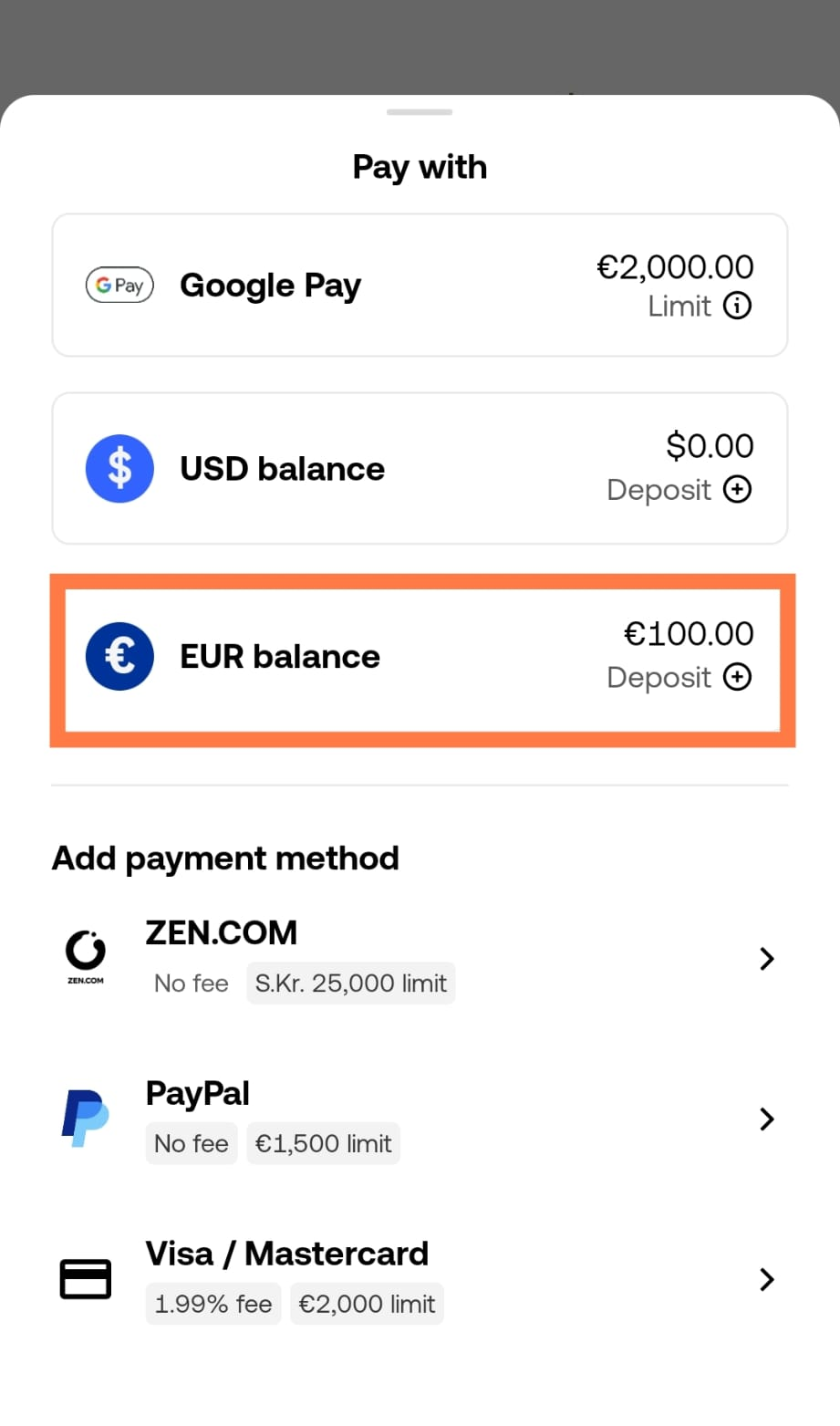
Choose EUR balance
Back on the buy screen, confirm it now shows EUR balance as the payment method, enter your amount, and tap Preview.
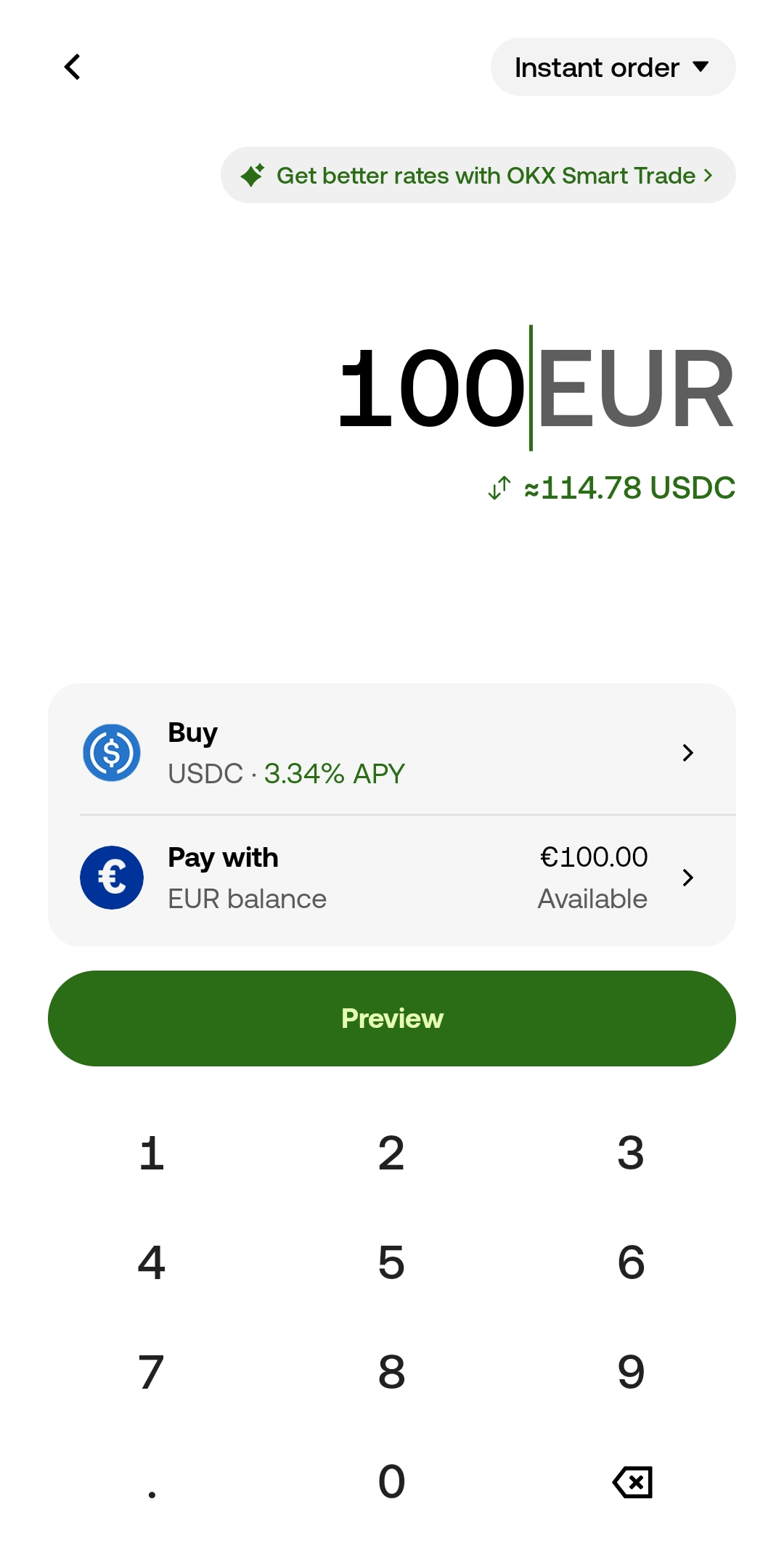
Correct payment method, ready to preview
Confirm you're paying with your EUR balance, then tap Buy USDC.
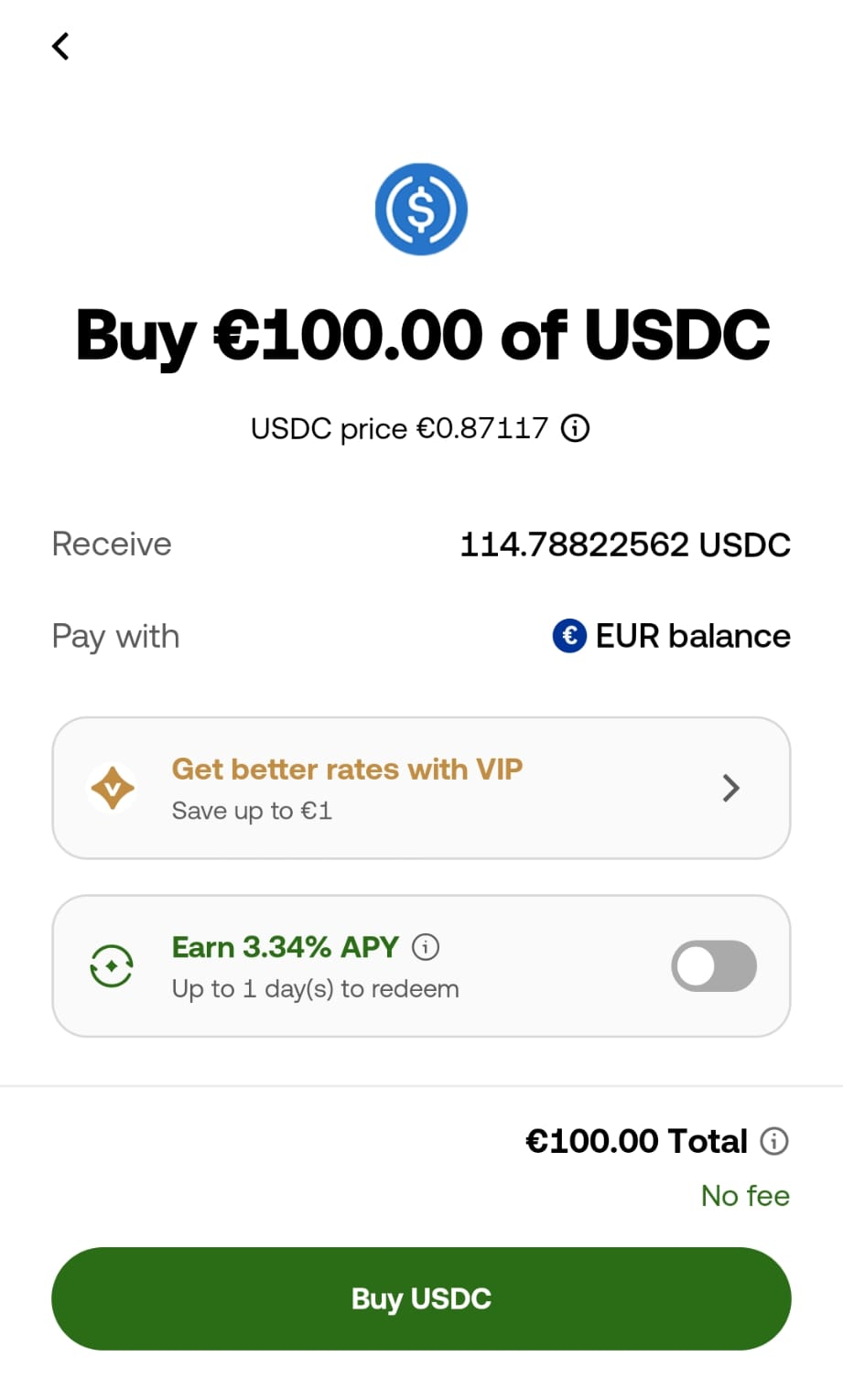
Confirm and buy
Buy tokens in CoinBase
On the Home screen, tap Buy & Sell.
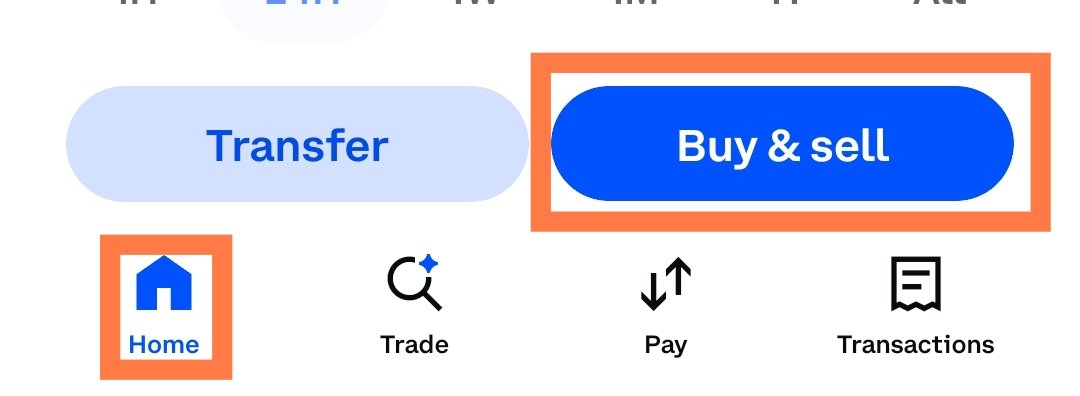
Home → Buy & Sell
Tap Buy.
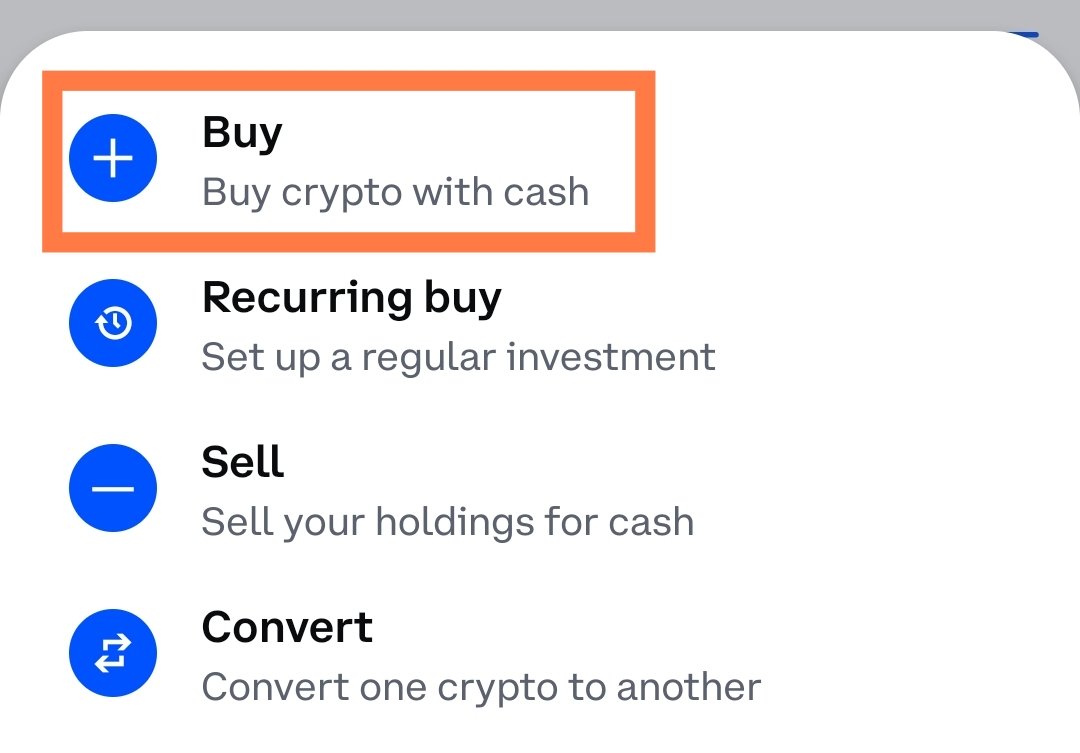
Buy & Sell menu → Buy
Select USDC. If USDT is available in your region, you can use that instead — I have to use USDC since USDT isn't available where I am. Here you can find the best token for you.
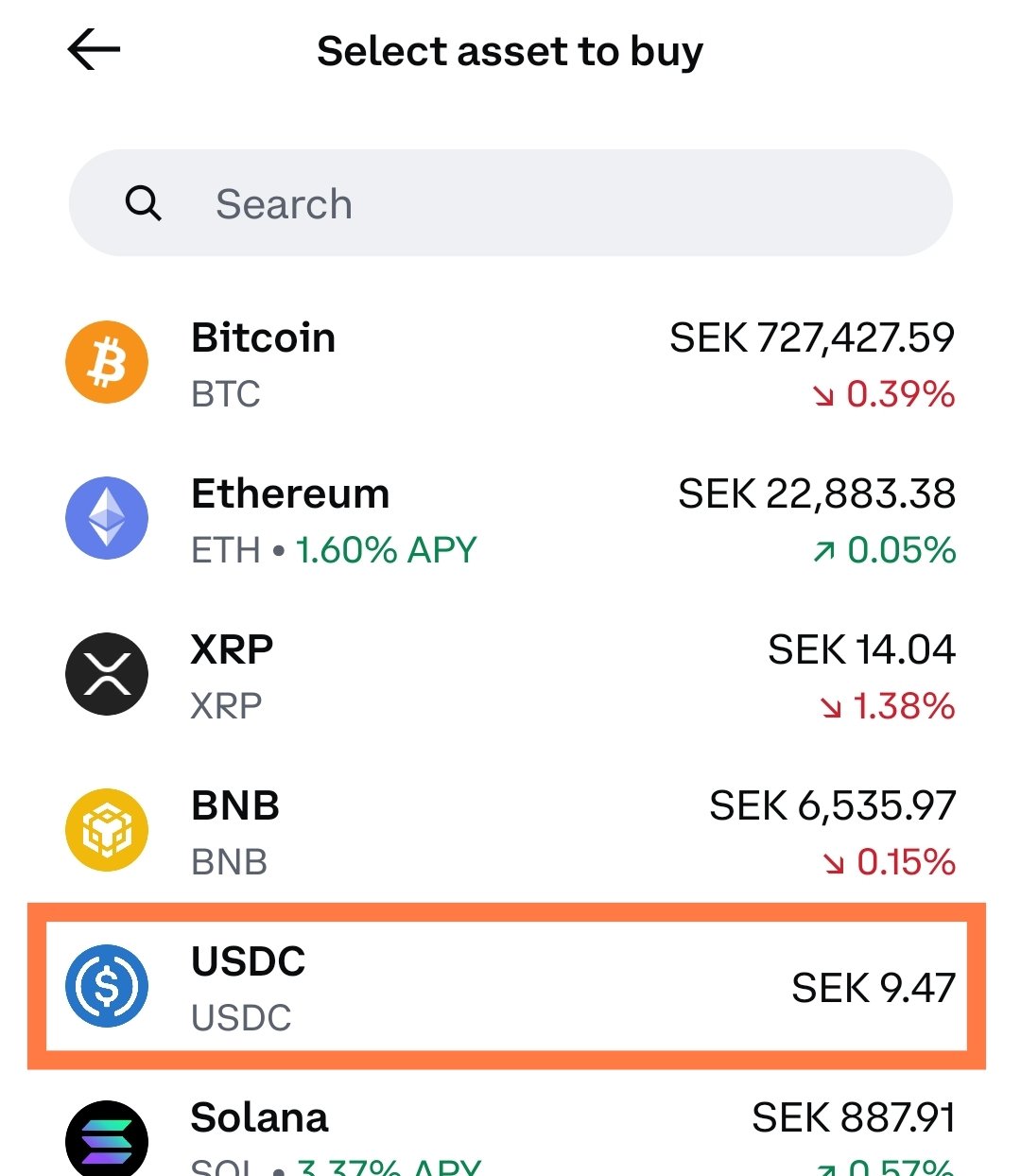
Select USDC
On the buy screen, enter your amount, and tap Review Order.
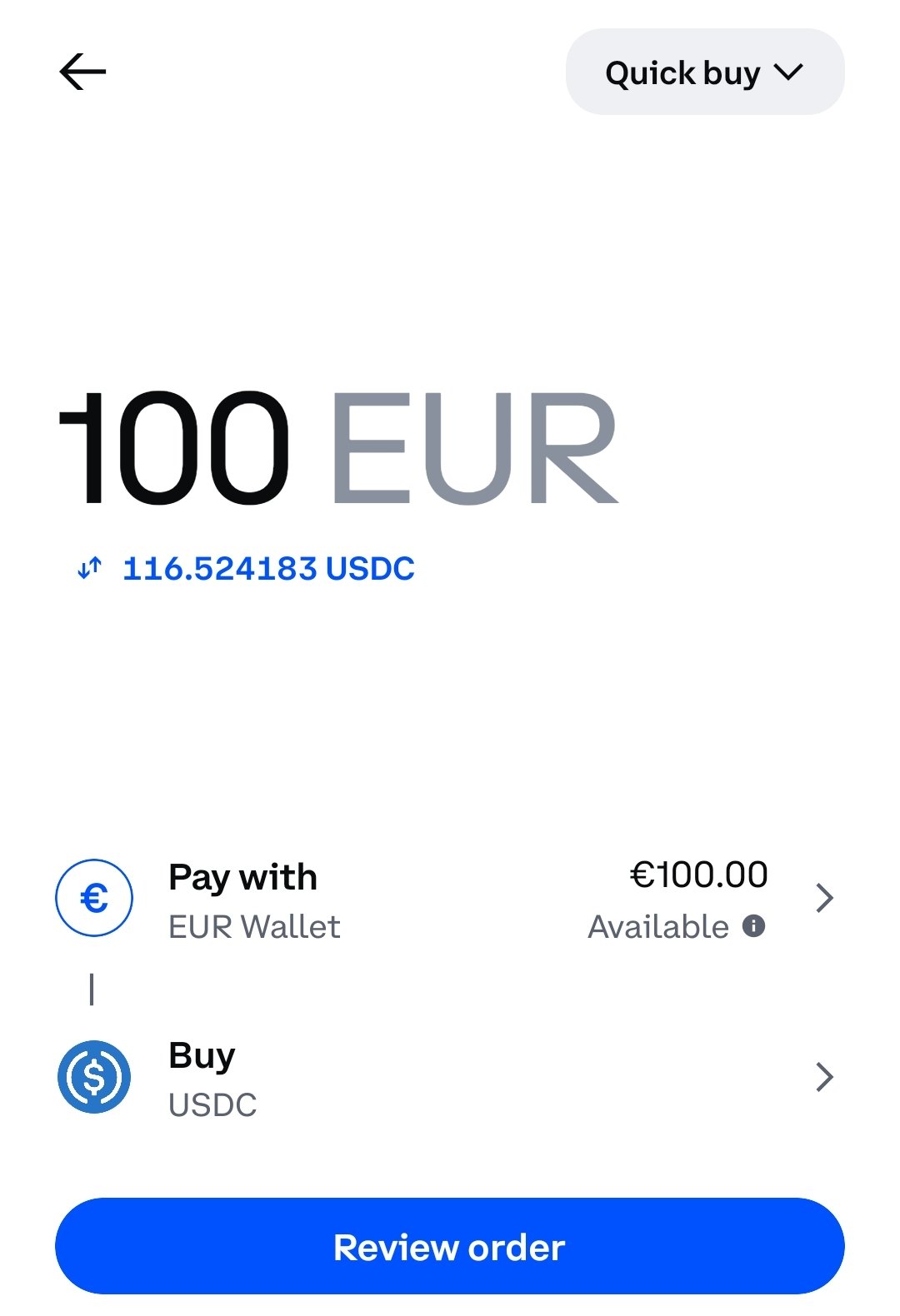
Enter your amount
Confirm you're paying with your EUR Wallet, then tap Buy Now.
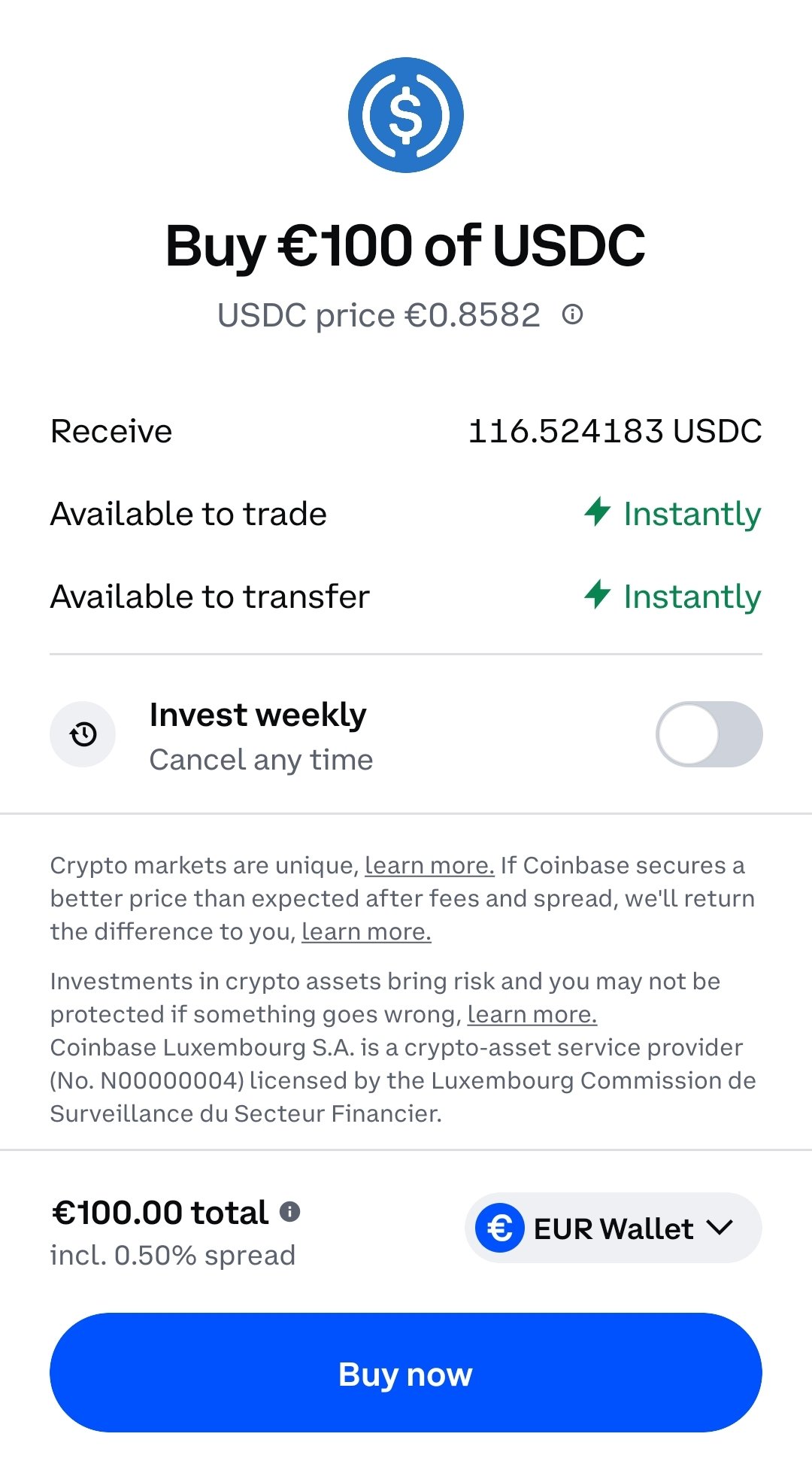
Confirm and buy
Send tokens to wallet from Kraken
From Portfolio, tap Withdraw.
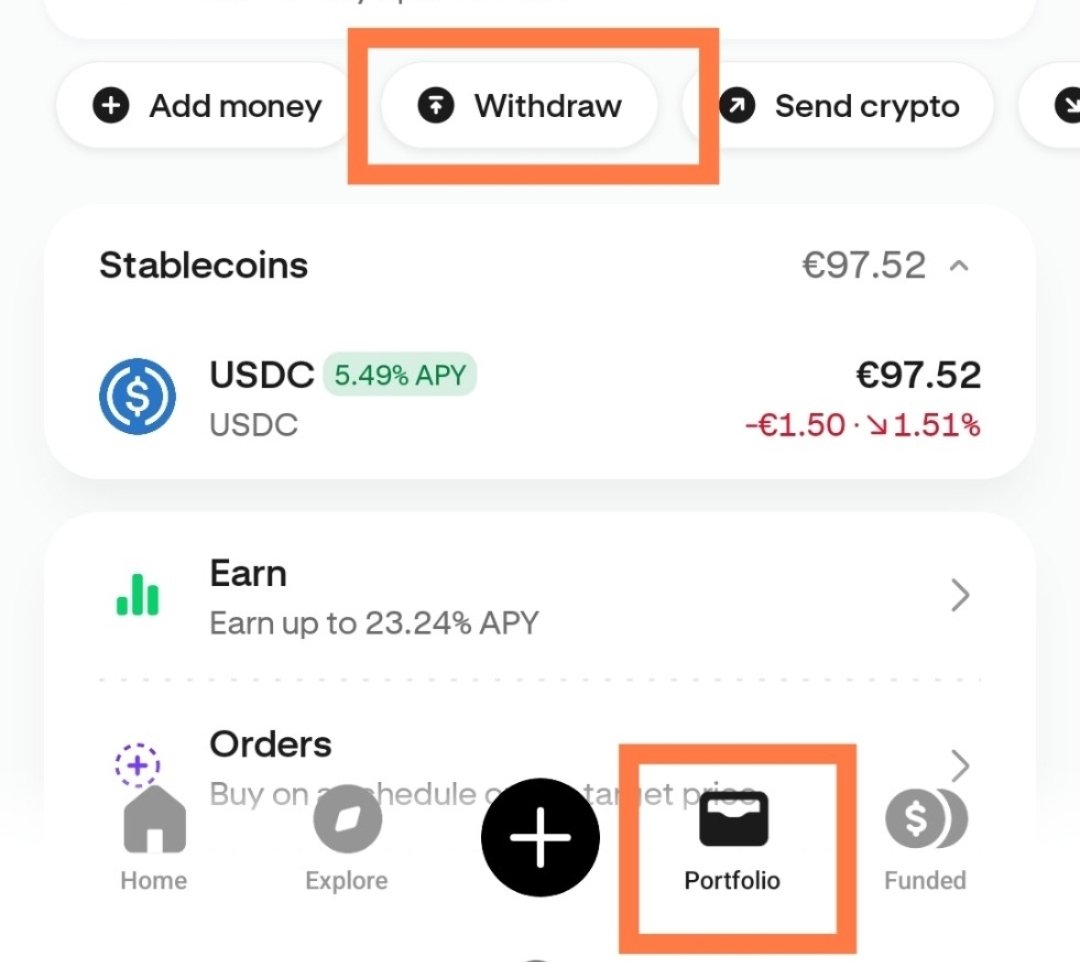
Portfolio → Withdraw
Select USDC.
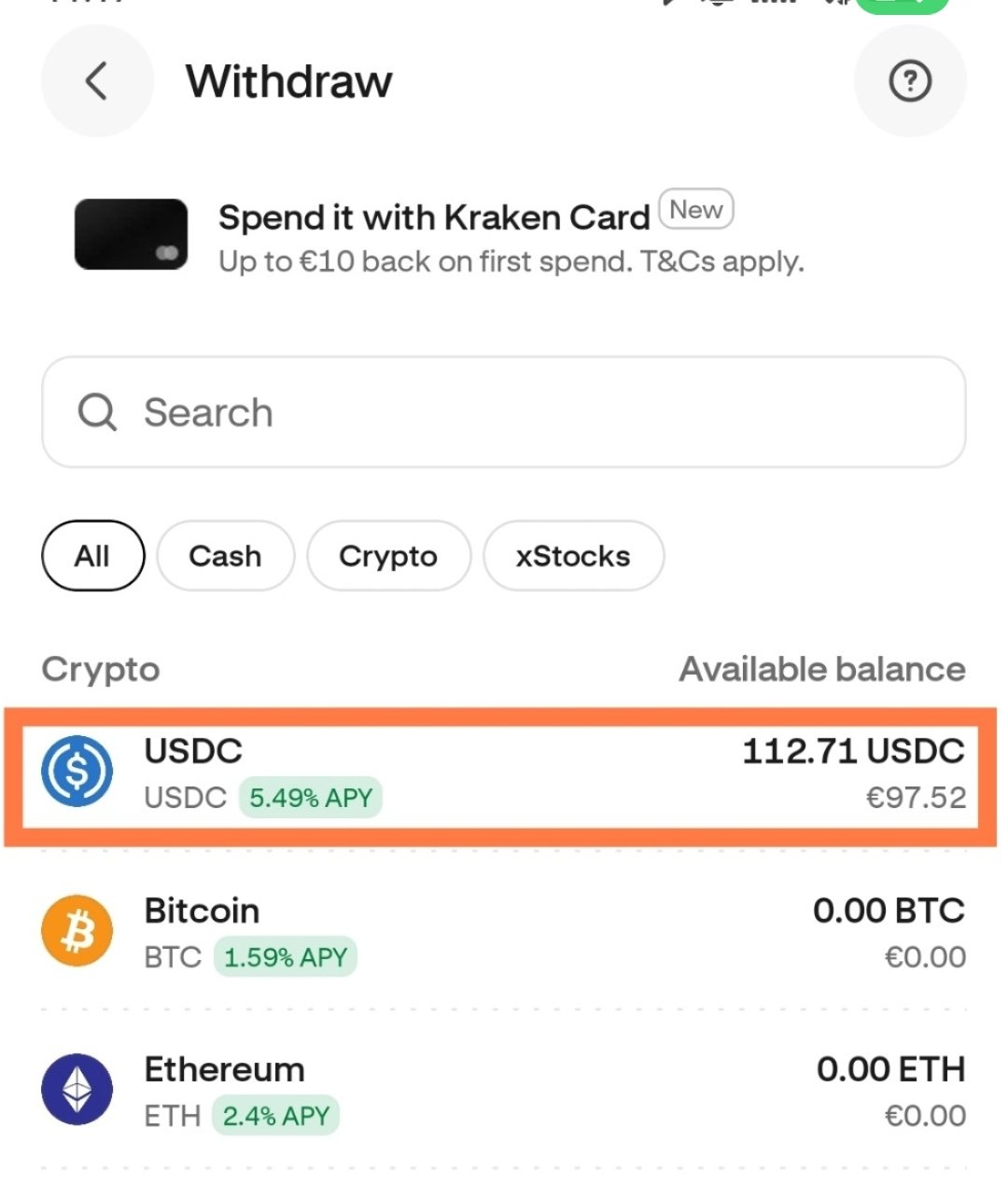
Select asset
Select Polygon (USDC).
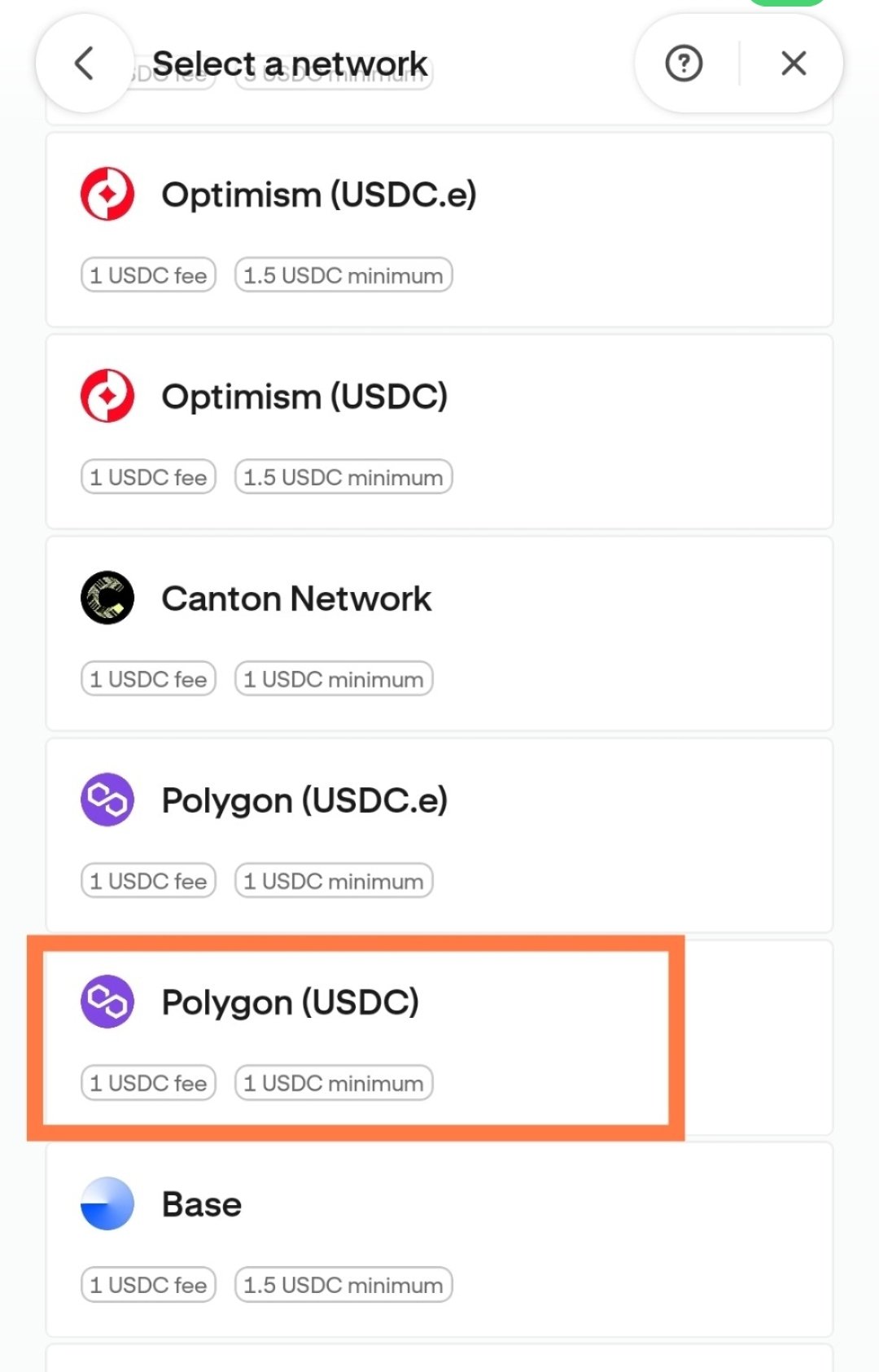
Select network
Now you need your wallet address from MetaMask. In MetaMask's home view, tap the copy icon at the top.
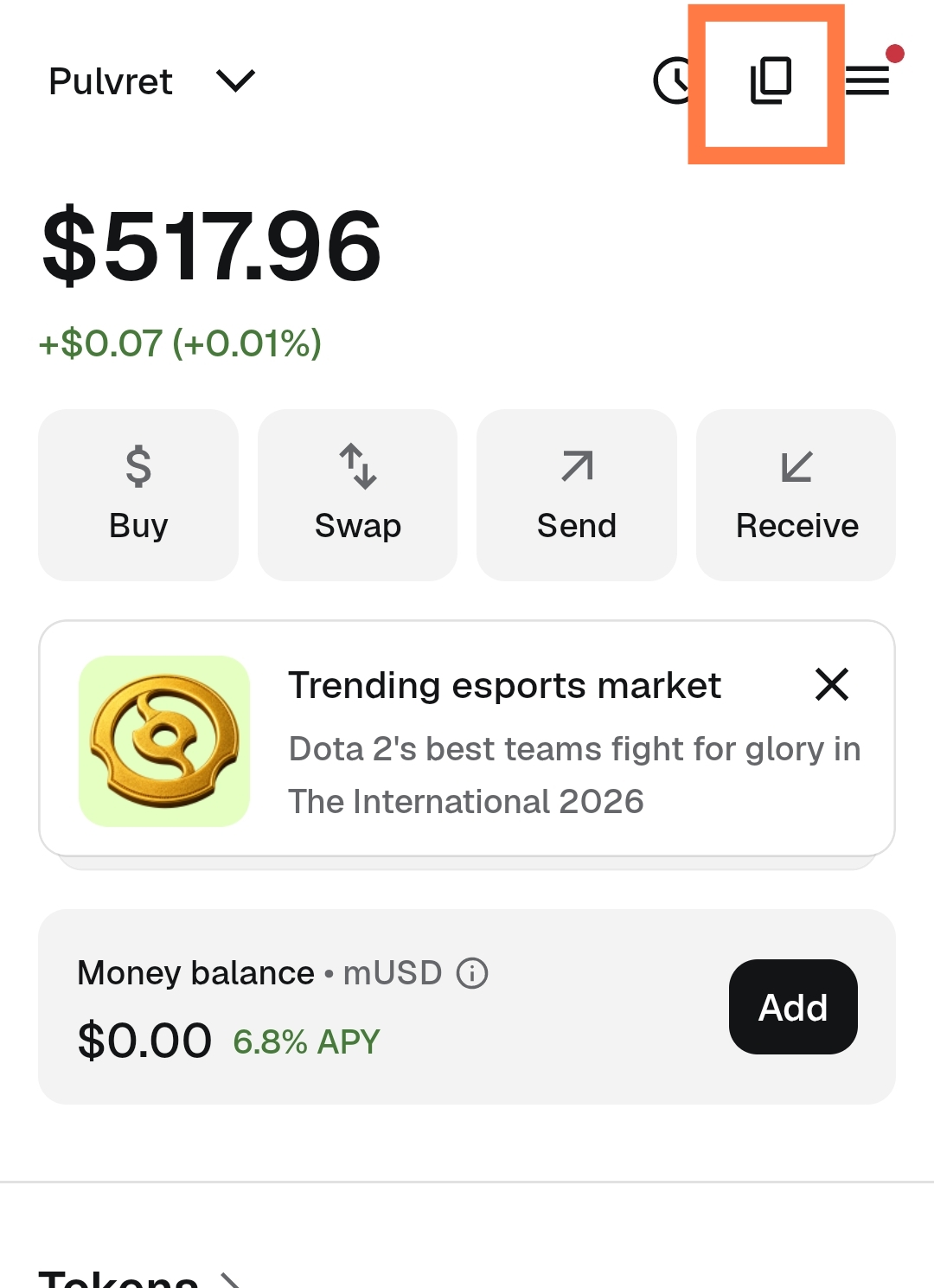
MetaMask home → copy icon
Find Polygon in the list and tap the copy icon next to it.
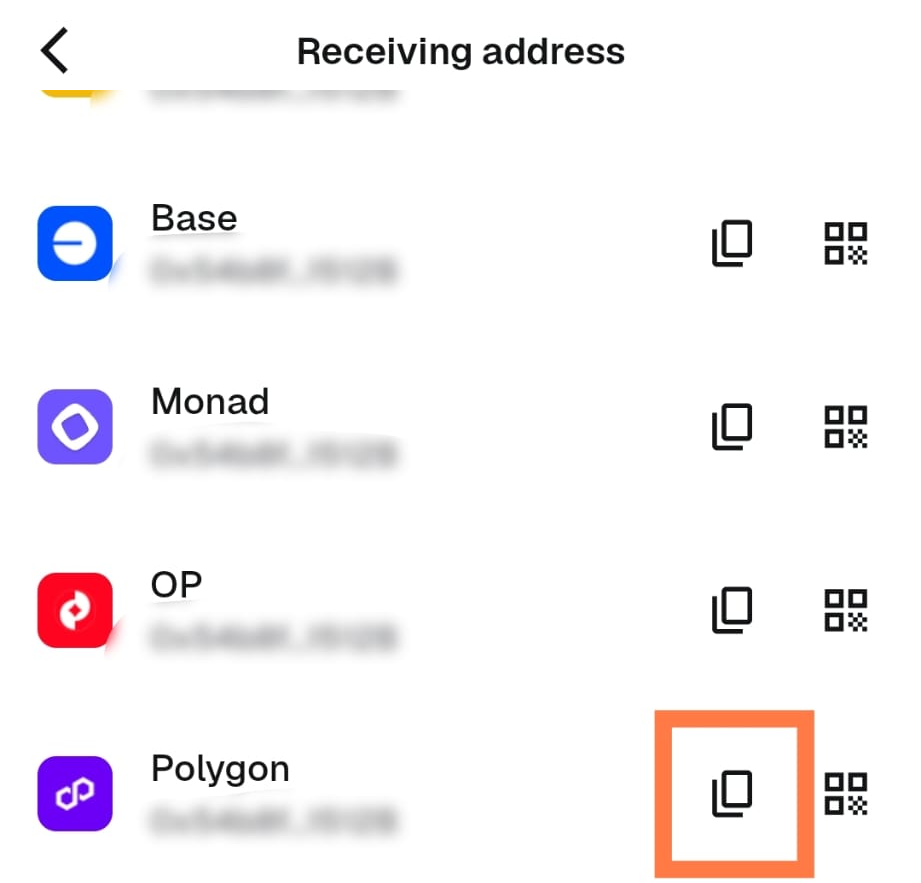
Copy your Polygon address
Back in Kraken, paste the copied address into Withdrawal address, and give it a name.
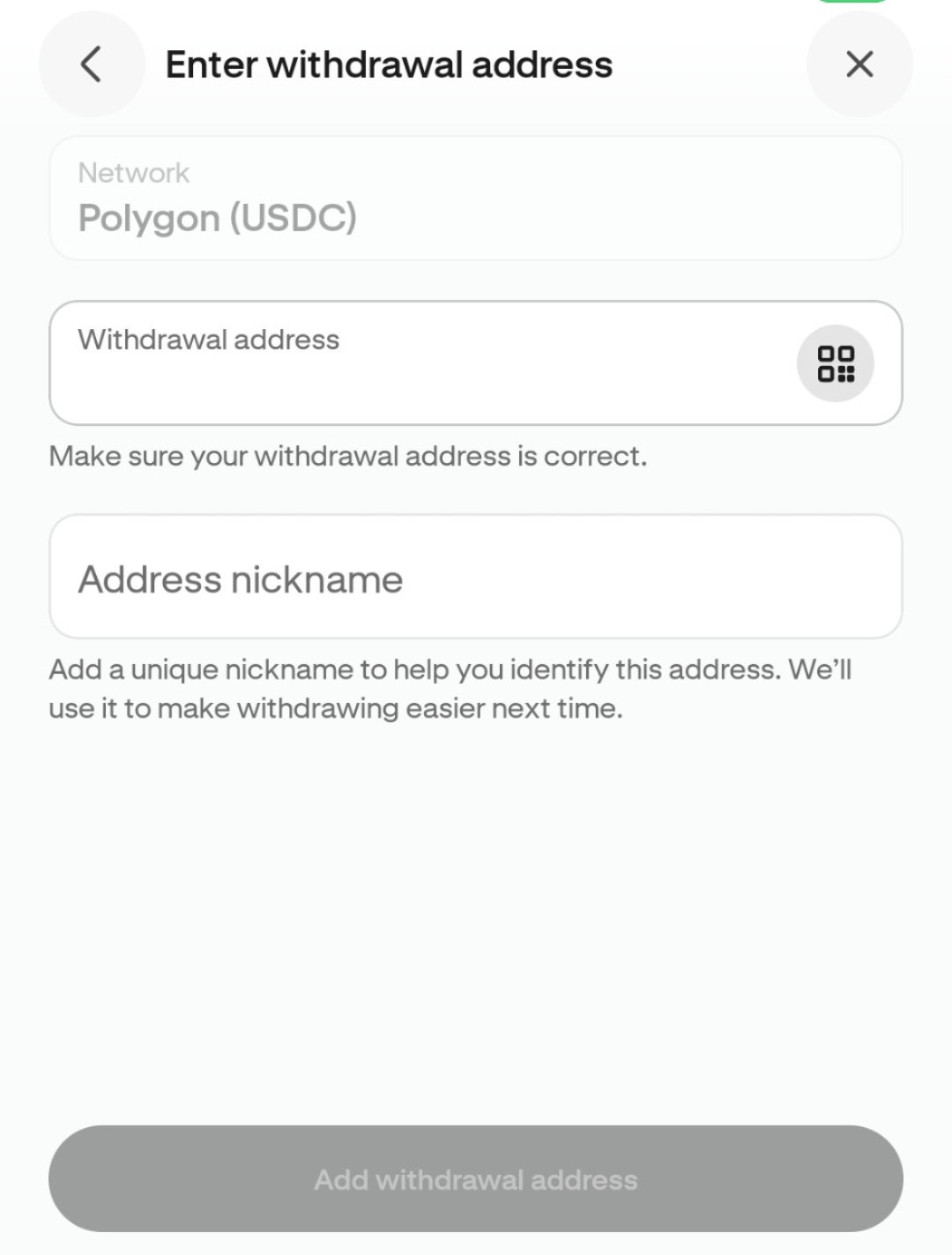
Paste your address
Enter the amount and tap Review.
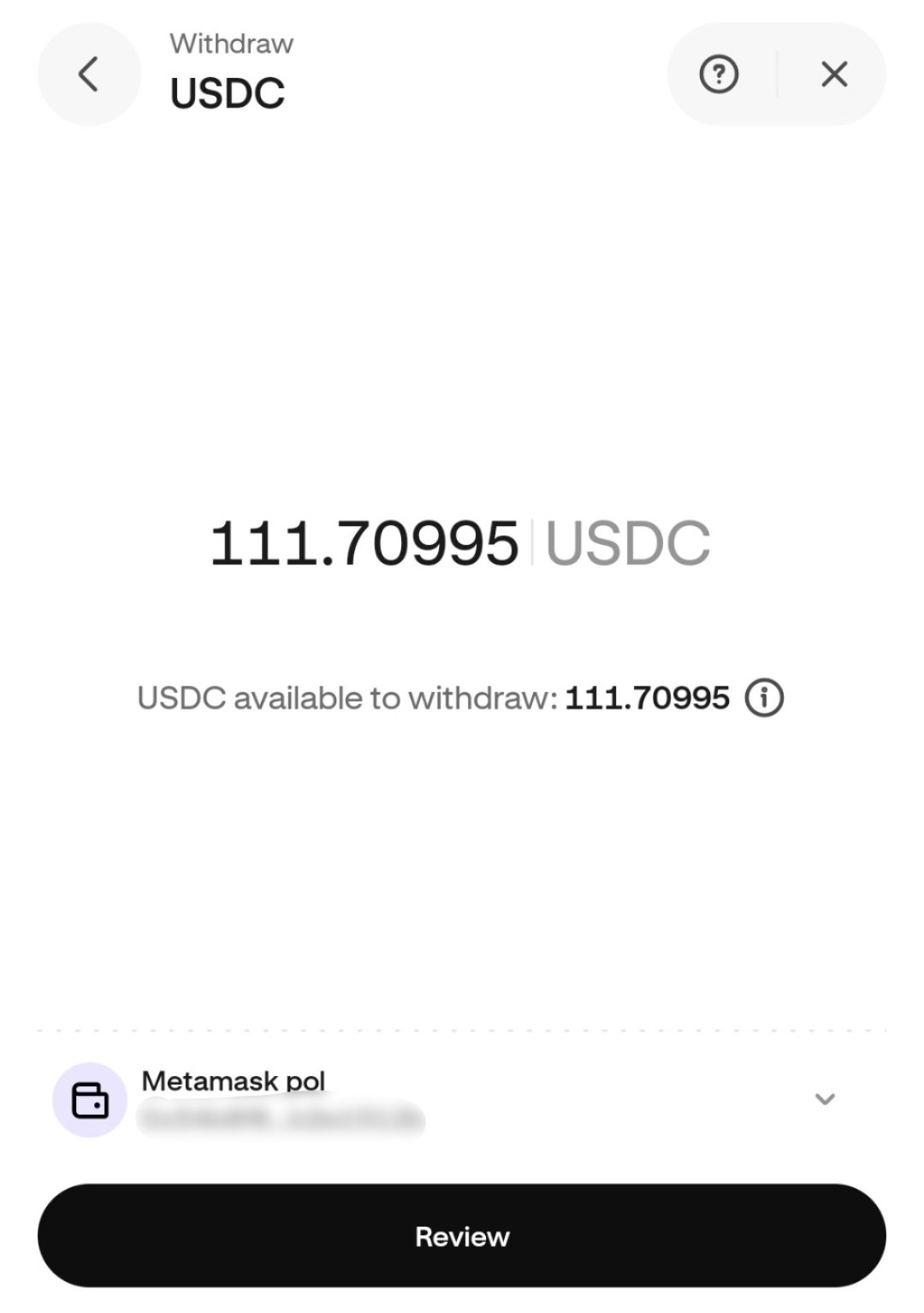
Enter amount
Review the details and tap Confirm.
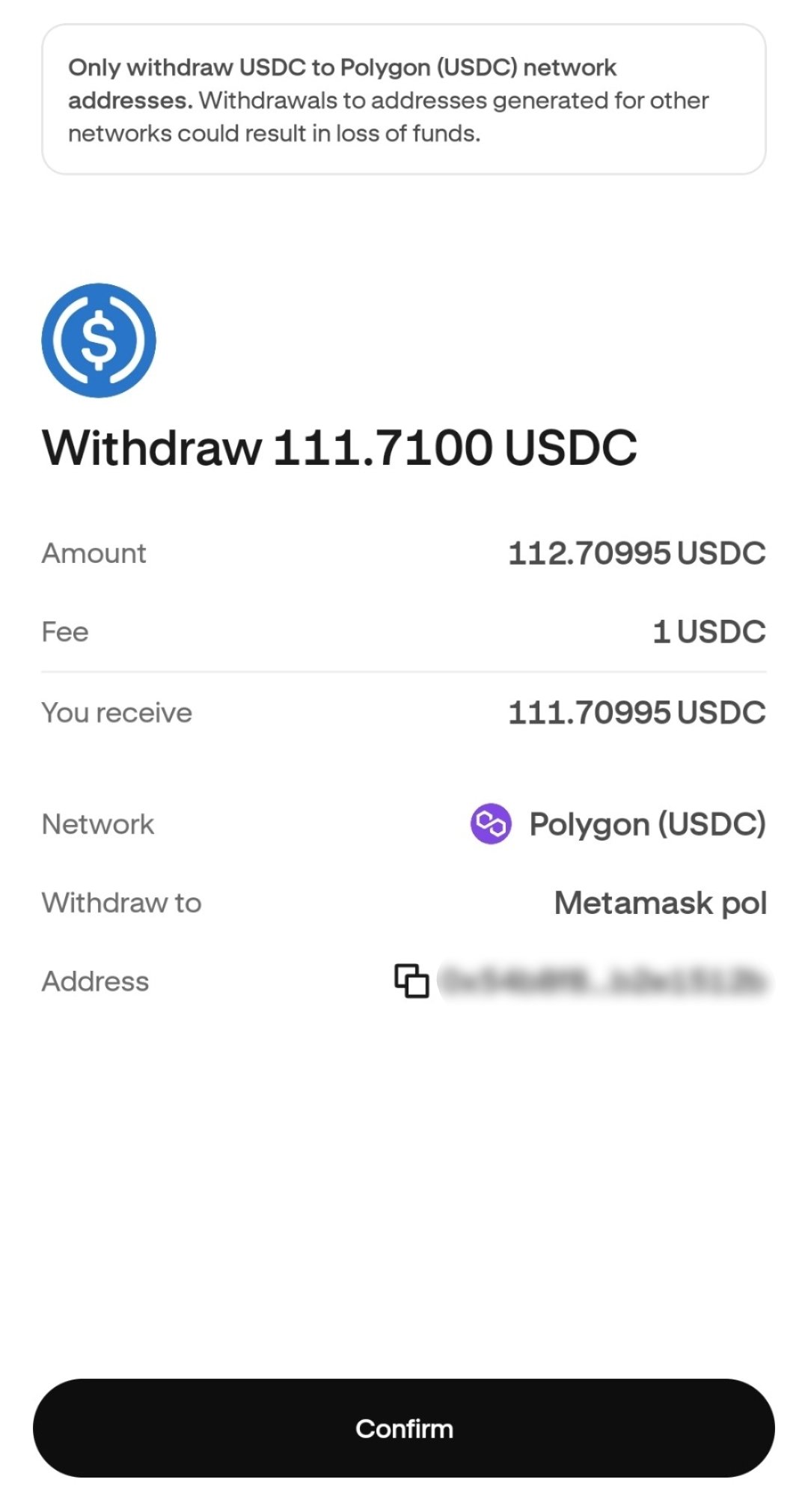
Review and confirm
Note! At this point, with the money in MetaMask wallet, the cost via Kraken has been 3.3% of the original €100.
Send tokens to wallet from OKX
From Portfolio, tap Transfer.
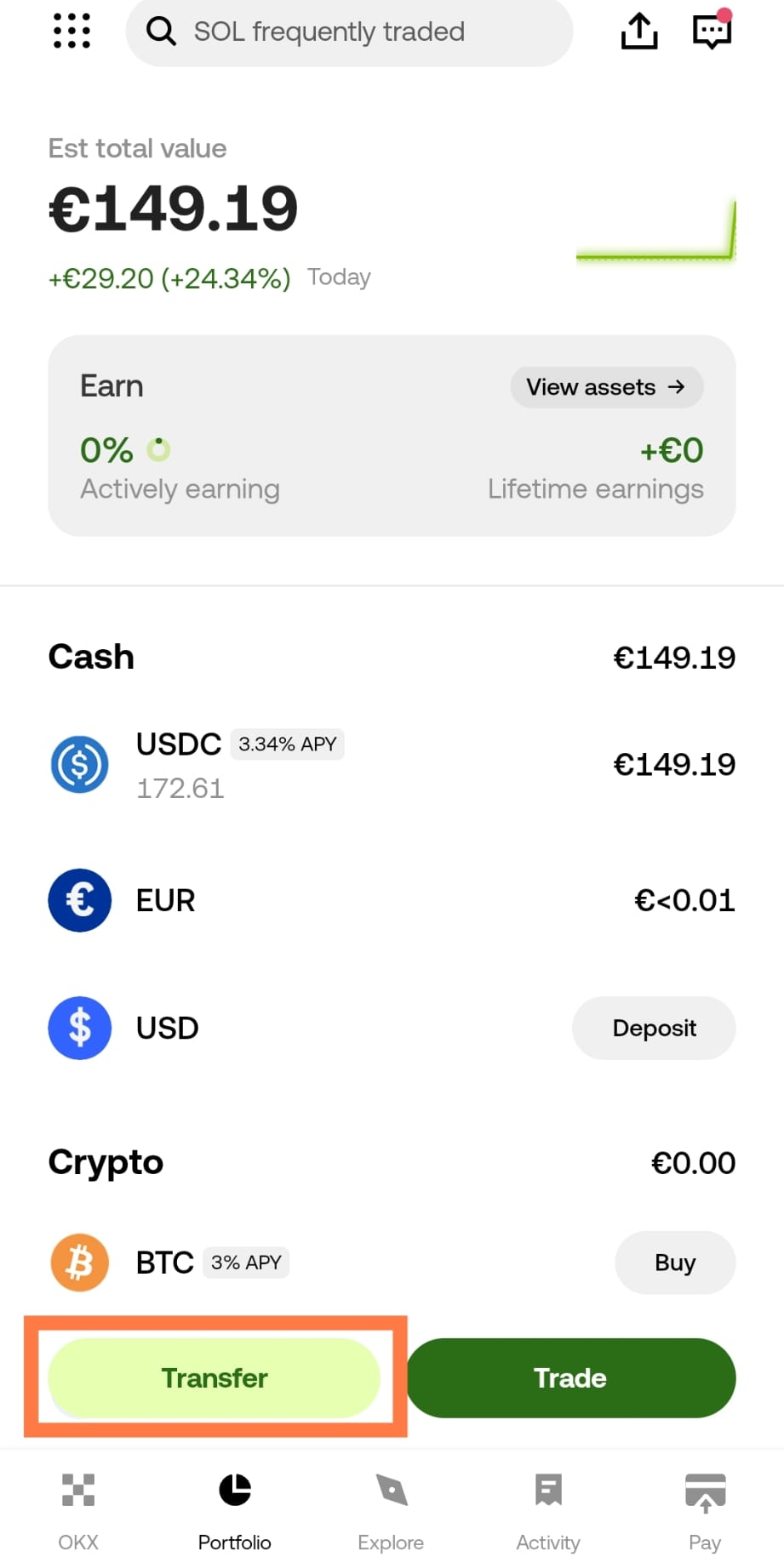
Portfolio → Transfer
Tap Withdraw.
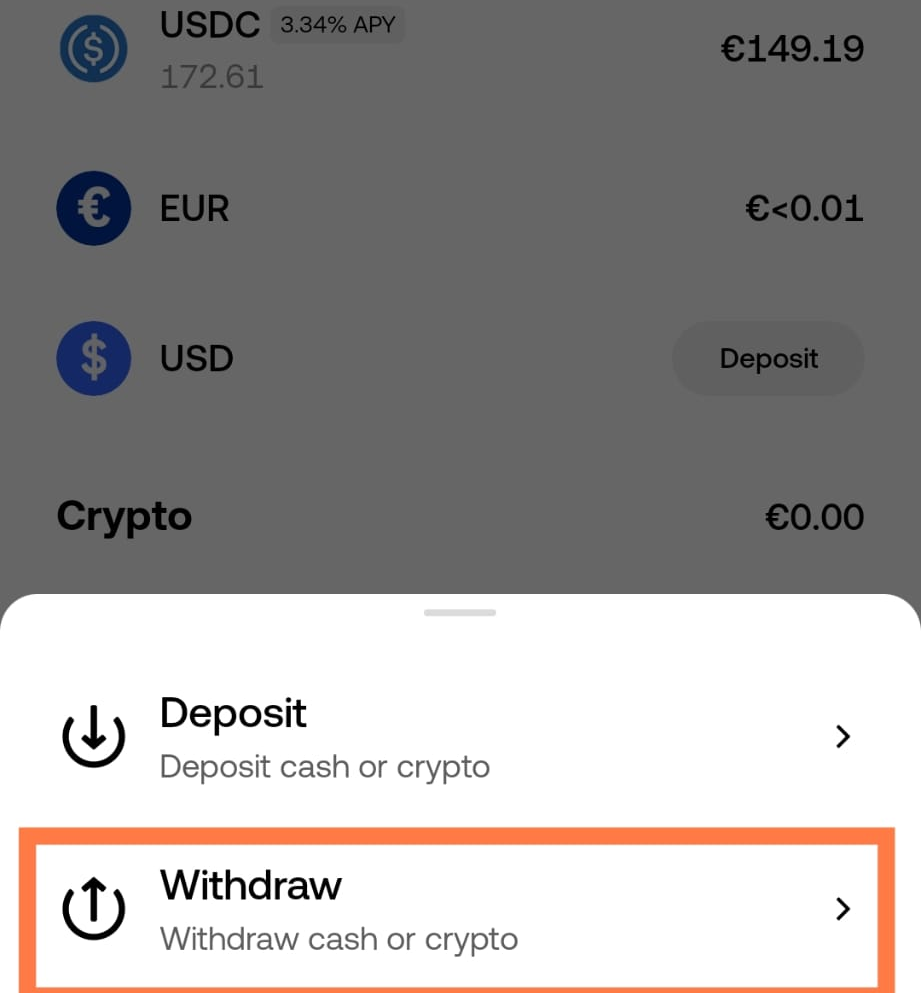
Deposit or Withdraw → Withdraw
Select USDC.
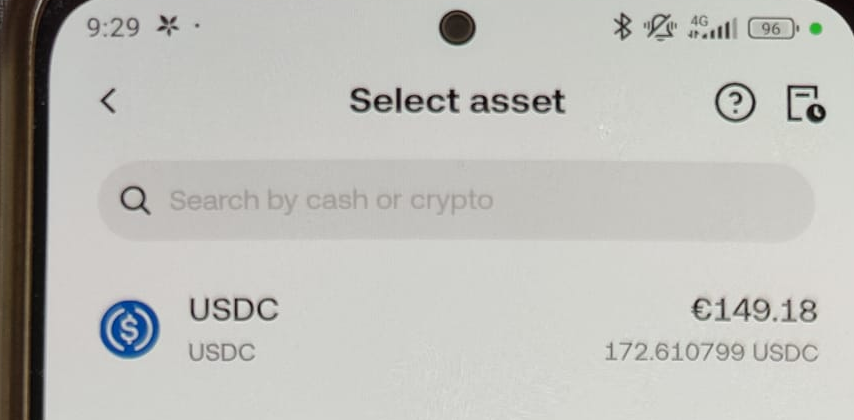
Select asset
Select Unhosted wallets.
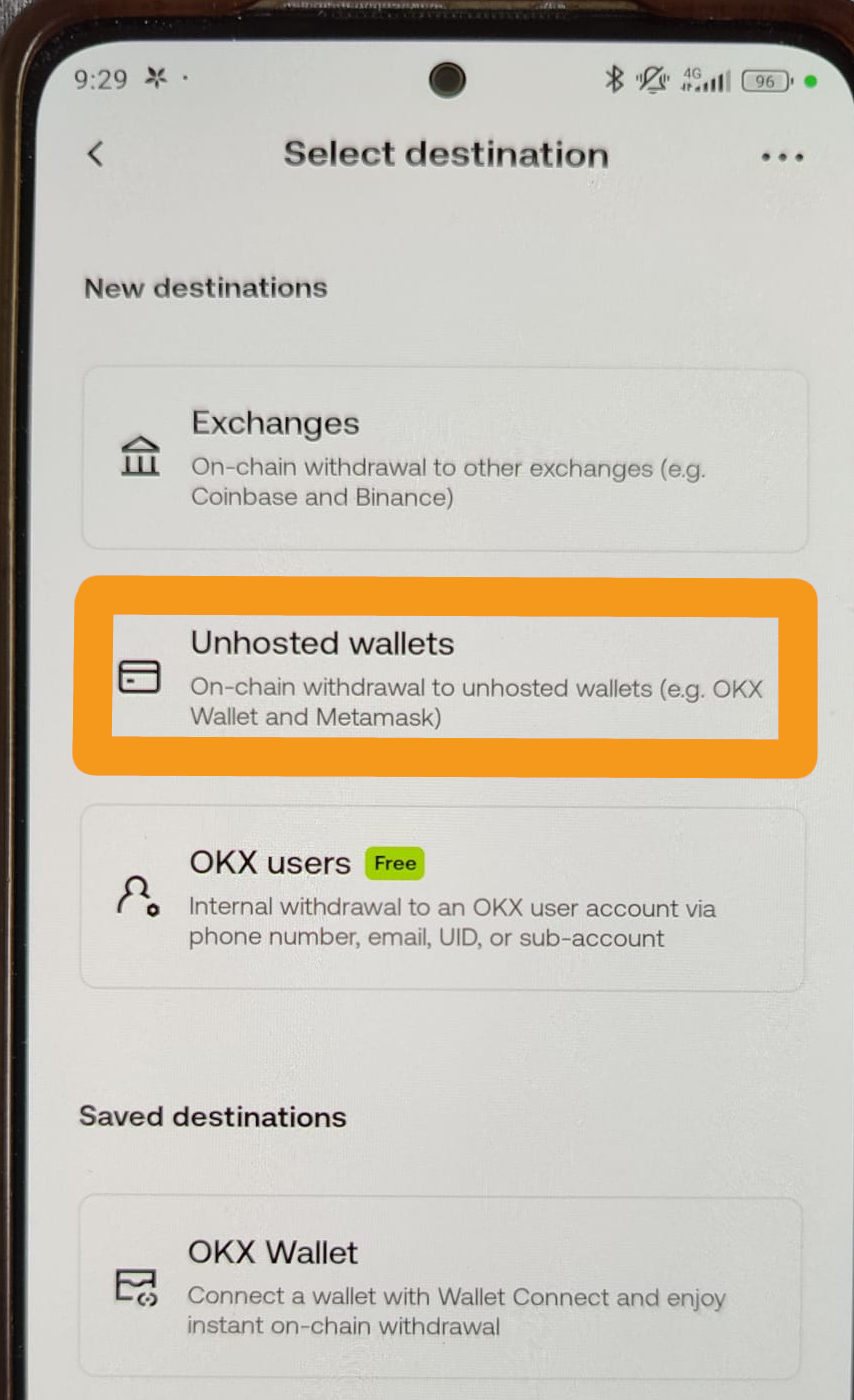
Select destination
Select Polygon.
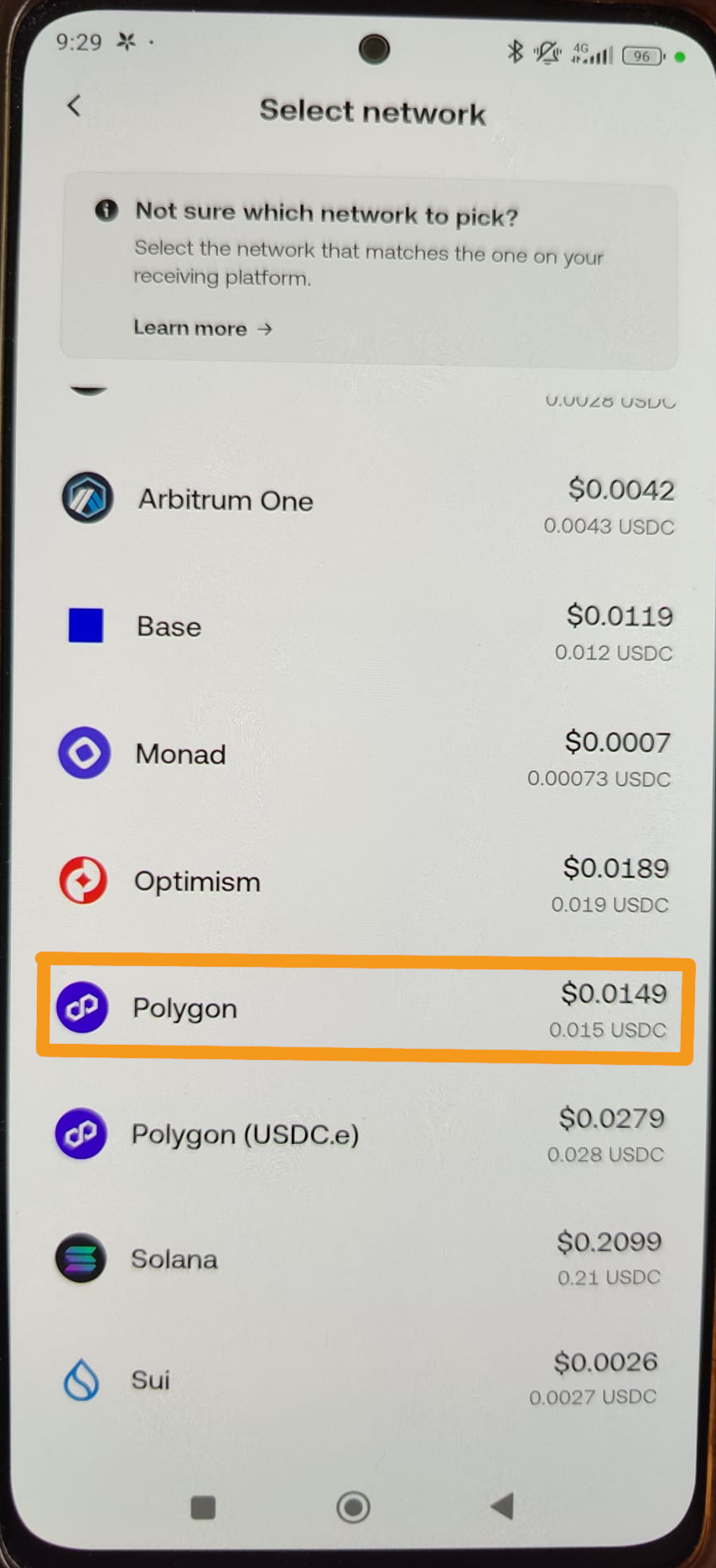
Select network
Now you need your wallet address from MetaMask. In MetaMask's home view, tap the copy icon at the top.
MetaMask home → copy icon
Find Polygon in the list and tap the copy icon next to it.
Copy your Polygon address
Back in OKX, paste the copied address into Enter address.
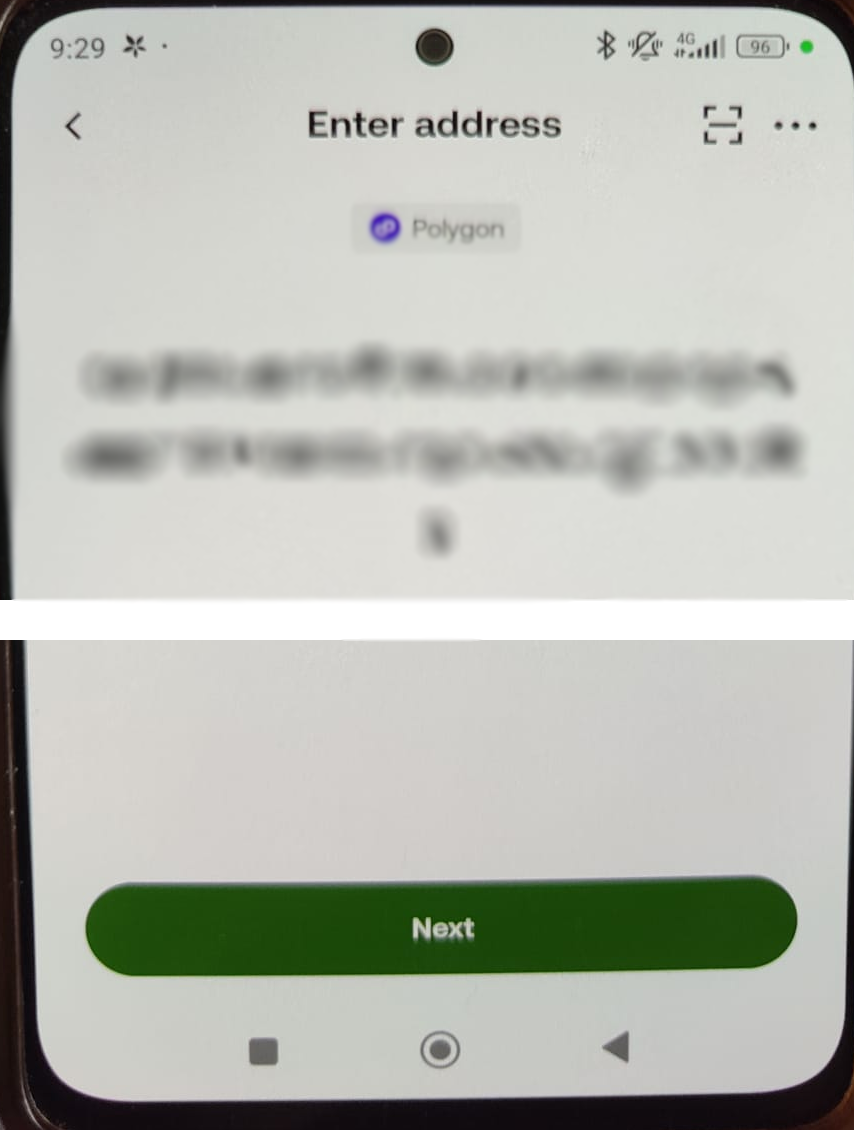
Paste your address
Enter the amount, or tap Max.
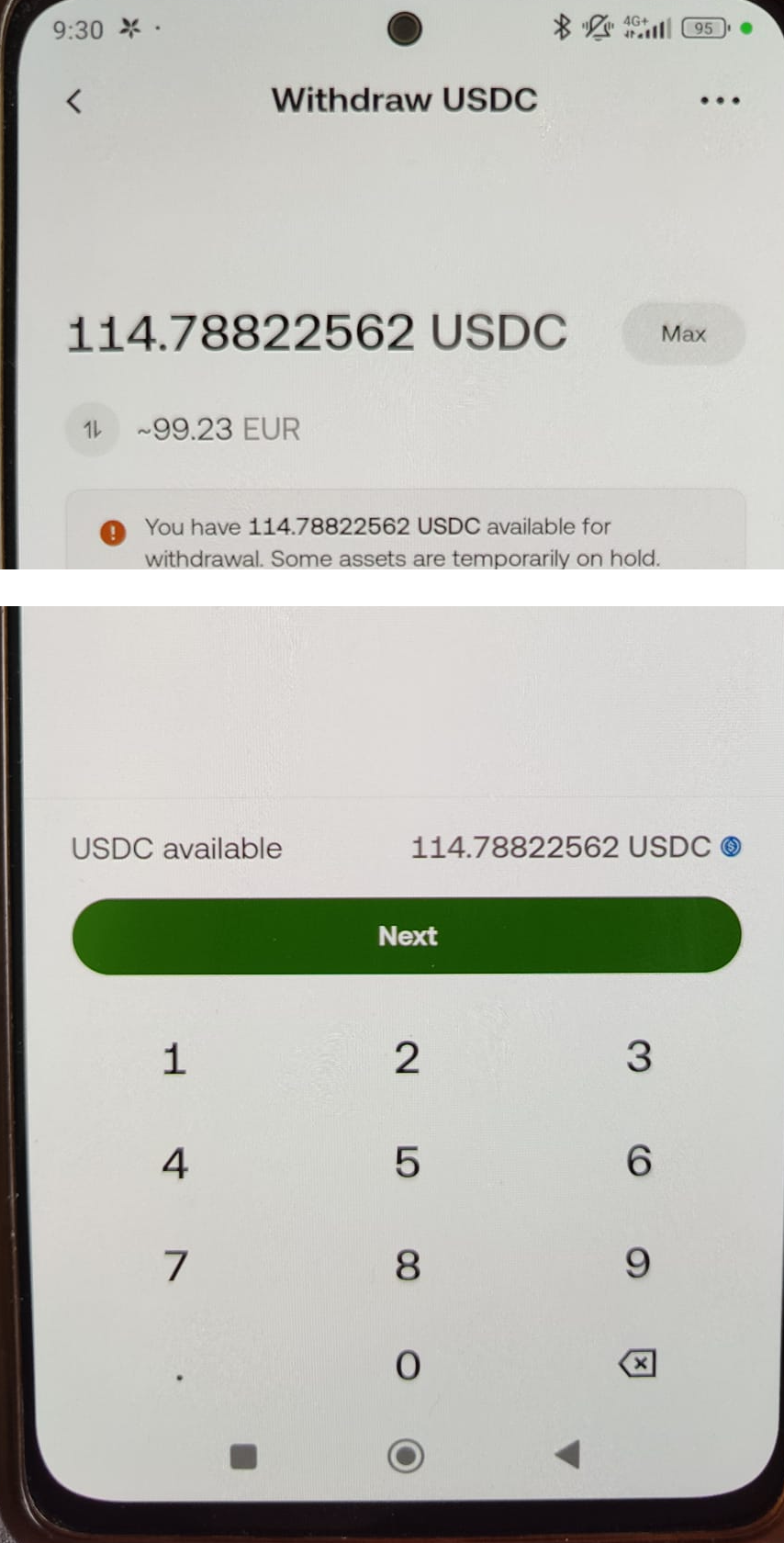
Enter amount
Confirm that it's your own address.
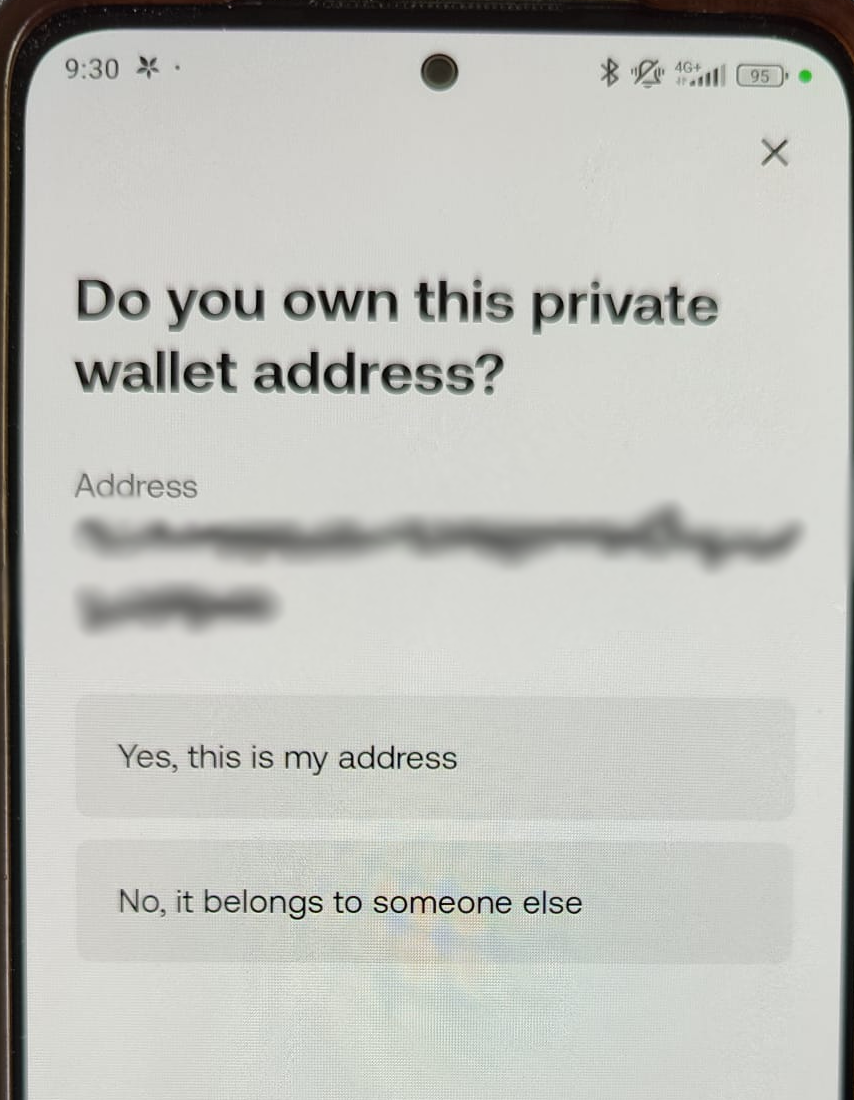
Confirm ownership
Acknowledge that it's your own address.
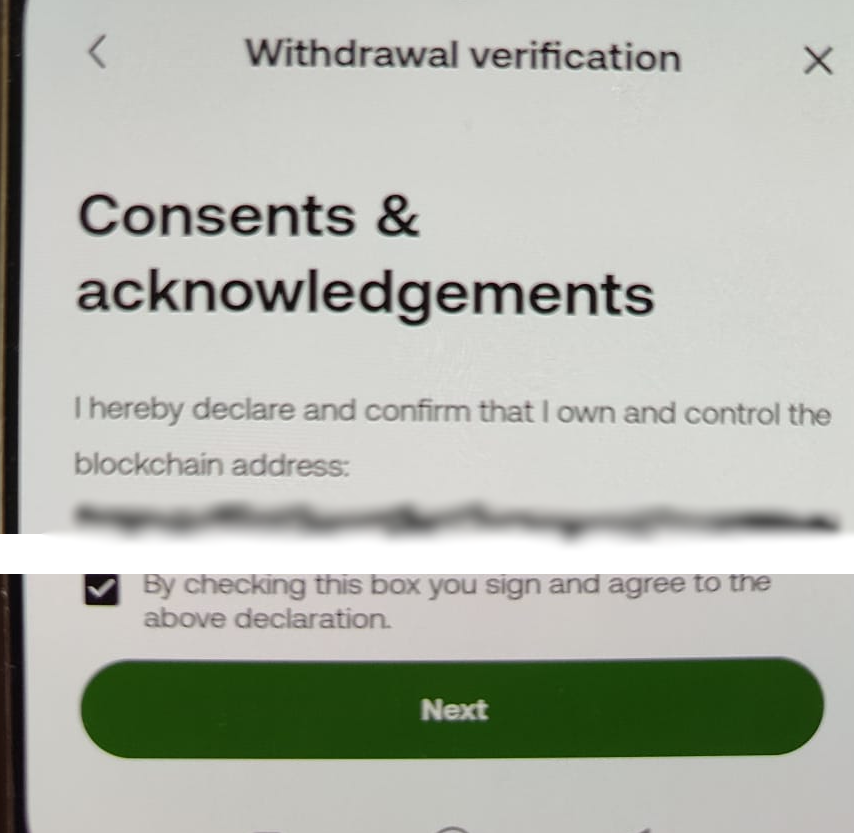
Consents & acknowledgements
Review the details and tap Confirm.
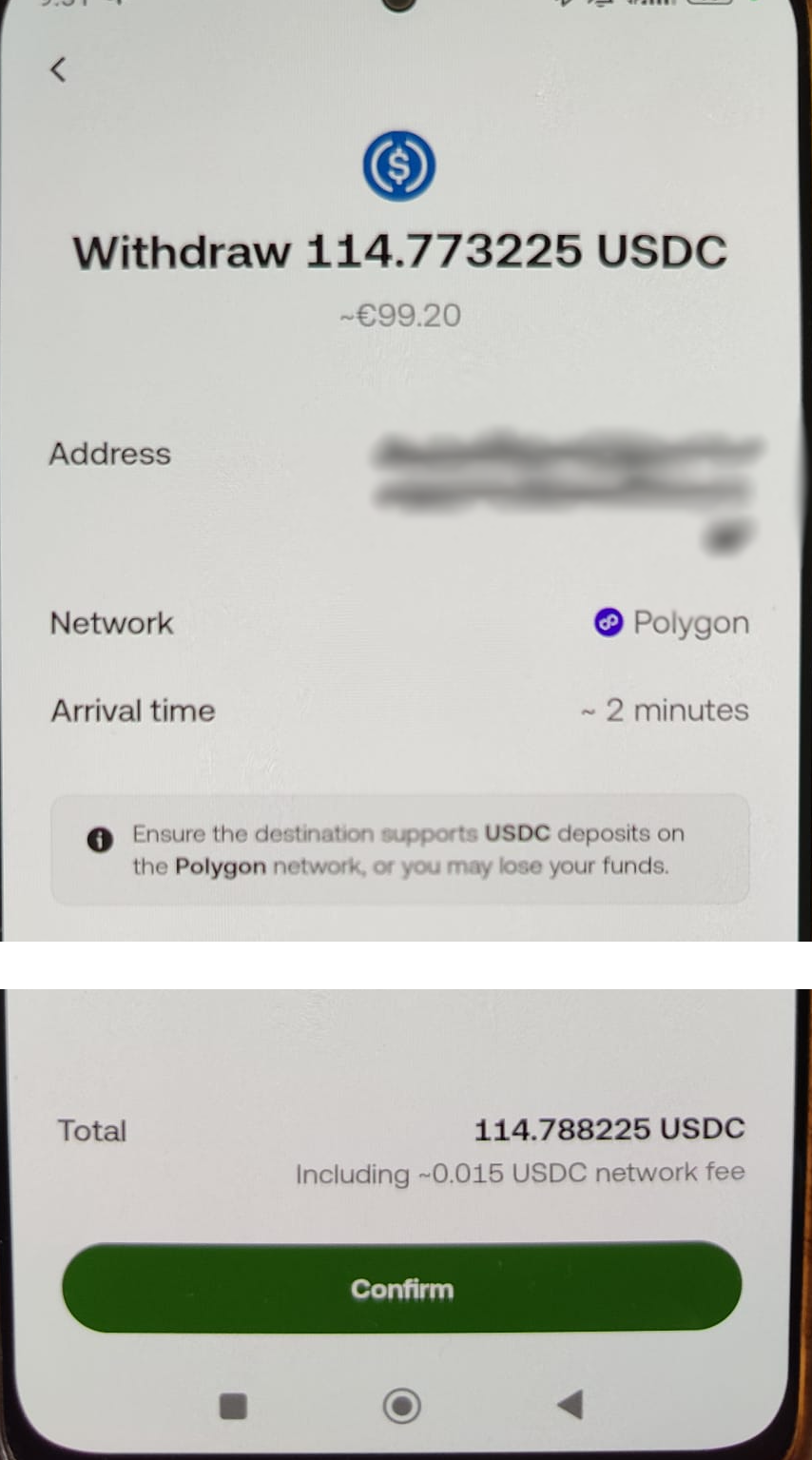
Review and confirm
Done — your withdrawal is on its way.
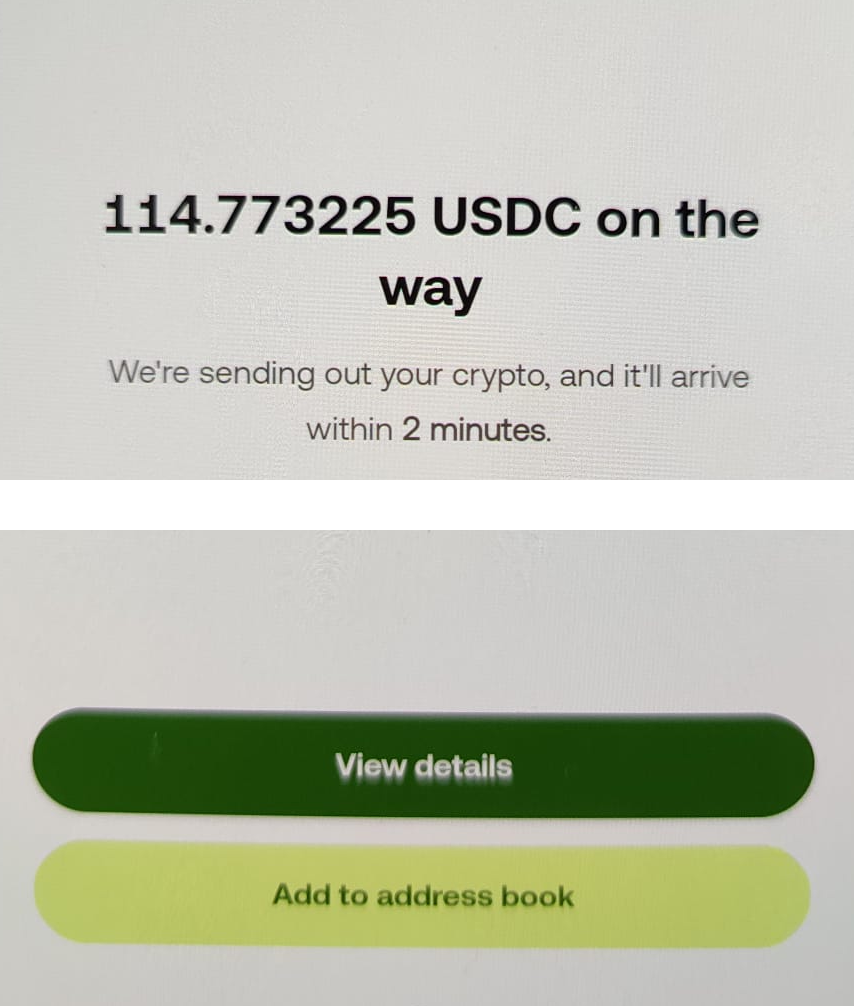
Receipt
Note! At this point, with the money in MetaMask wallet, the cost via OKX has been 0.8% of the original €100.Send tokens to wallet from CoinBase
On the Home screen in CoinBase, tap Transfer
Home tab → Transfer
Tap Send crypto.
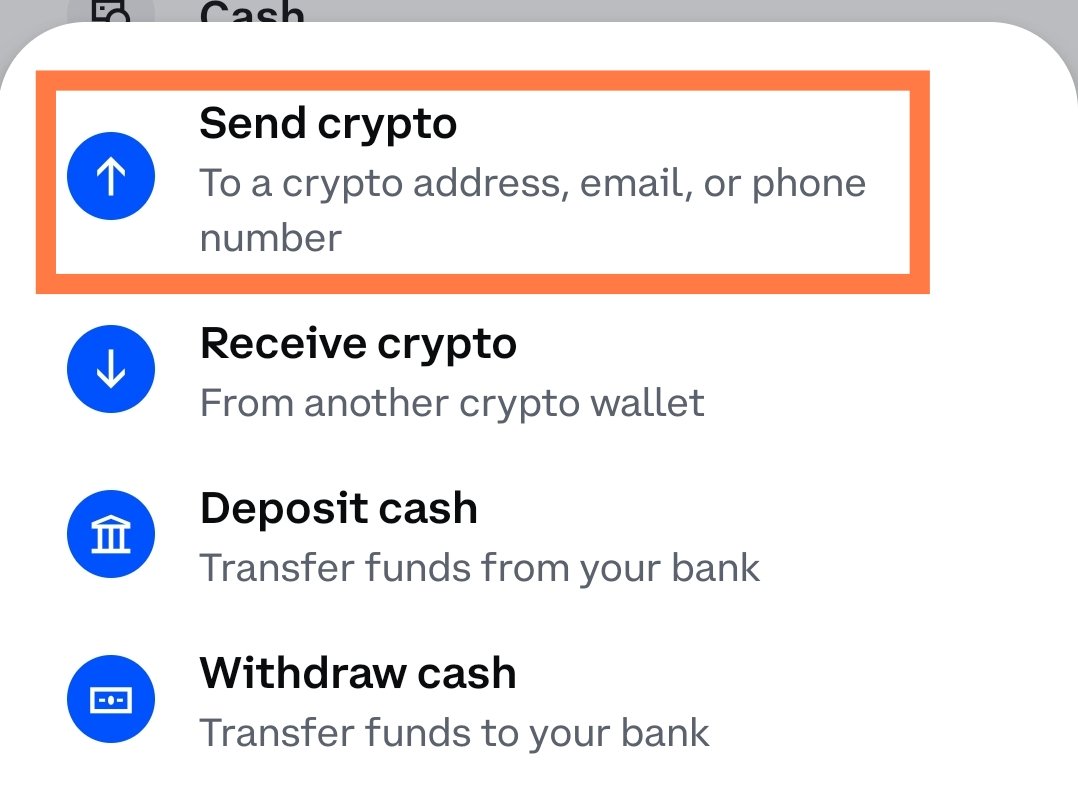
Send crypto
Now you need your wallet address from MetaMask. In MetaMask's home view, tap the copy icon at the top.
MetaMask home → copy icon
Find Polygon in the list and tap the copy icon next to it.
Copy your Polygon address
Back in CoinBase, paste the copied address into Enter address.
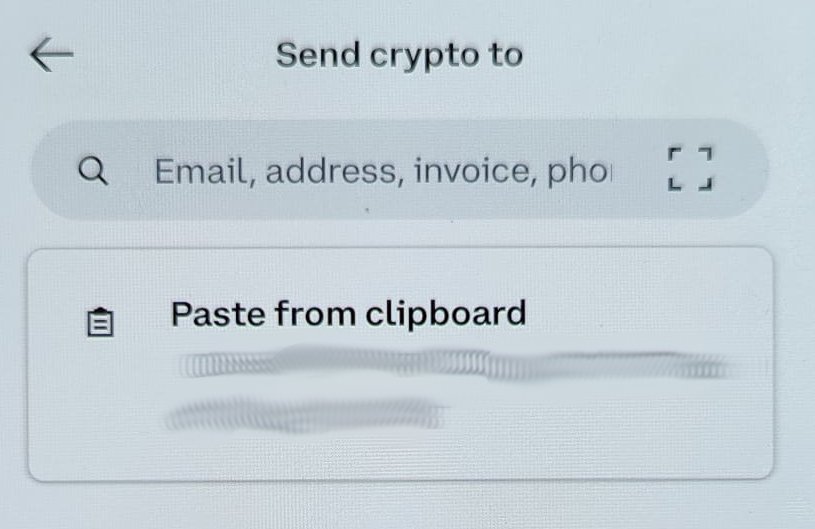
Paste your address
Select USDC.
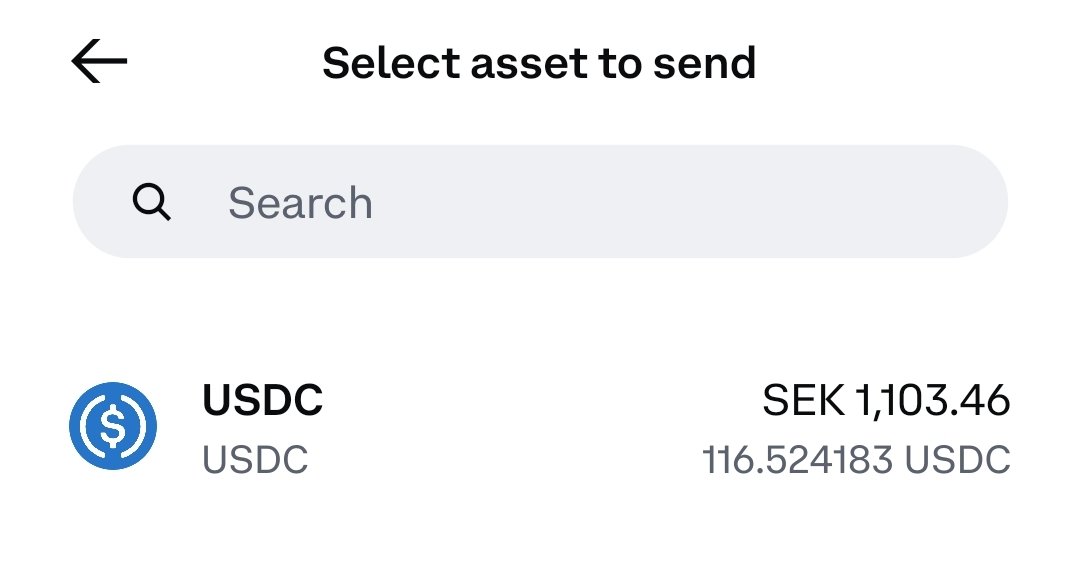
Select asset
Select Polygon.
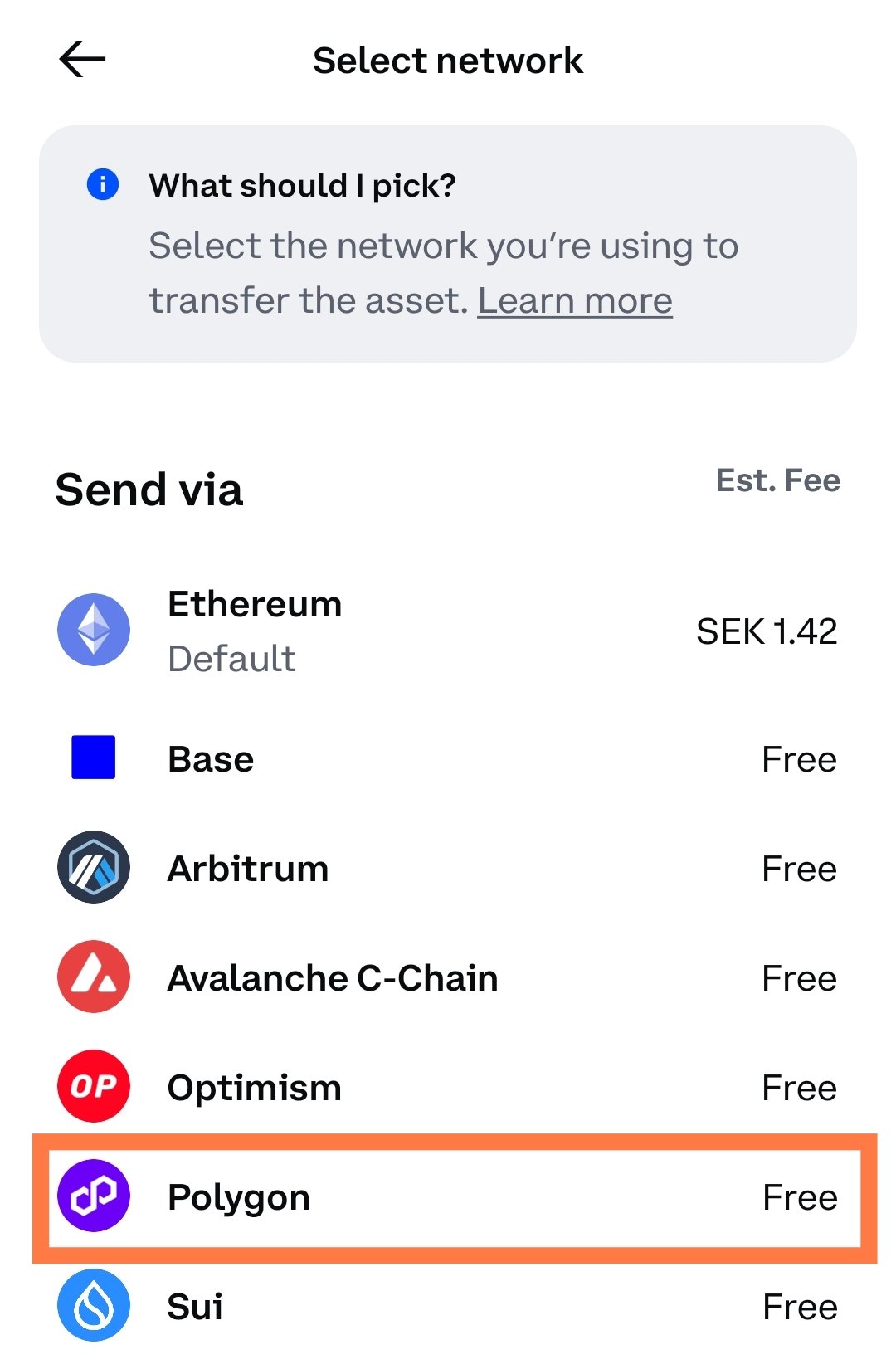
Select network
Confirm that we can accept the token and network.
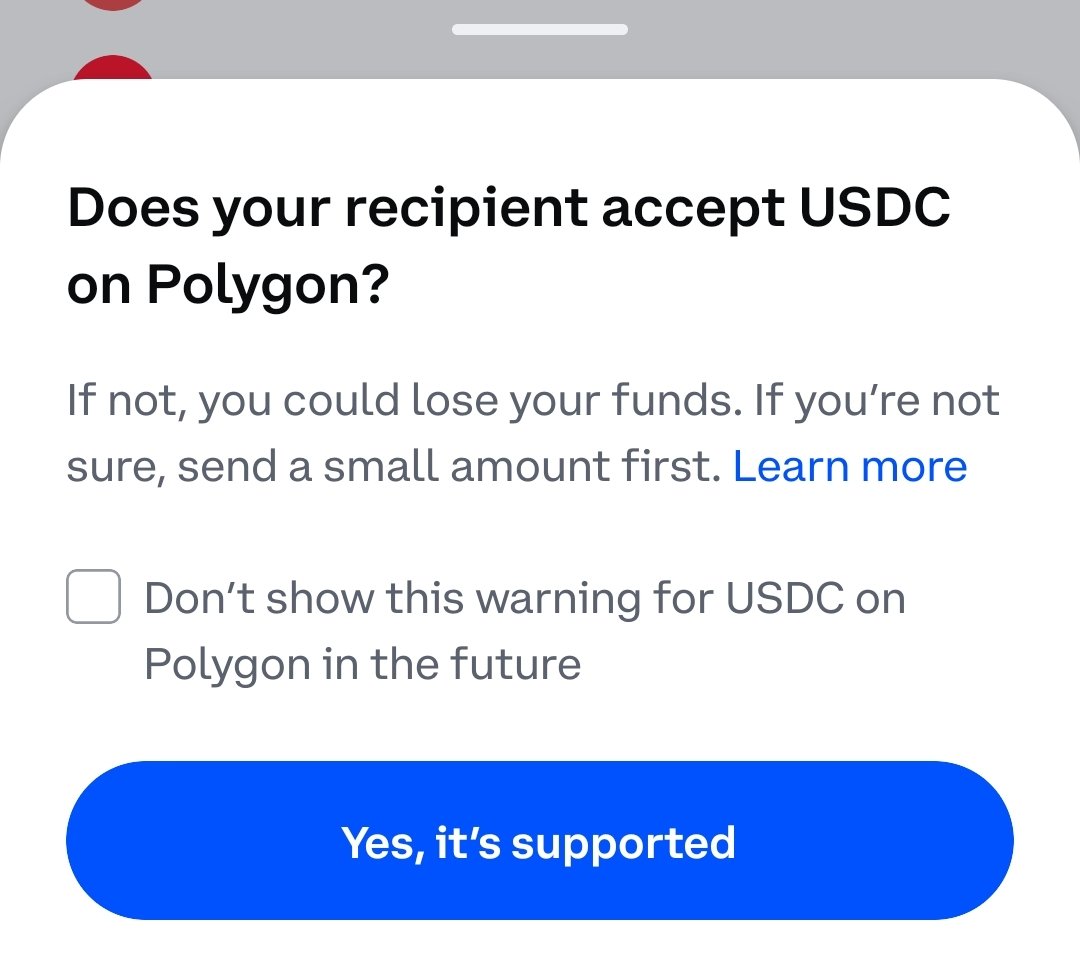
Confirm
Enter the amount, or tap Max.
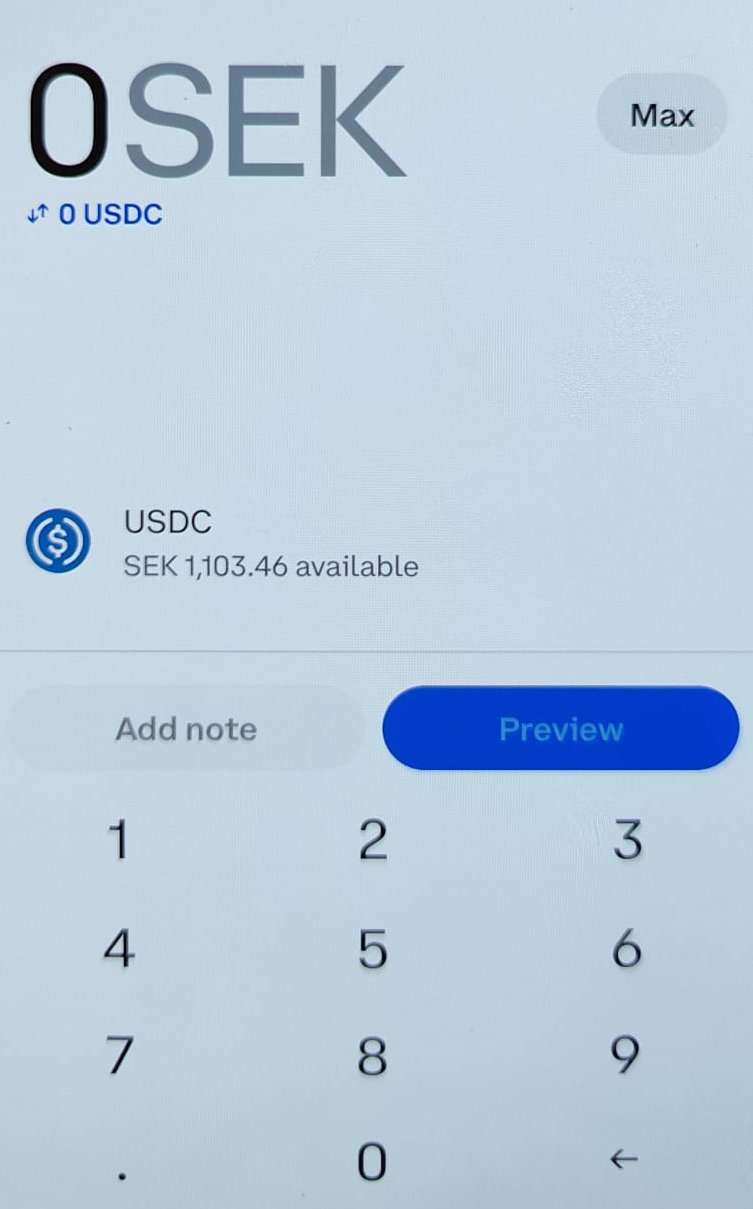
Enter amount
Pick Self-custody wallet.
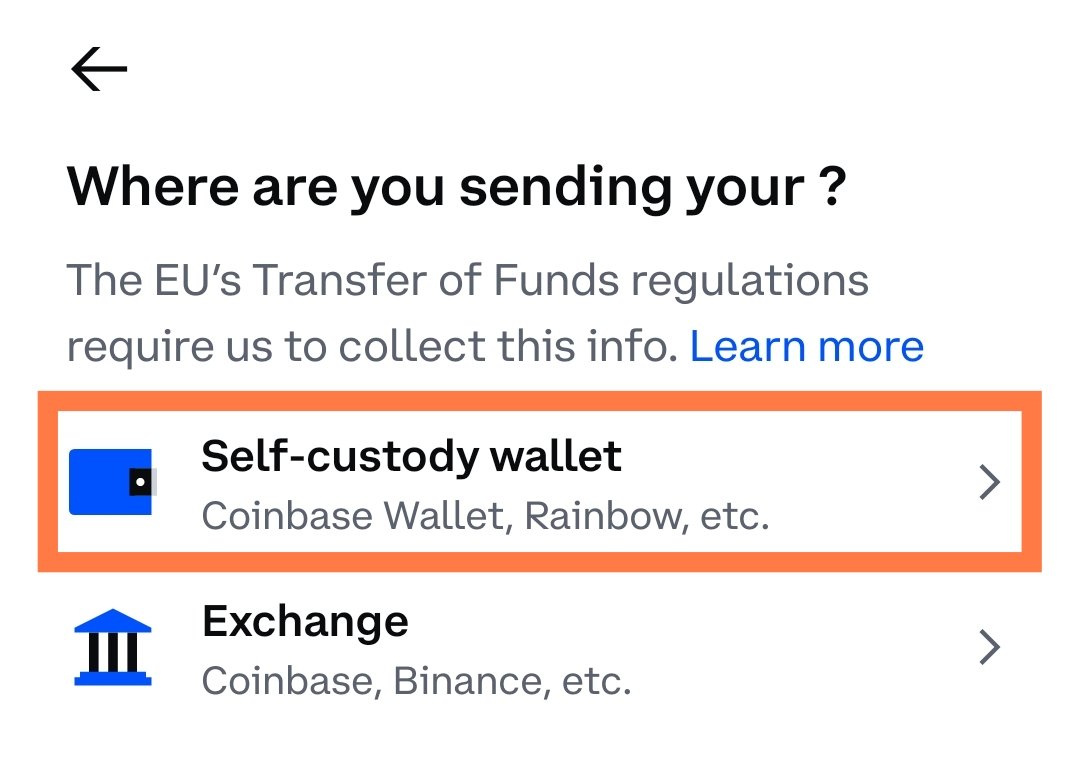
Self-custody wallet
Enter that it's your own address.
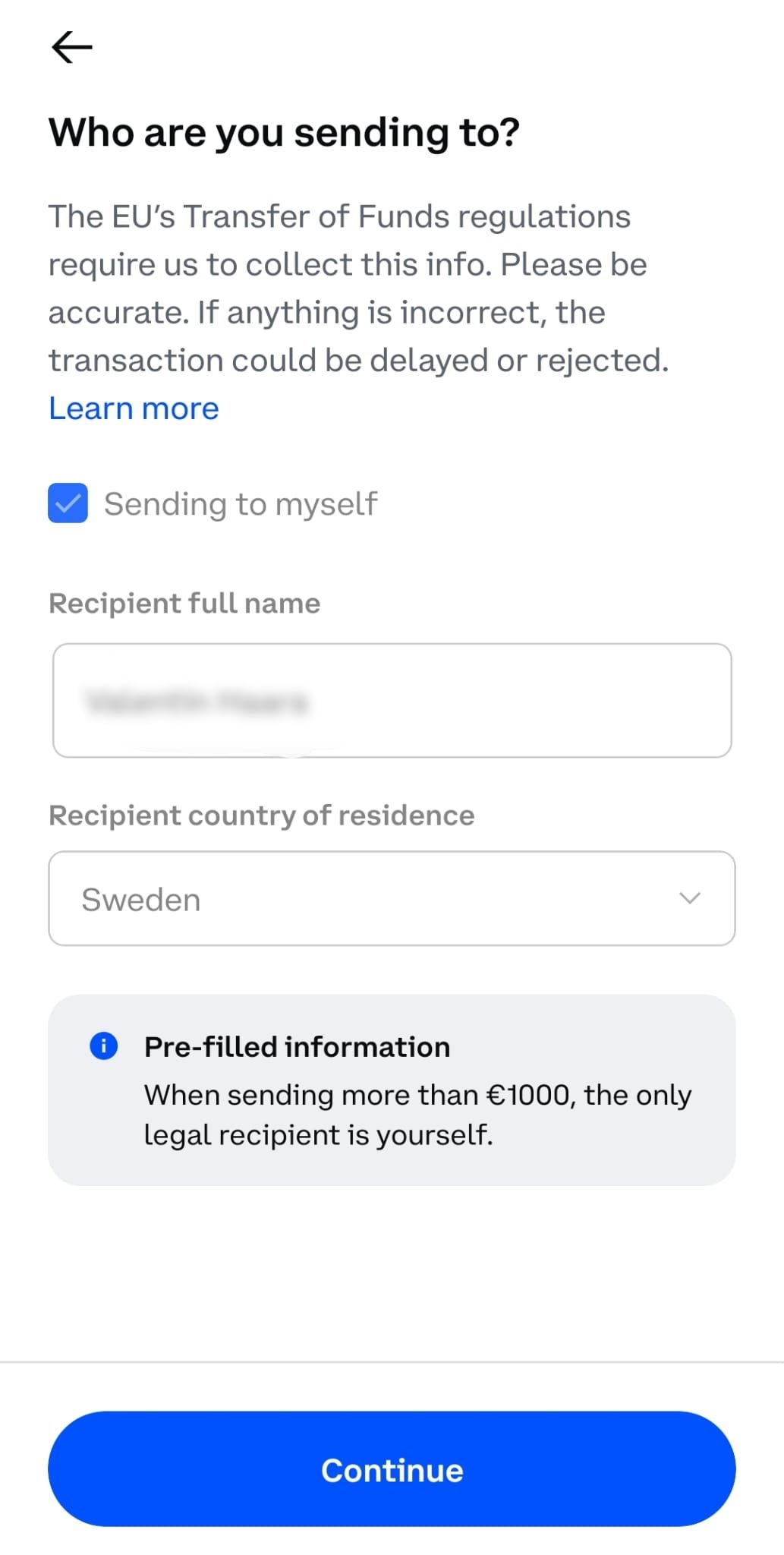
Confirm ownership
Review the details and tap Send now.
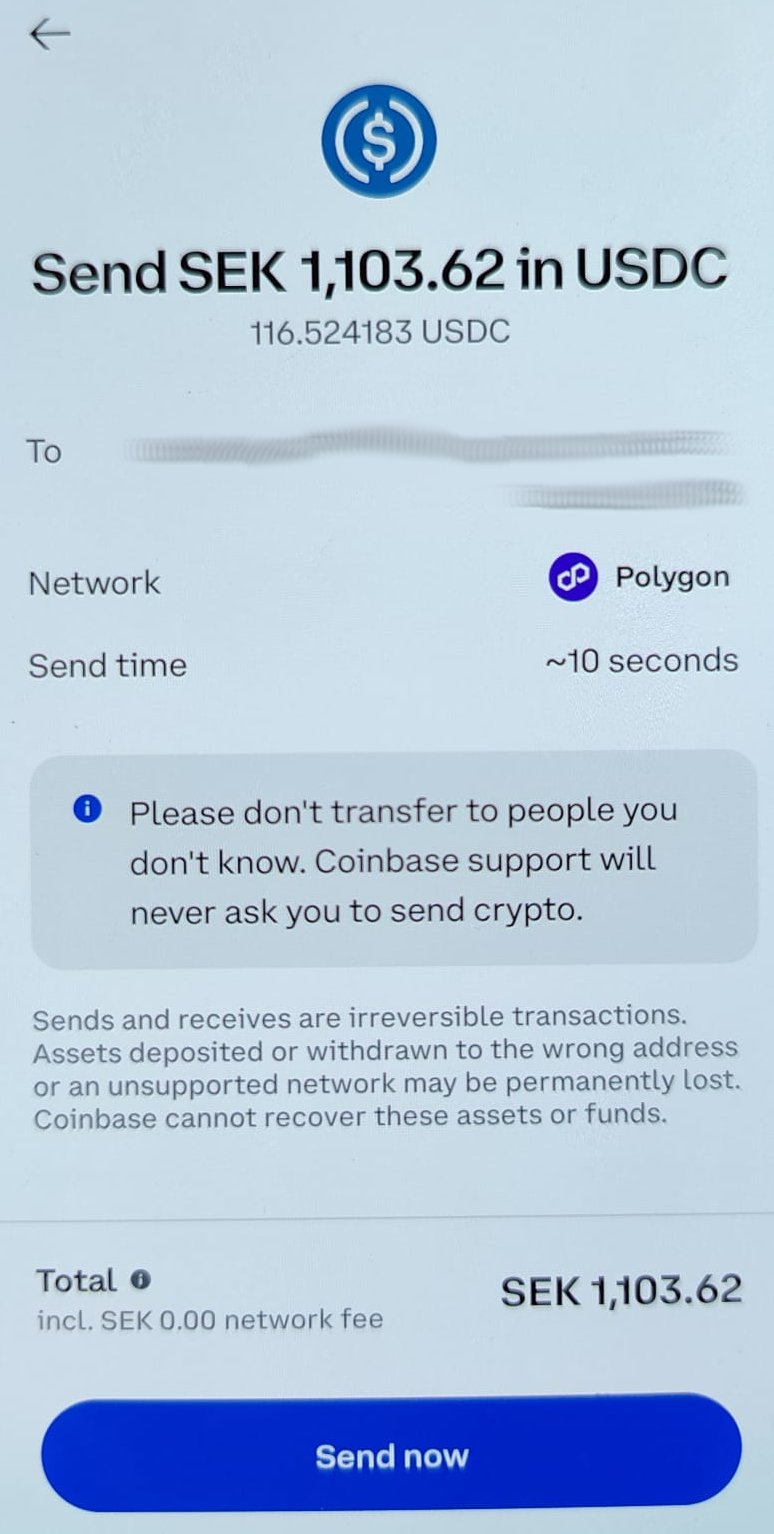
Review and confirm
Note! At this point, with the money in MetaMask wallet, the cost via CoinBase has been 0.3% of the original €100.Get gas money
If you try to send a token and see a red "Network fee" warning, it means you don't hold the token needed to pay the network fee (commonly called gas). Note which token it's asking for — once you have it, the fee itself will be less than a cent.
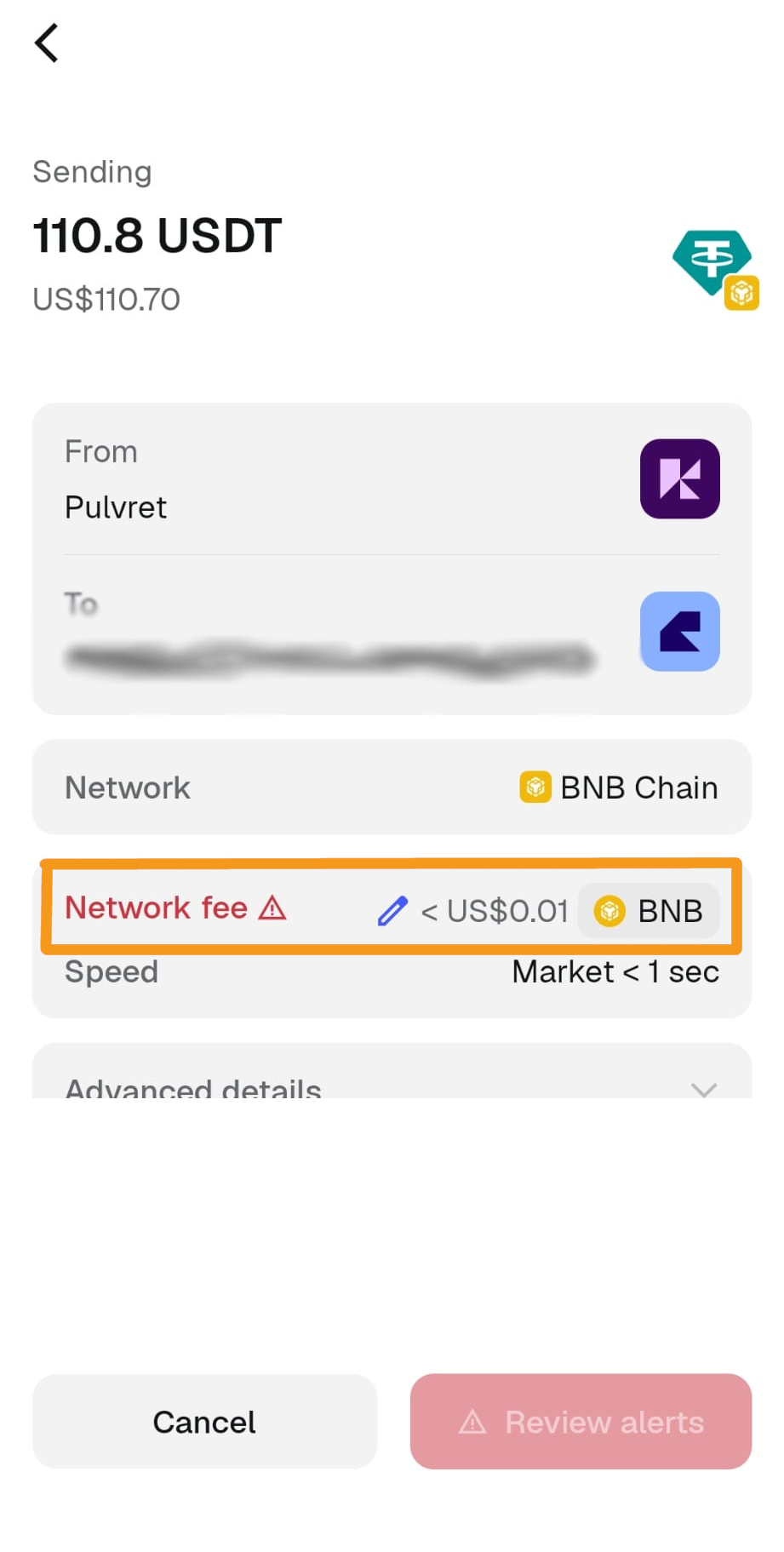
Red network fee warning
From MetaMask's home screen, tap Swap.
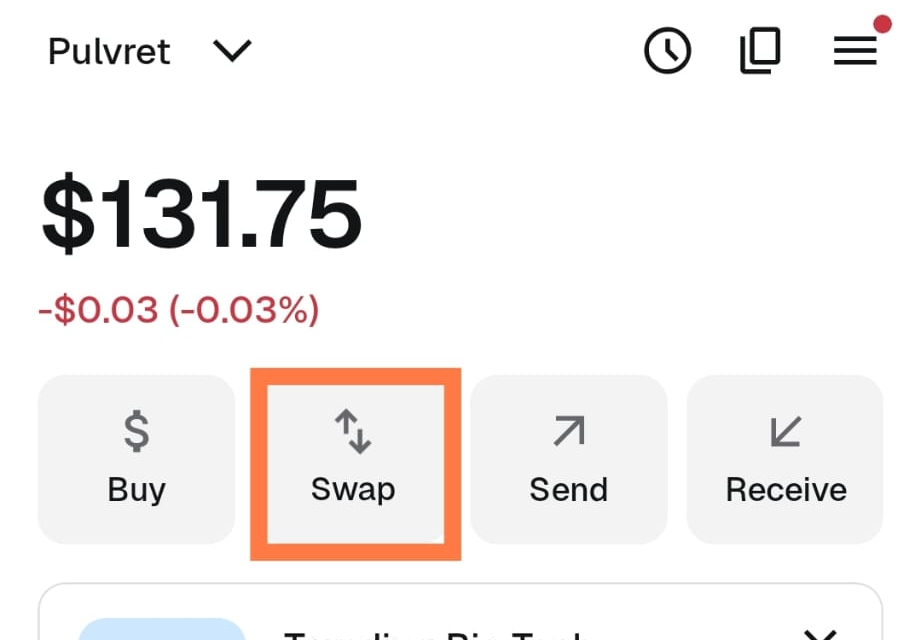
Home → Swap
Select the token you were trying to send, and swap it for the gas token (the main token on that network — the same one you saw next to the network fee warning). You don't need much: the fee was less than a cent, so even a few cents is enough. I usually swap about a dollar's worth to be safe.
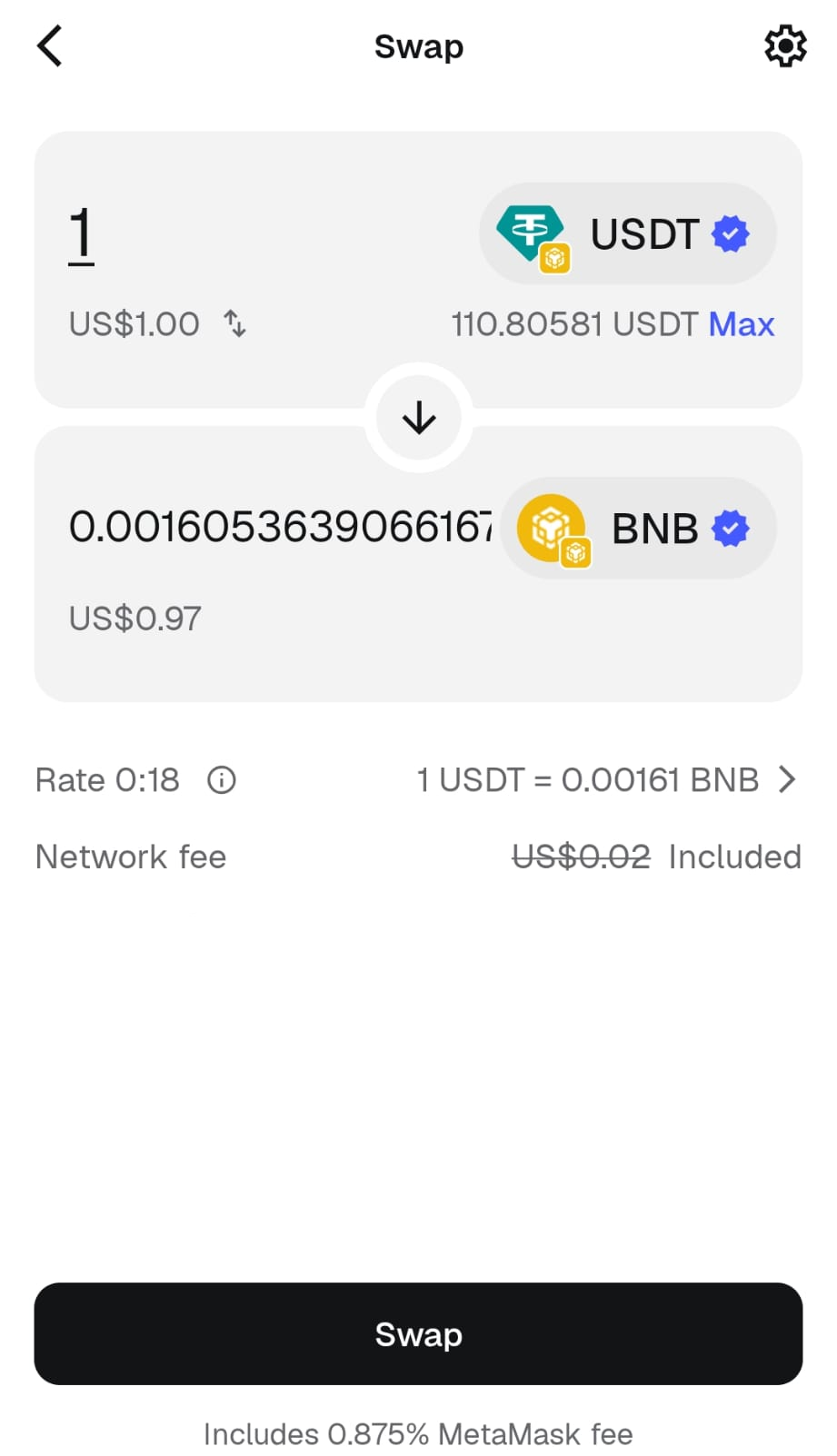
Swap a small amount for gas
Now you can send your token — the network fee warning is gone and Confirm is enabled.
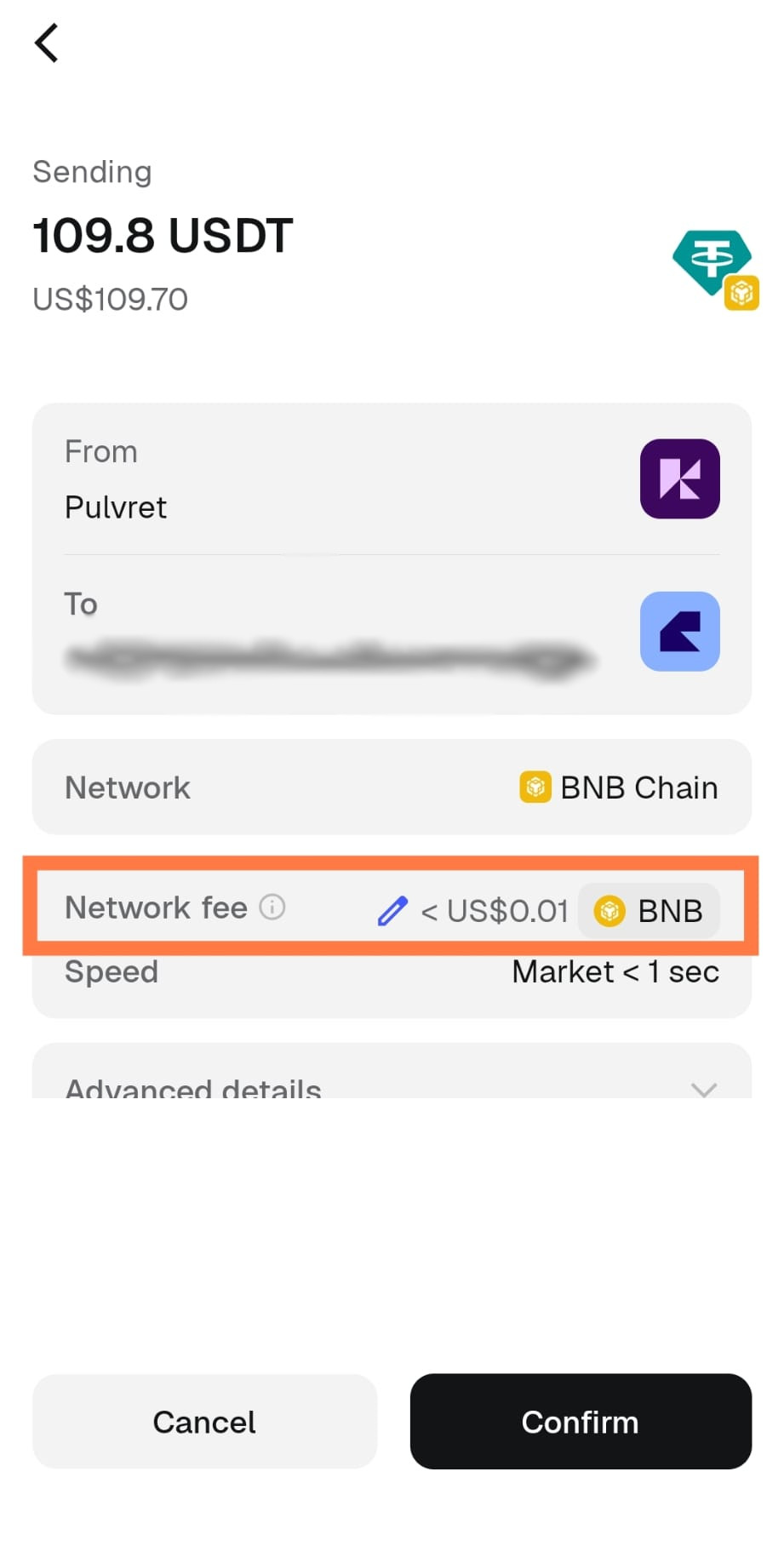
Send goes through
Swap to a different token/network
Depending on your destination and what token (USDC/USDT) you were able to get in the exchange you may have to swap to the token-network combination of the site you're depositing to. Here you can find the best token for the site you're depositing to.
From MetaMask's home screen, tap Swap.
Home → Swap
Select the token you were able to get from the exchange, and swap it for the token you need.
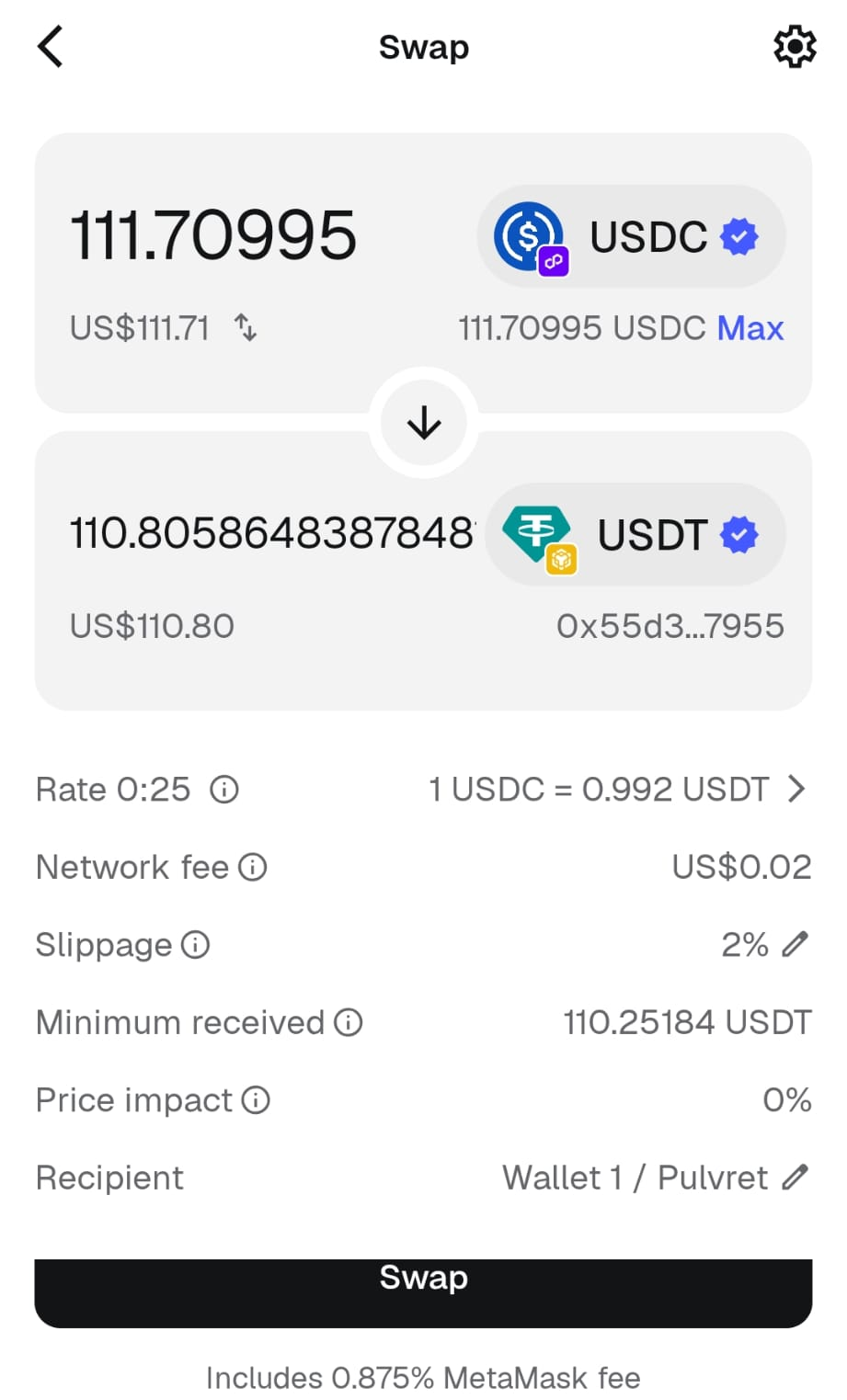
Swap to the token that fits your poker site
You'll see this bridge screen and it can take a minute or two, because there are more than one transaction going on in the background. But if you don't see your token after a little while you may have to import it in MetaMask.
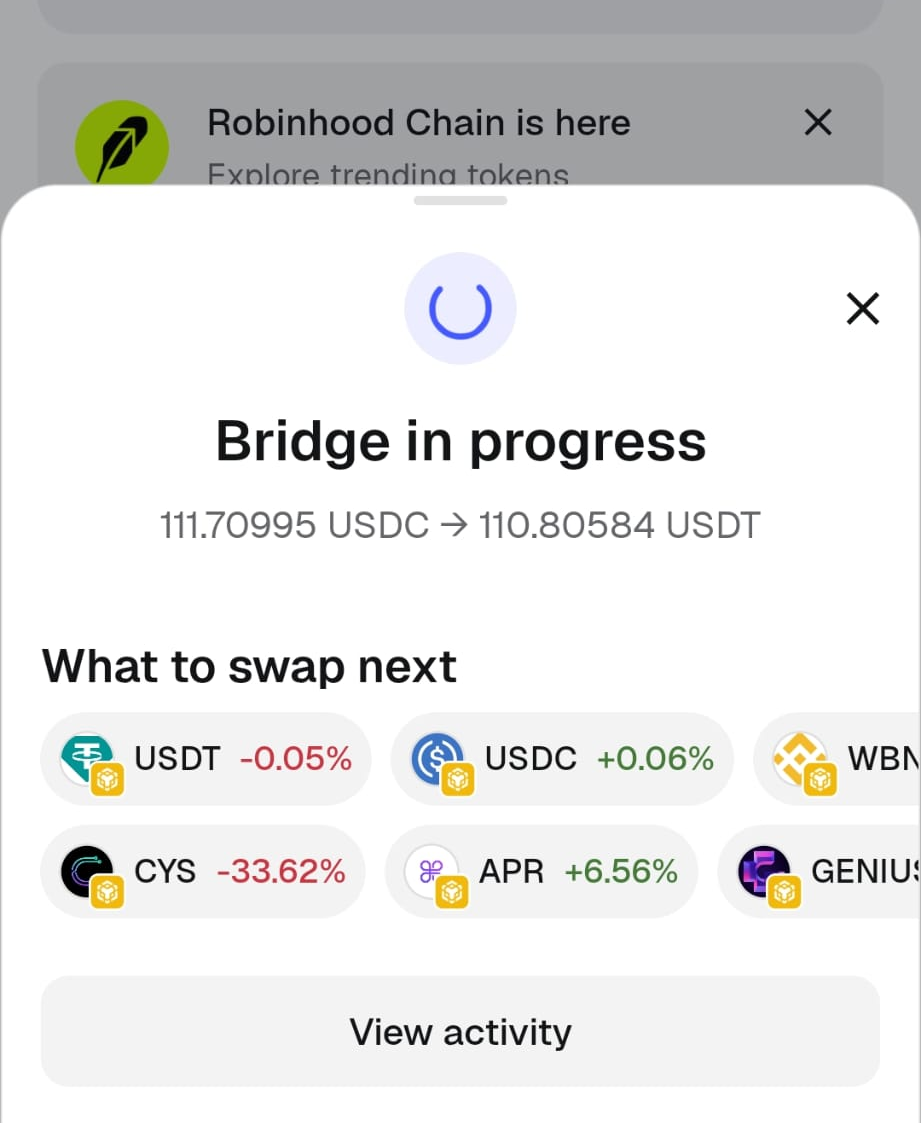
Bridging.
Token not showing up in MetaMask?
MetaMask only displays tokens it already knows about. If you've received or swapped into something new, you sometimes need to add it manually — this doesn't affect your balance, it just tells MetaMask to display it.
From MetaMask's home screen, tap Tokens.
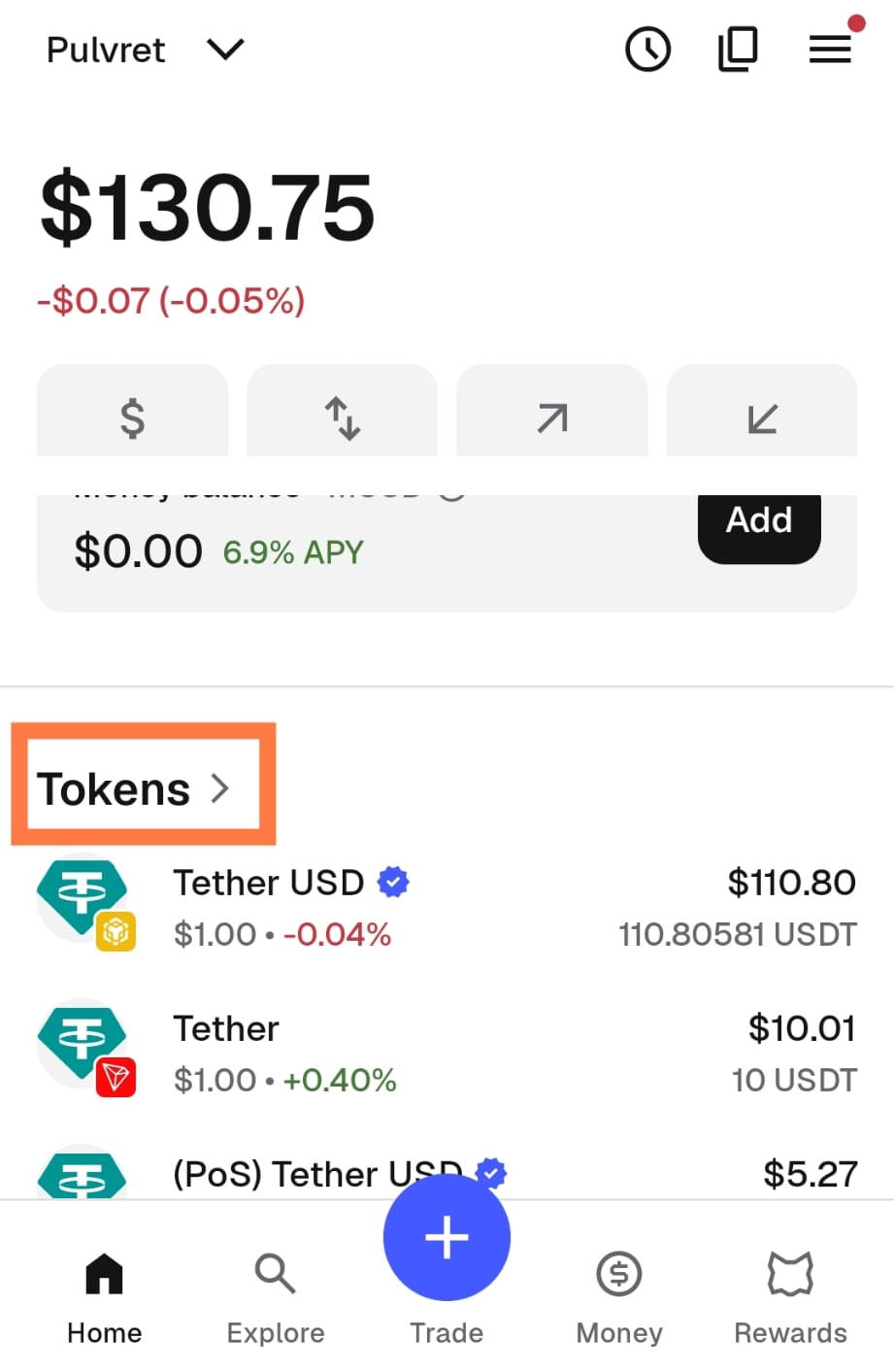
Home → Tokens
Tap the + button.
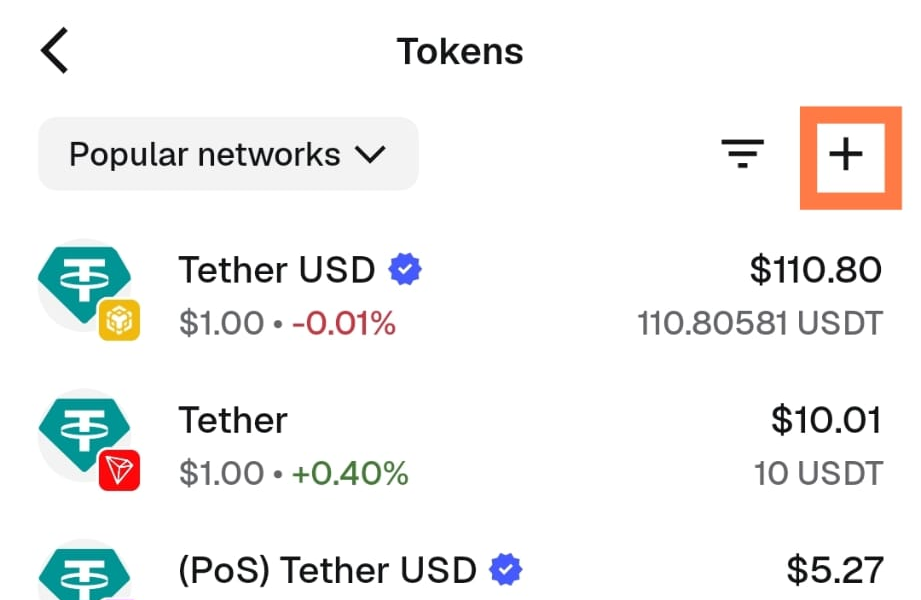
Tokens → +
Select the network your token is on (e.g. Polygon), search for the token by name or symbol, check the box next to it, then tap Next to import.
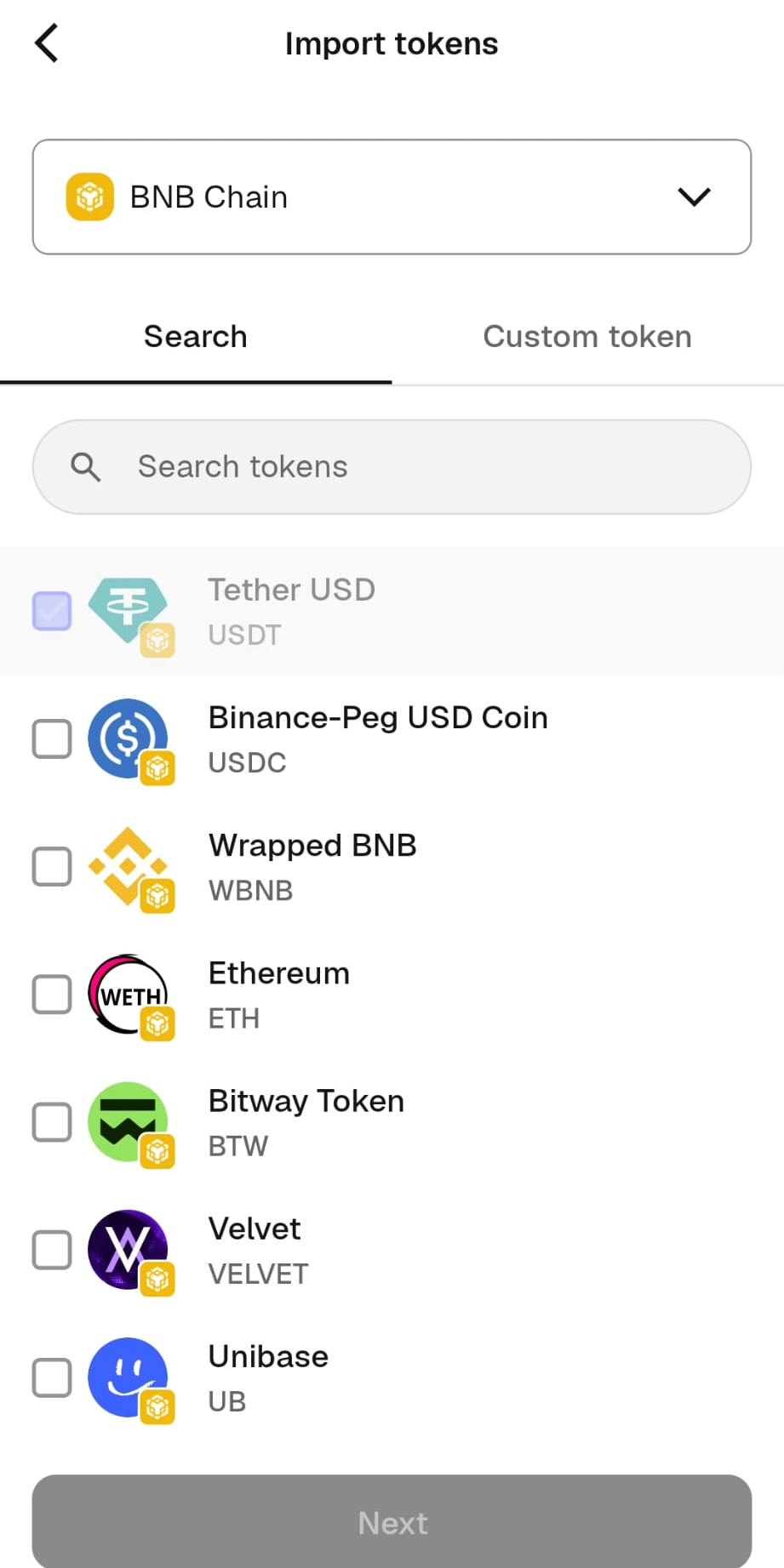
Select network, search, and import
Make sure you pick the correct network — the same one you sent or swapped the token on. If you import it on the wrong network, it still won't show up.
Send tokens to CoinPoker
For CoinPoker I recommend using USDT/USDC on Polygon.
Go to wallet, deposit and select token and network. Then copy the provided address (this is your address on CoinPoker).
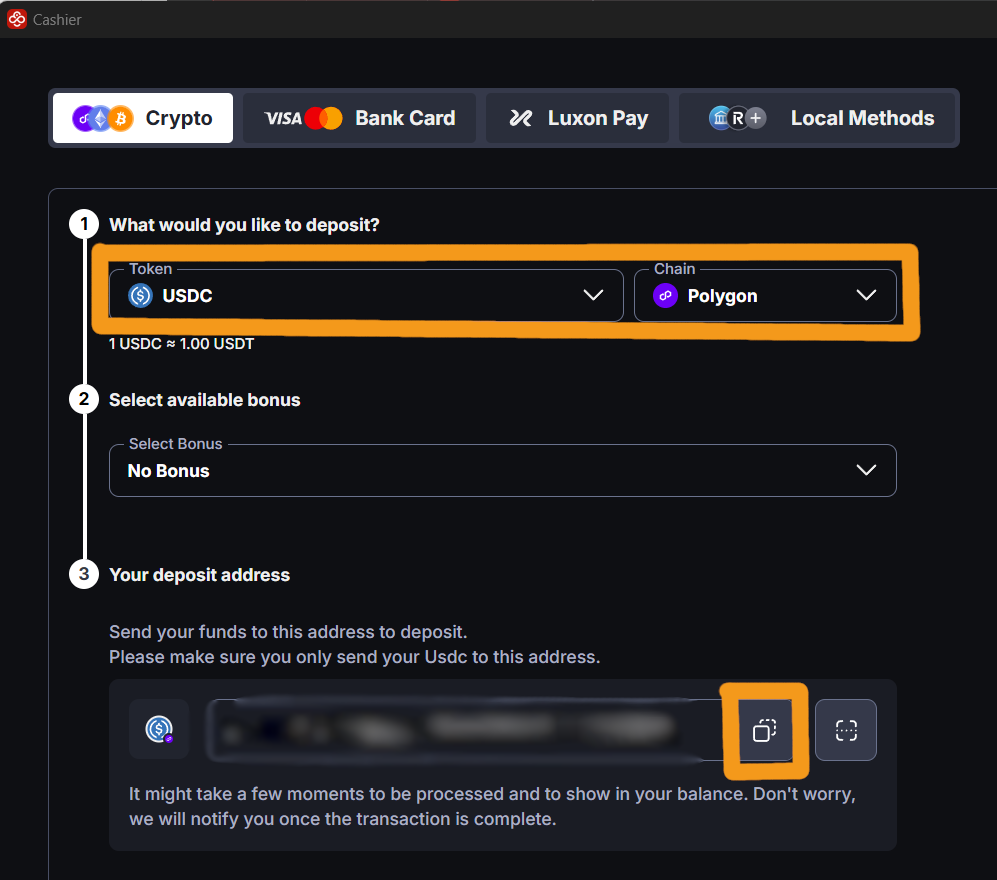
Wallet → deposit → copy address
On MetaMask home screen tap send.
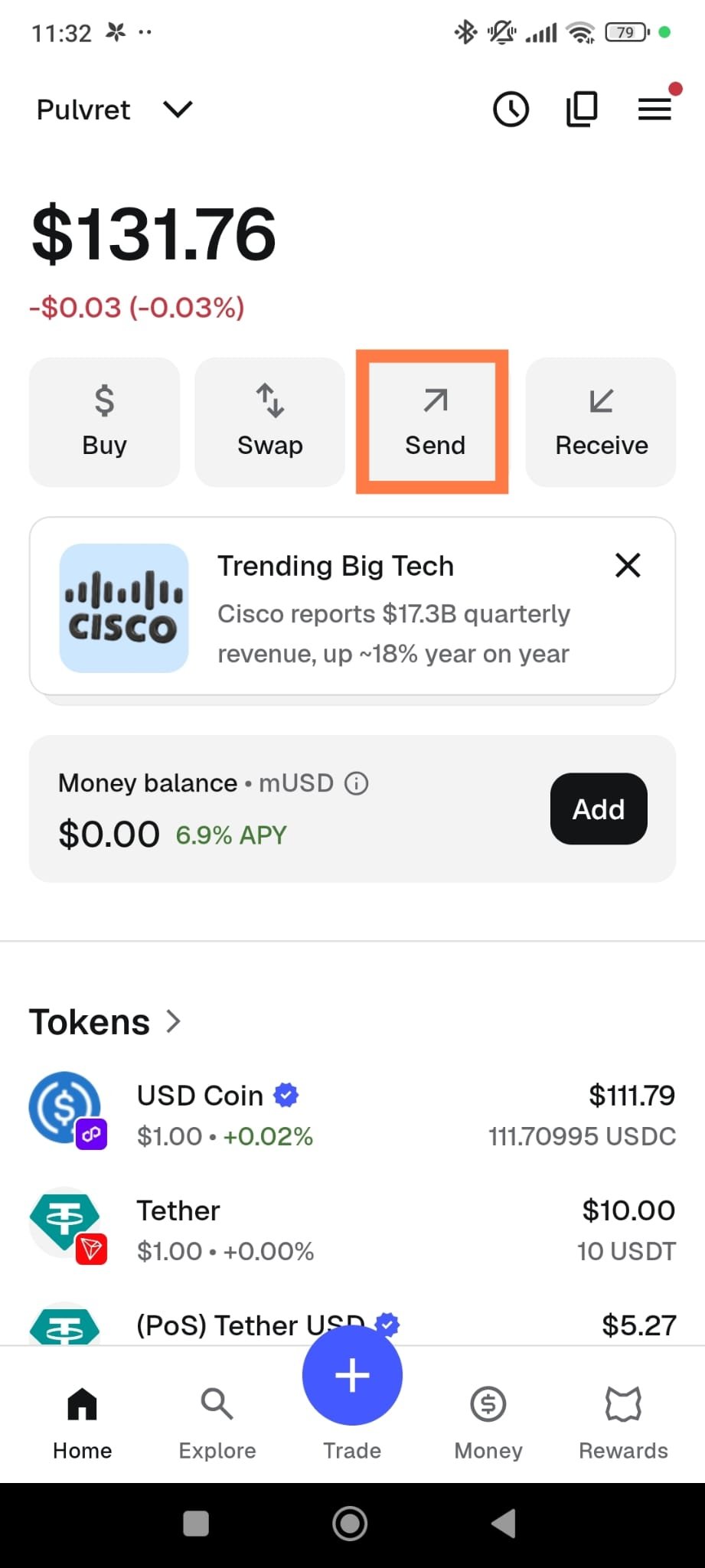
Tap send
Select the token (on the correct network) you want to send.
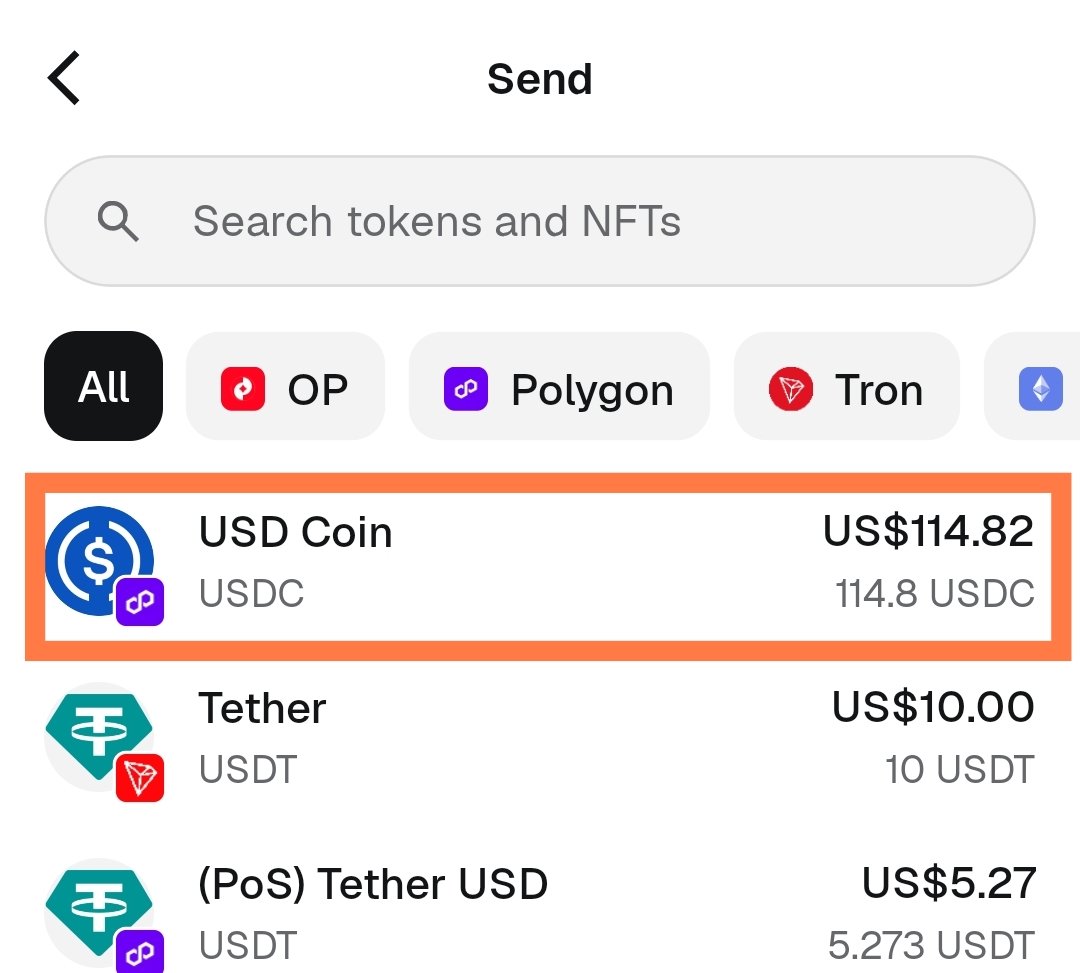
Select token+network
Select the amount (or just tap max).
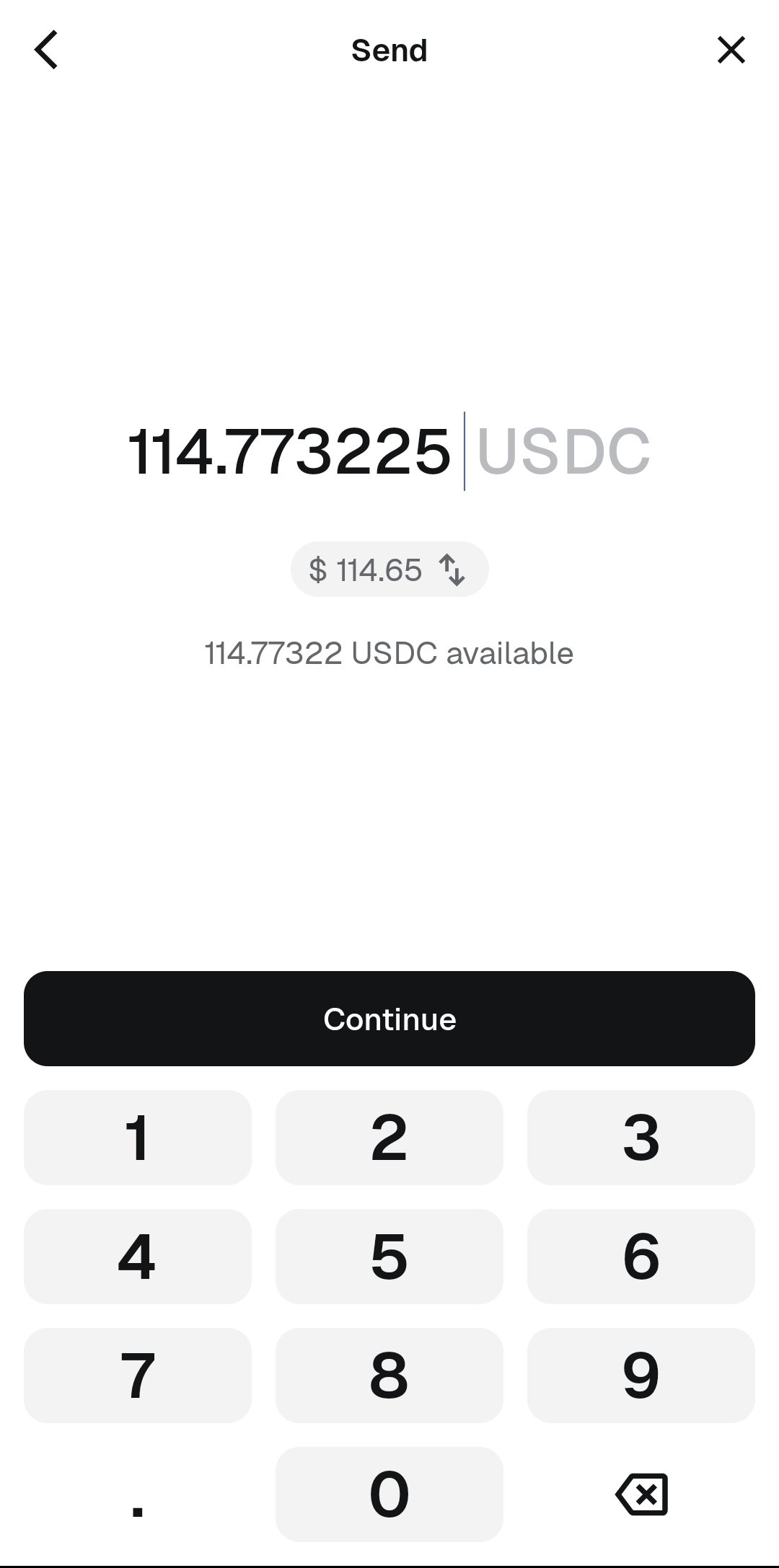
Select amount
Paste the address you copied in the CoinPoker app.
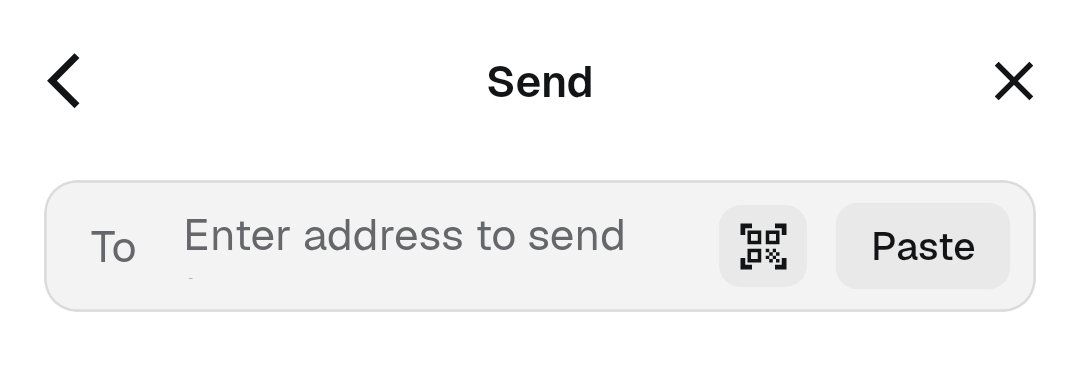
Paste address
Review the address and confirm.
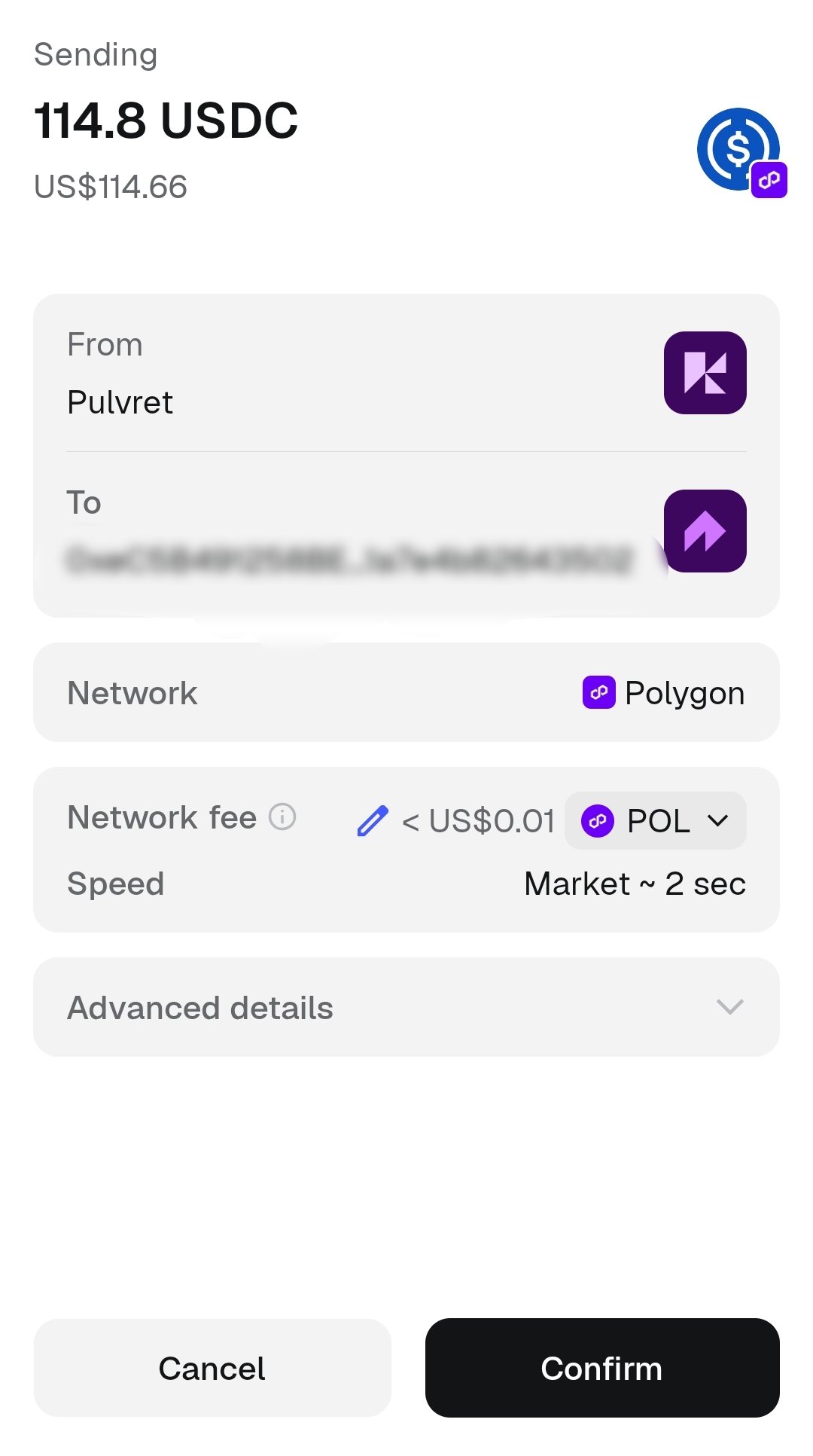
Review and confirm
The money arrives in seconds and the whole operation cost us 0.3% (assuming that we used CoinBase) plus less than a cent in gas money.
Send tokens to Phenom Poker
For Phenom I recommend using USDT/USDC on Polygon, but they offer several token-network combinations without any fees.
Go to wallet, deposit and tap Stablecoins.
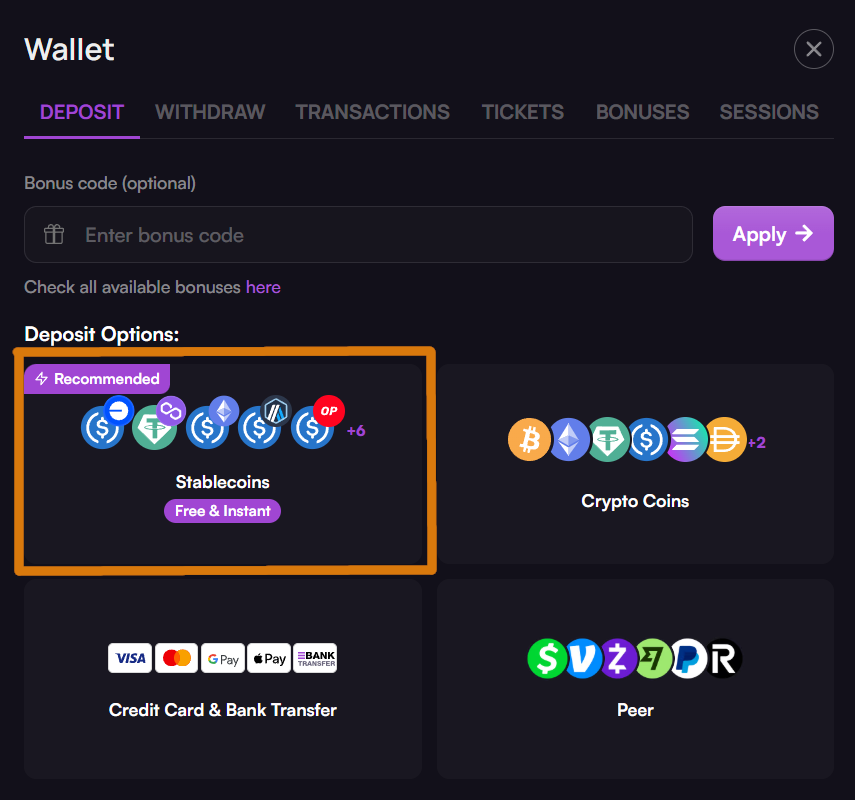
Wallet → deposit → Stablecoins
Select token and network. Then copy the provided address (this is your address on Phenom).
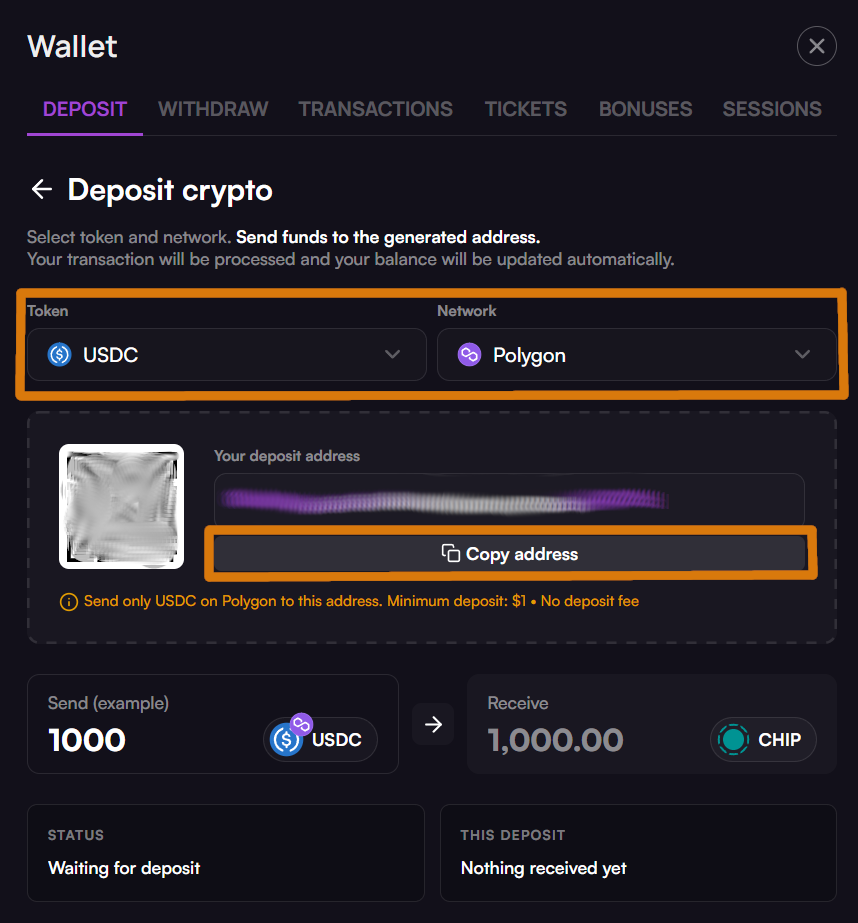
copy address
On MetaMask home screen tap send.
Tap send
Select the token (on the correct network) you want to send.
Select token+network
Select the amount (or just tap max).
Select amount
Paste the address you copied in the Phenom app.
Paste address
Review the address and confirm.
Review and confirm
The money arrives in seconds and the whole operation cost us 0.3% (assuming that we used CoinBase) plus less than a cent in gas money.
Send tokens to QQPK
For QQPK I recommend using USDT/USDC on BNB Smart Chain (BSC).
Go to wallet, deposit and select token and network, and tap OK.
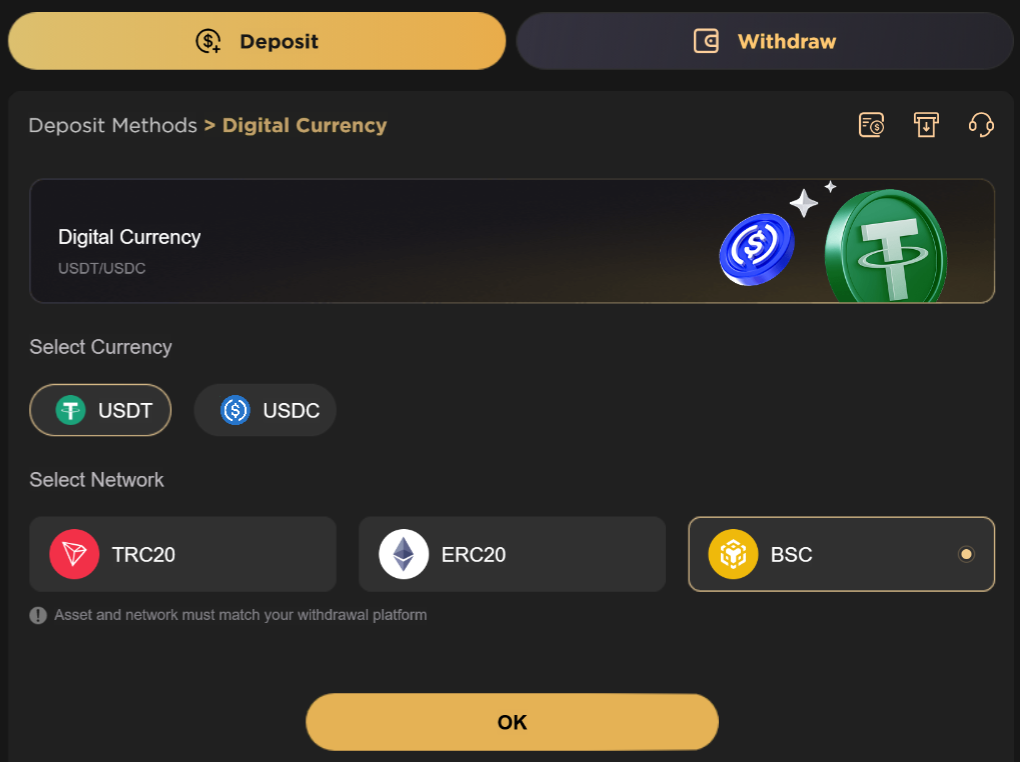
Wallet → deposit
Then copy the provided address (this is your address on QQPK).
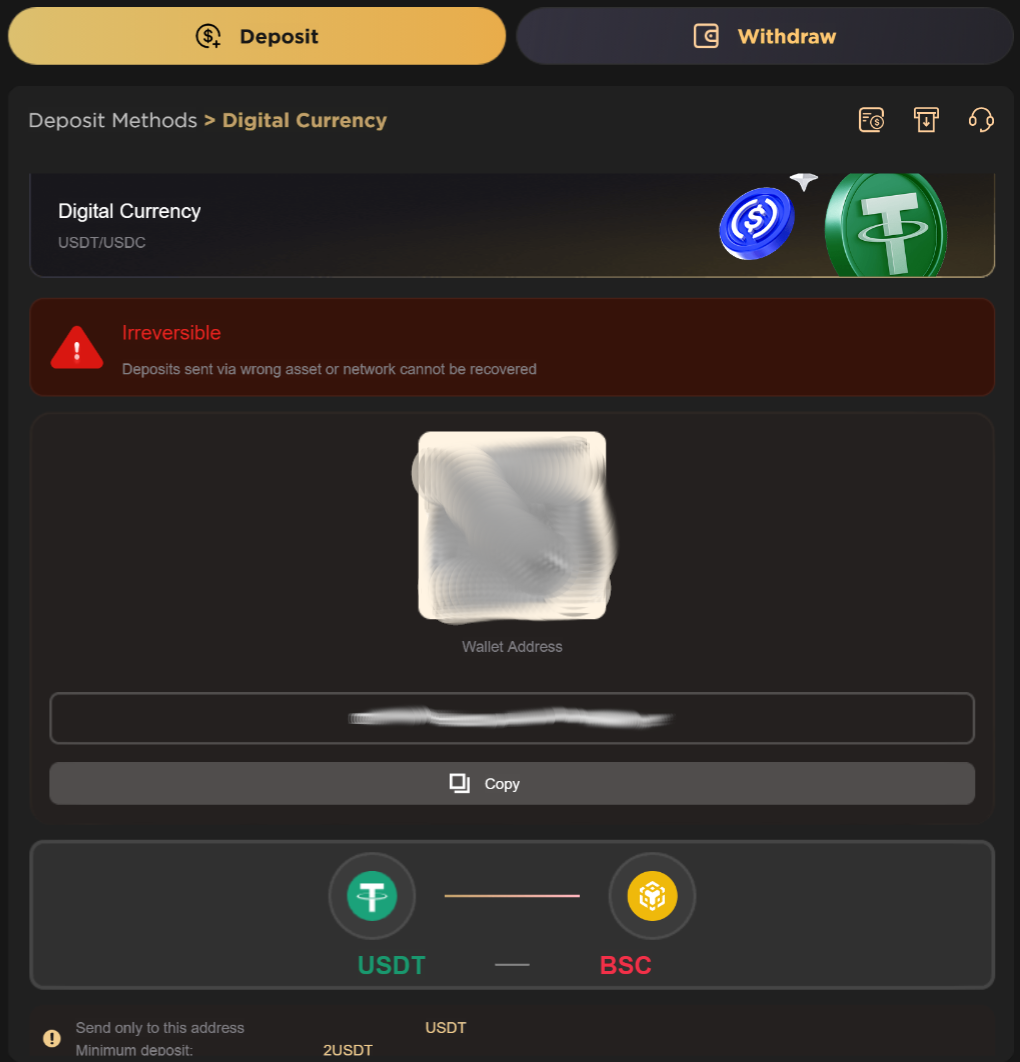
Wallet → deposit → copy address
On MetaMask home screen tap send.
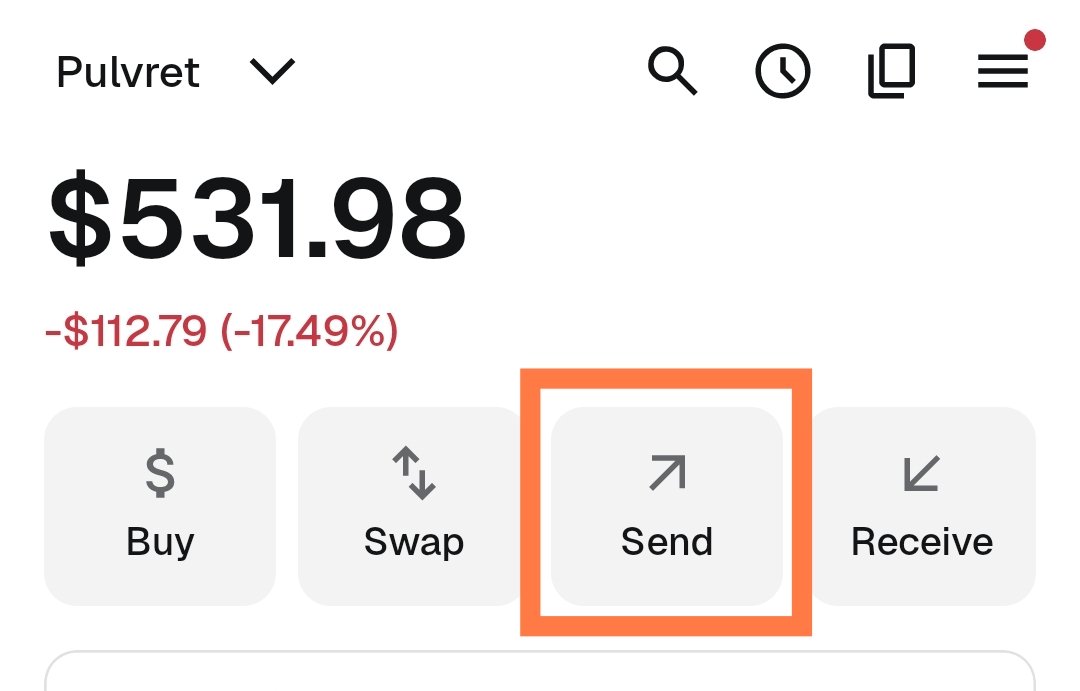
Tap send
Select the token (on the correct network) you want to send.
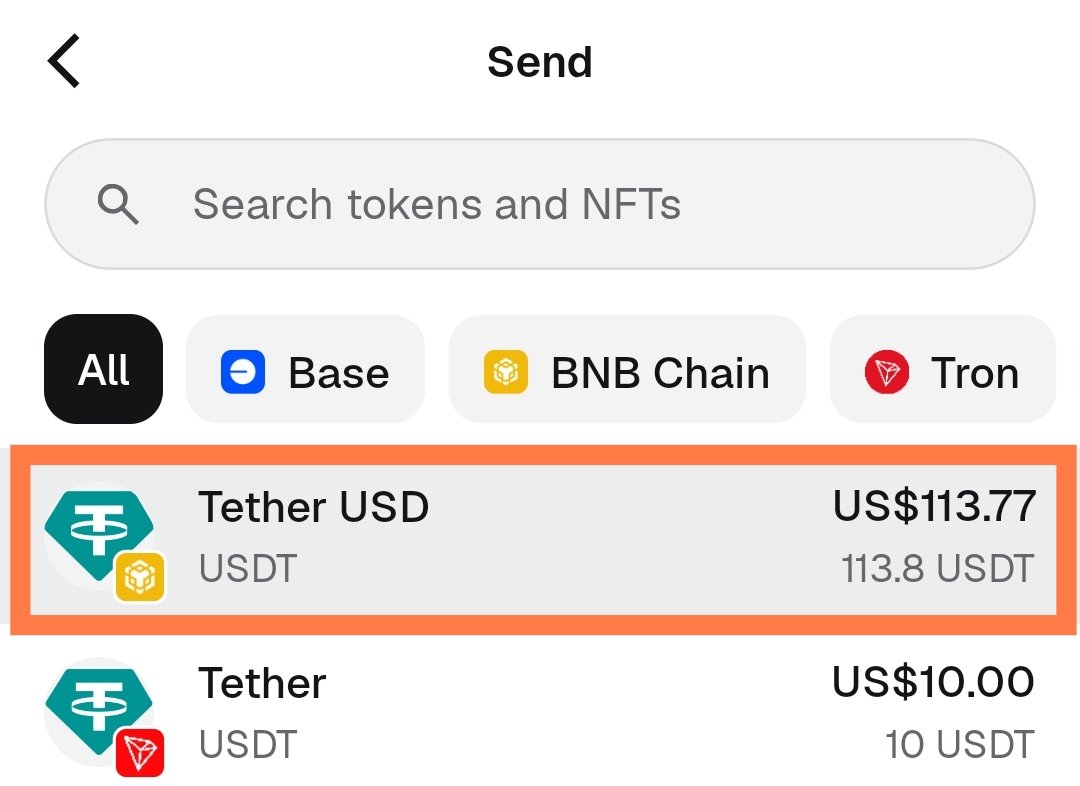
Select token+network
Select the amount (or just tap max).
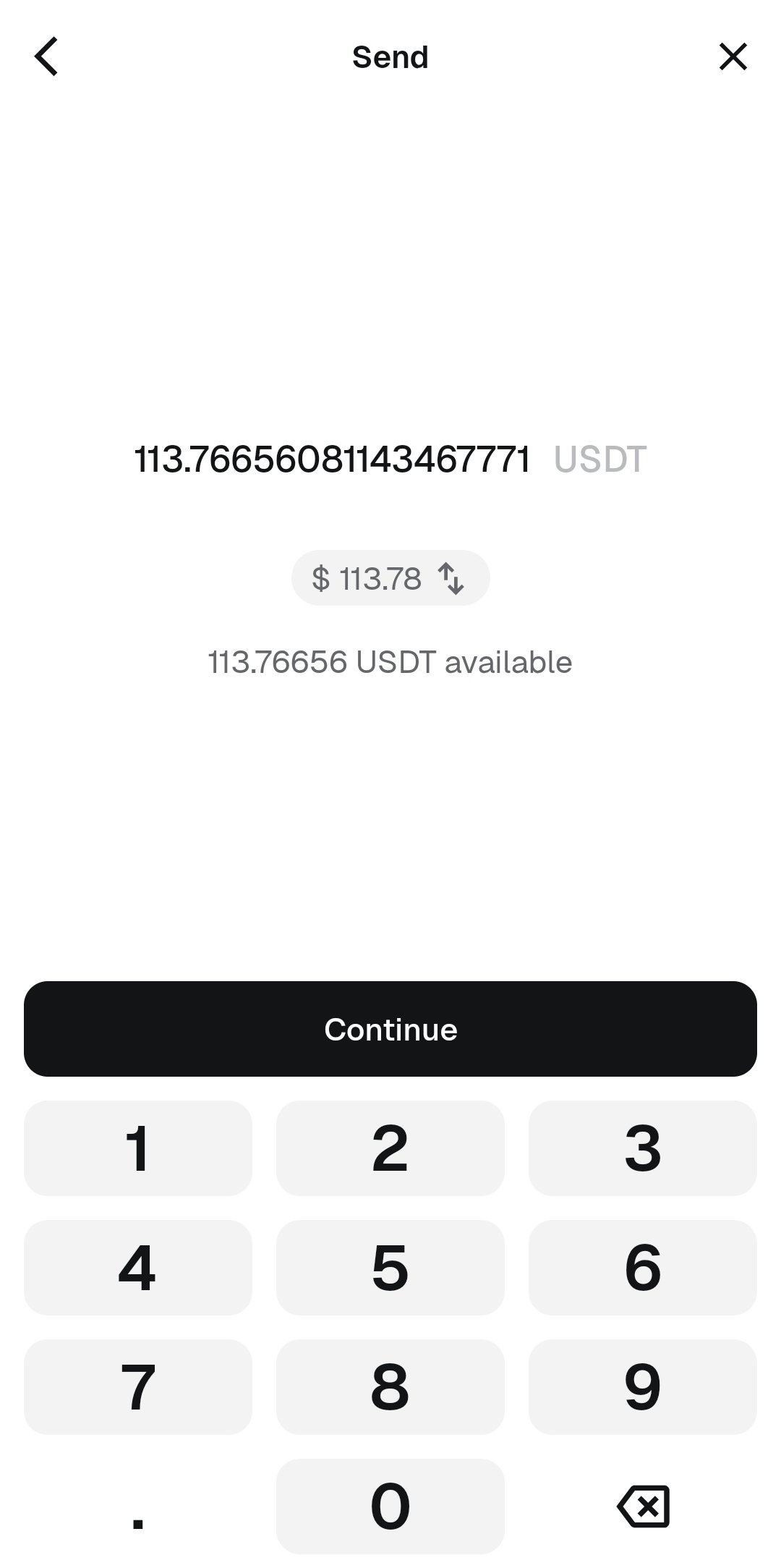
Select amount
Paste the address you copied in the QQPK app.
Paste address
Review the address and confirm.
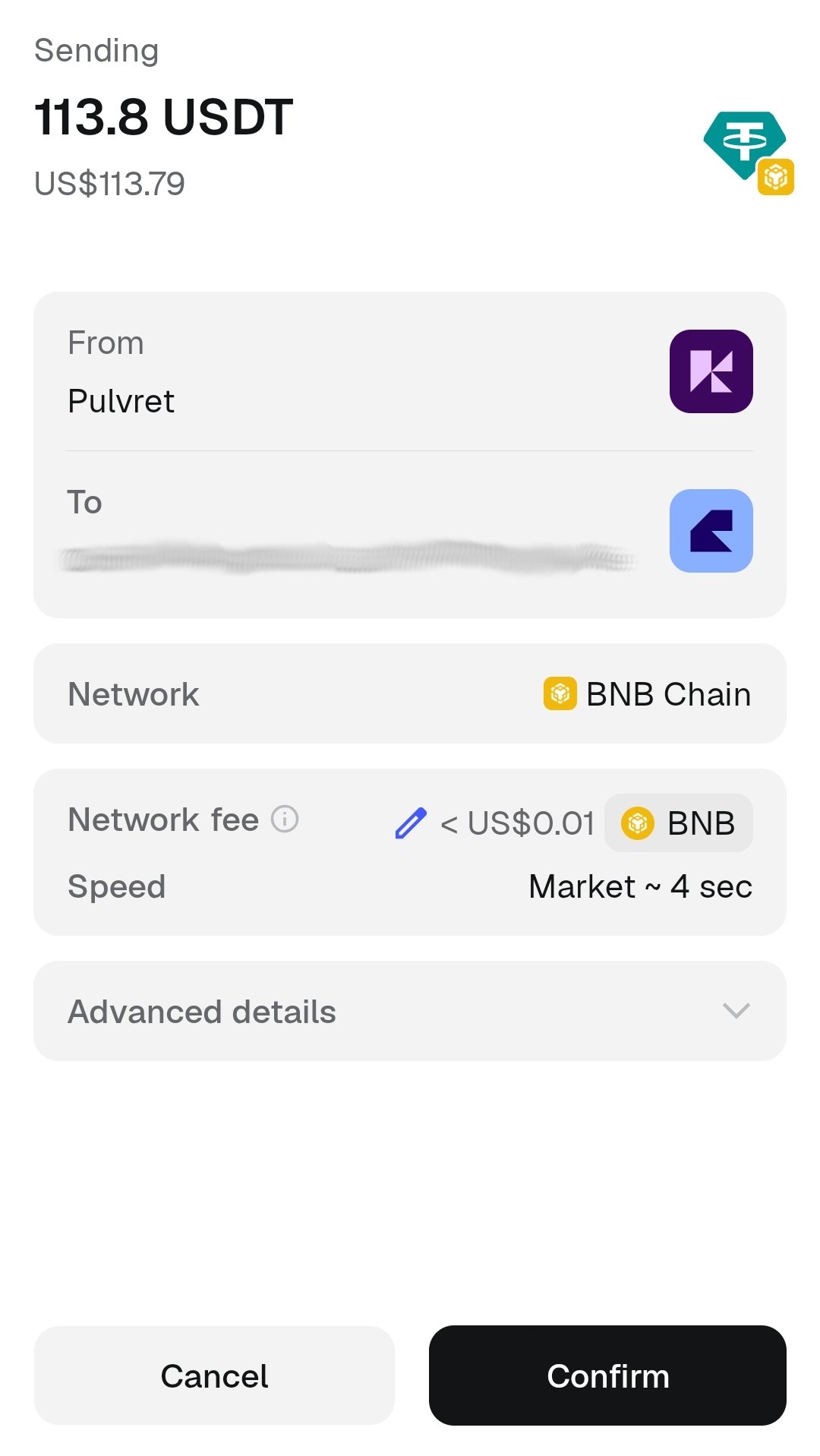
Review and confirm
The money arrives in seconds and the whole operation cost us 1.2% (assuming that we used CoinBase) plus less than a cent in gas money. You can reduce that if you're able to avoid the swap I had to do.